My Blinkie

Showing posts with label Christine Marie Kotlark. Show all posts
Showing posts with label Christine Marie Kotlark. Show all posts
Sunday, October 20, 2013

♥♥♥
Please click on TAG to see in full size.
••• Supplies needed to complete this tutorial. •••
________________________________________________________________________
Programs: Paint Shop Pro, I'm using version 10. Animation Shop 3.
Plugin : Eye Candy: Gradient Glow for name.
Font used: A&S Black Swan
Tube of choice: I'm using "Rush" by Christine Marie Kotlark from SATC.
Scrap Kit : I'm using "Roller Princess" by Bibi's Collection from SATC
My supplies HERE.
You will find the Mask 0179, the flames, the animations (SimoneAni-Rush).
________________________________________________________________________
♥♥♥
Save your tag often. Nothing like working long and hard on a tag and PSP crashes.
♥♥♥
Open a new image 700 x 700.
Select ALL.
Copy and paste INTO selection paper of choice. I used paper 3.
Select none.
Go to Adjust/ Brightness & Contrast/ Histogram Adjustment
Enter the following:
Low: 38
Gamma: 0.80
High: 239
Open Mask0179 and apply. Merge group.
Copy and paste the tube "Rush" and re-size by 82%.
If you are animating you must re-size by 82% otherwise, things won't match up.
I created the animation specifically for her hoop at this size.
Copy and paste element 29 as a new layer and re-size by 92%.
Duplicate and merge down. Add drop shadow.
Make sure this element is at bottom of tag behind your tube.
Making it appear like she's standing on the keys.
Copy and paste my frames element from supplies and position at bottom of tag behind your tube and the keyboard layers.
C/P element 42 as a new layer and move to lower left hand side of tag on the keyboard.
Add drop shadow.
C/P element 129 as a new layer. Re-size by 34% and position behind tube layer in the right upper hand corner.
Add drop shadow.
C/P element 78 as a new layer. Position behind flame layer and in the right lower hand corner of tag.
Add drop shadow.
C/P element 121 as a new layer and mirror. Re-size by 70% and position to right side of skull cone at the bottom.
Add drop shadow.
C/P element 30 as a new layer and position him on the barrel. Add drop shadow.
C/P element 112 as a new layer and re-size by 65% and position in the upper left hand side of tag.
Add drop shadow.
C/P element 66 and positon mid tag, beside the radio and below it in the layers palette.
Add drop shadow.
C/P element 26 and re-size by 75%. Position beside the pop bottle. Make it's below the drink layer in layers palette.
Add drop shadow.
C/P element 44 and move to right lower hand side of tag. Add drop shadow.
C/P element 101 and move in front of cupcake. Add drop shadow.
C/P element 27 and free rotate this layer to the left by 90 degrees. Re-size by 70% and add drop shadow.
Position over the mask layer in your layers palette and over on the right side of tag.
C/P element 45 and re-size by 28%. Move to the right side of tag and behind the cupcack layer. Add drop shadow.
C/P element 34 and position behind your tube. Using your selection tool, set to lasso, feather of zero, remove some of the pink heart. Add drop shadow.
I tripled my disco ball. Position one at top center and one to the left side of tag.
Add artist copyright.
Add your name or wait till after you've added the animations.
Merge visible.
For Animation: I'm using
I - SimoneAni-Rushbling, (will be on the hoop)
II - SimoneAni-RushSingeNote2 (single note add-on)
III- SimoneAni-RushMusicNotes (group of notes, coming from radio)
OK in PSP, select all, copy merged.
In Animation Shop, right click on your workspace and paste as a New Animation.
Holding the Ctrl key down, tap the L key repeatedly until you have 22 frames.
Open SimoneAni-Rushbling. Go to Edit, select All.
Go to Edit and Copy.
Back on your tag, activate by clicking it.
Go to Edit, Select all.
Go to Edit, make sure "Propagate Paste" is selected.
Go to Edit, Paste>Paste into selected frames.
Using your cursor, position on the right side of hoop, on the light green area.
See my screenshot.
Please click on TAG to see in full size.
••• Supplies needed to complete this tutorial. •••
________________________________________________________________________
Programs: Paint Shop Pro, I'm using version 10. Animation Shop 3.
Plugin : Eye Candy: Gradient Glow for name.
Font used: A&S Black Swan
Tube of choice: I'm using "Rush" by Christine Marie Kotlark from SATC.
Scrap Kit : I'm using "Roller Princess" by Bibi's Collection from SATC
My supplies HERE.
You will find the Mask 0179, the flames, the animations (SimoneAni-Rush).
________________________________________________________________________
♥♥♥
Save your tag often. Nothing like working long and hard on a tag and PSP crashes.
♥♥♥
Open a new image 700 x 700.
Select ALL.
Copy and paste INTO selection paper of choice. I used paper 3.
Select none.
Go to Adjust/ Brightness & Contrast/ Histogram Adjustment
Enter the following:
Low: 38
Gamma: 0.80
High: 239
Open Mask0179 and apply. Merge group.
Copy and paste the tube "Rush" and re-size by 82%.
If you are animating you must re-size by 82% otherwise, things won't match up.
I created the animation specifically for her hoop at this size.
Copy and paste element 29 as a new layer and re-size by 92%.
Duplicate and merge down. Add drop shadow.
Make sure this element is at bottom of tag behind your tube.
Making it appear like she's standing on the keys.
Copy and paste my frames element from supplies and position at bottom of tag behind your tube and the keyboard layers.
C/P element 42 as a new layer and move to lower left hand side of tag on the keyboard.
Add drop shadow.
C/P element 129 as a new layer. Re-size by 34% and position behind tube layer in the right upper hand corner.
Add drop shadow.
C/P element 78 as a new layer. Position behind flame layer and in the right lower hand corner of tag.
Add drop shadow.
C/P element 121 as a new layer and mirror. Re-size by 70% and position to right side of skull cone at the bottom.
Add drop shadow.
C/P element 30 as a new layer and position him on the barrel. Add drop shadow.
C/P element 112 as a new layer and re-size by 65% and position in the upper left hand side of tag.
Add drop shadow.
C/P element 66 and positon mid tag, beside the radio and below it in the layers palette.
Add drop shadow.
C/P element 26 and re-size by 75%. Position beside the pop bottle. Make it's below the drink layer in layers palette.
Add drop shadow.
C/P element 44 and move to right lower hand side of tag. Add drop shadow.
C/P element 101 and move in front of cupcake. Add drop shadow.
C/P element 27 and free rotate this layer to the left by 90 degrees. Re-size by 70% and add drop shadow.
Position over the mask layer in your layers palette and over on the right side of tag.
C/P element 45 and re-size by 28%. Move to the right side of tag and behind the cupcack layer. Add drop shadow.
C/P element 34 and position behind your tube. Using your selection tool, set to lasso, feather of zero, remove some of the pink heart. Add drop shadow.
I tripled my disco ball. Position one at top center and one to the left side of tag.
Add artist copyright.
Add your name or wait till after you've added the animations.
Merge visible.
For Animation: I'm using
I - SimoneAni-Rushbling, (will be on the hoop)
II - SimoneAni-RushSingeNote2 (single note add-on)
III- SimoneAni-RushMusicNotes (group of notes, coming from radio)
OK in PSP, select all, copy merged.
In Animation Shop, right click on your workspace and paste as a New Animation.
Holding the Ctrl key down, tap the L key repeatedly until you have 22 frames.
Open SimoneAni-Rushbling. Go to Edit, select All.
Go to Edit and Copy.
Back on your tag, activate by clicking it.
Go to Edit, Select all.
Go to Edit, make sure "Propagate Paste" is selected.
Go to Edit, Paste>Paste into selected frames.
Using your cursor, position on the right side of hoop, on the light green area.
See my screenshot.

Click play. If it looks good, move to the next step.
If not, go to Edit > Undo paste and try again.
Open SimoneAni-RushMusicNotes.
Repeat steps. Positon the note on the radio.
See screenshot.
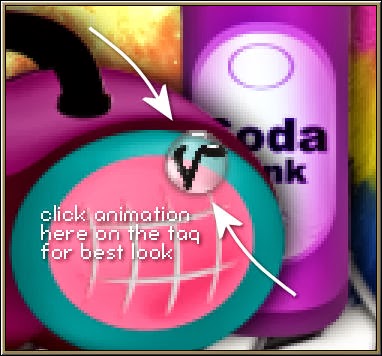
Open SimoneAni-RushSingeNote2. Select all and copy.
Paste on your tag just above the radio handle.
If happy with your tag, save.
Don't forget to add your name
To save:
Go to File, Save as, enter the name of your file and select the folder to save to.
Now click on Customize:
Under COLORS TAB:
Number of colors: 255 Colors
Create palette by: OPTIMIZED OCTREE
Reduce colors by: Error Diffusion
Under OPTIMIZATIONS TAB:
set a check mark beside the second, third and forth choices. UN-check the 1st and last.
Under PARTIAL TRANSPARENCY:
check Convert pixels less than 92
Yes, blend with this color: change to white #FFFFFF
Click OK. Click Next, next, next, next.
Play your animation.
At times your animation may or will come out terrible. Optimization in Animation Shop is not the greatest.
You can play around will your settings, especially under the Tab: Optimization. I change this setting at times from anywhere between 70 and 100.
Some people add a white background. To add background, go to Animation: Animation Properties, select Opaque and change color to white.
Hope you enjoyed this tutorial,
Hugs Simone
Please, always direct people to my blog to download my animations.
Do not load to any other download site and don't claim as your own.
Tutorial written by SophisticatSimone aka Lorraine Halle on Sunday October 20, 2013.
Monday, August 12, 2013

♥♥♥
Please click on TAG to see in full size.
••• Supplies needed to complete this tutorial. •••
________________________________________________________________________
Programs: Paint Shop Pro, I'm using version 10. Animation Shop 3.
Plugin : none
Font used: JeffrianaJF
Tube of choice: I'm using "GEEK SKULL" by Christine Marie Kotlark from SATC.
Scrap Kit : I'm using "Nerd" by Scrapz n Pleazure from SATC
Animation: SimoneAni-SexyGeek
Mask: 0113 HERE
________________________________________________________________________
♥♥♥
Save your tag often. Nothing like working long and hard on a tag and PSP crashes.
♥♥♥
Open Paper 4 and duplicate. Close original. Re-size the duplicate layer by 87% and 72 dpi.
Apply Mask 0113 and merge group.
Copy and paste your tube as a new layer. Using your selection tool set to rectangle, feather set to 30, surround the lower portion (legs) and delete.
De-select.
Click on your Mask layer to activate.
Copy and paste close up of your tube as a new layer.
Click on Mask layer, go to Selections > Select all.
Go to Selections > float.
Go to Selections > defloat.
Go to Selections > invert.
Now activate your close up and hit delete twice.
Go to Selections > select none.
Change the blend mode to Overlay.
Activate your tube layer.
Copy and paste element 9 as a new layer and re-size by 38% and 72 dpi. Position in lower right hand side of tag.
Copy and paste element 38 as a new layer and re-size by 25% and 72 dpi. Position in upper right hand side.
Copy and paste element 14 as a new layer and re-size by 33% and 72 dpi. Position in lower center of tag.
Copy and paste element 27 as a new layer and re-size by 45% and 72 dpi. Position in left lower hand side of tag.
Copy and paste element 26 as a new layer and re-size by 27% and 72 dpi. Position in lower center of tag.
Copy and paste element 29 as a new layer and position in left hand side of tag. Duplicate and move this one over behind your tube and make sure it's behind your
1st "purple locker" layer. Colorize. I chose this color #76a20a.
Copy and paste element 47 as a new layer and re-size by 18% and 72 dpi. Position on right hand side of tag.
Copy and paste element 34 as a new layer and re-size by 34% and 72 dpi. Position on right hand side of tag.
Duplicate and position on left side. Colorize the star on the right side. Highlight layer in layers palette, go to selections,
select all. Go to selection, modify, contract by 5. Select your Manual Color Correction tool and enter black as the Source color
and #76a20a as your target color.
Add artist copyright layer. Save your tag as a pspimage or psd file.
Now hide the download button layer (X-out).
Let's animate:First, copy your download button and right click and paste as a New animation in Animation Shop.
Go to Effects > Insert Image Effect.
Enter the following:
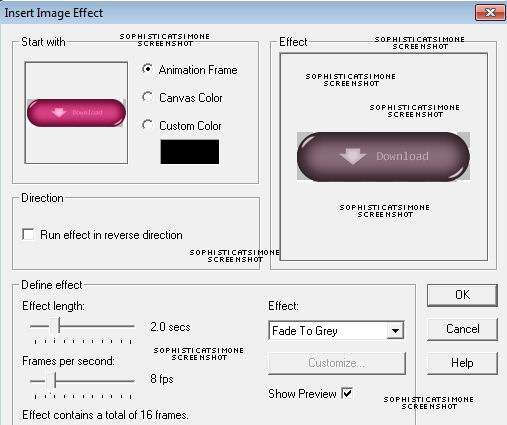
Now delete frame 2 and 8.
Back in PSP, go to selections > select all.
Go to Edit > Copy Merged.
In AS, right click and paste as a New animation.
Hold your Ctrl key down and repeatedly hit letter L on your keyboard for a total of 15 frames.
You can watch the count on the lower right hand side of your screen in AS.
Open SimoneAni-SexyGeek-001
Go to Edit, select all.
Go to Edit, copy.
Activate your tag.
Go to Edit, select all.
Go to Edit, make sure Propagate Paste is selected.
Go to Edit, Paste, paste into selected frames.
Position on your tag and click into place. I placed mine so the bottom lined up with the chalkboard.
Now activate the download button. Go to Edit, select all.
Go to Edit > Copy.
Back on your tag now, click to make it active.
Go to Edit, Paste. Paste into selected frames.
Position with your cursor so it's just above the arrow animation.
Click into place.
Open SimoneAni-SexyGeek-002
Go to Edit, select all.
Go to Edit, copy.
Activate your tag.
Position on your tag and click into place. I placed mine on the laptop screen.
Play and save.
Don't forget to add your name.
To save:
Go to File, Save as, enter the name of your file and select the folder to save to.
Now click on Customize:
Under COLORS TAB:
Number of colors: 255 Colors
Create palette by: OPTIMIZED OCTREE
Reduce colors by: Error Diffusion
Under OPTIMIZATIONS TAB:
set a check mark beside the second, third and forth choices. UN-check the 1st and last.
Under PARTIAL TRANSPARENCY:
check Convert pixels less than 92
Yes, blend with this color: change to white #FFFFFF
Click OK. Click Next, next, next, next.
Play your animation.
At times your animation may or will come out terrible. Optimization in Animation Shop is not the greatest.
You can play around will your settings, especially under the Tab: Optimization. I change this setting at times from anywhere between 70 and 100.
Some people add a white background. To add background, go to Animation: Animation Properties, select Opaque and change color to white.
Hope you enjoyed this tutorial,
Hugs Simone
Please, always direct people to my blog to download my animations.
Do not load to any other download site and don't claim as your own.
Tutorial written by SophisticatSimone aka Lorraine Halle on Monday August 12, 2013
Please click on TAG to see in full size.
••• Supplies needed to complete this tutorial. •••
________________________________________________________________________
Programs: Paint Shop Pro, I'm using version 10. Animation Shop 3.
Plugin : none
Font used: JeffrianaJF
Tube of choice: I'm using "GEEK SKULL" by Christine Marie Kotlark from SATC.
Scrap Kit : I'm using "Nerd" by Scrapz n Pleazure from SATC
Animation: SimoneAni-SexyGeek
Mask: 0113 HERE
________________________________________________________________________
♥♥♥
Save your tag often. Nothing like working long and hard on a tag and PSP crashes.
♥♥♥
Open Paper 4 and duplicate. Close original. Re-size the duplicate layer by 87% and 72 dpi.
Apply Mask 0113 and merge group.
Copy and paste your tube as a new layer. Using your selection tool set to rectangle, feather set to 30, surround the lower portion (legs) and delete.
De-select.
Click on your Mask layer to activate.
Copy and paste close up of your tube as a new layer.
Click on Mask layer, go to Selections > Select all.
Go to Selections > float.
Go to Selections > defloat.
Go to Selections > invert.
Now activate your close up and hit delete twice.
Go to Selections > select none.
Change the blend mode to Overlay.
Activate your tube layer.
Copy and paste element 9 as a new layer and re-size by 38% and 72 dpi. Position in lower right hand side of tag.
Copy and paste element 38 as a new layer and re-size by 25% and 72 dpi. Position in upper right hand side.
Copy and paste element 14 as a new layer and re-size by 33% and 72 dpi. Position in lower center of tag.
Copy and paste element 27 as a new layer and re-size by 45% and 72 dpi. Position in left lower hand side of tag.
Copy and paste element 26 as a new layer and re-size by 27% and 72 dpi. Position in lower center of tag.
Copy and paste element 29 as a new layer and position in left hand side of tag. Duplicate and move this one over behind your tube and make sure it's behind your
1st "purple locker" layer. Colorize. I chose this color #76a20a.
Copy and paste element 47 as a new layer and re-size by 18% and 72 dpi. Position on right hand side of tag.
Copy and paste element 34 as a new layer and re-size by 34% and 72 dpi. Position on right hand side of tag.
Duplicate and position on left side. Colorize the star on the right side. Highlight layer in layers palette, go to selections,
select all. Go to selection, modify, contract by 5. Select your Manual Color Correction tool and enter black as the Source color
and #76a20a as your target color.
Add artist copyright layer. Save your tag as a pspimage or psd file.
Now hide the download button layer (X-out).
Let's animate:First, copy your download button and right click and paste as a New animation in Animation Shop.
Go to Effects > Insert Image Effect.
Enter the following:
Now delete frame 2 and 8.
Back in PSP, go to selections > select all.
Go to Edit > Copy Merged.
In AS, right click and paste as a New animation.
Hold your Ctrl key down and repeatedly hit letter L on your keyboard for a total of 15 frames.
You can watch the count on the lower right hand side of your screen in AS.
Open SimoneAni-SexyGeek-001
Go to Edit, select all.
Go to Edit, copy.
Activate your tag.
Go to Edit, select all.
Go to Edit, make sure Propagate Paste is selected.
Go to Edit, Paste, paste into selected frames.
Position on your tag and click into place. I placed mine so the bottom lined up with the chalkboard.
Now activate the download button. Go to Edit, select all.
Go to Edit > Copy.
Back on your tag now, click to make it active.
Go to Edit, Paste. Paste into selected frames.
Position with your cursor so it's just above the arrow animation.
Click into place.
Open SimoneAni-SexyGeek-002
Go to Edit, select all.
Go to Edit, copy.
Activate your tag.
Position on your tag and click into place. I placed mine on the laptop screen.
Play and save.
Don't forget to add your name.
To save:
Go to File, Save as, enter the name of your file and select the folder to save to.
Now click on Customize:
Under COLORS TAB:
Number of colors: 255 Colors
Create palette by: OPTIMIZED OCTREE
Reduce colors by: Error Diffusion
Under OPTIMIZATIONS TAB:
set a check mark beside the second, third and forth choices. UN-check the 1st and last.
Under PARTIAL TRANSPARENCY:
check Convert pixels less than 92
Yes, blend with this color: change to white #FFFFFF
Click OK. Click Next, next, next, next.
Play your animation.
At times your animation may or will come out terrible. Optimization in Animation Shop is not the greatest.
You can play around will your settings, especially under the Tab: Optimization. I change this setting at times from anywhere between 70 and 100.
Some people add a white background. To add background, go to Animation: Animation Properties, select Opaque and change color to white.
Hope you enjoyed this tutorial,
Hugs Simone
Please, always direct people to my blog to download my animations.
Do not load to any other download site and don't claim as your own.
Tutorial written by SophisticatSimone aka Lorraine Halle on Monday August 12, 2013
Thursday, July 11, 2013

♥♥♥
Please click on TAG to see in full size.
••• Supplies needed to complete this tutorial. •••
________________________________________________________________________
Programs: Paint Shop Pro, I'm using version 10. Animation Shop 3.
Plugin : Eye Candy 4: Gradient Glow
Font used: SplendidOrnamenty
Tube of choice: I'm using "Royal Love" by Christine Marie Kotlark from CDO
Scrap Kit : I'm using "Cleopatra Kit" by SkyScraps no longer in business
Animation: SimoneAni-Royal Love
Mask: 0150 HERE
________________________________________________________________________
♥♥♥
Save your tag often. Nothing like working long and hard on a tag and PSP crashes.
♥♥♥
Open Paper 1 and duplicate and re-size by 83%. Go to Adjust and sharpen. Close original.
Have your mask open in psp, minimized.
Make sure your paper is active and go to Layers, New Mask Layer, from image.
Find your mask in drop down and apply.
Merge group in layers palette. Close your original mask it's no longer needed.
Copy and paste your tube as a new layer. Re-size if needed. I had to re-size my tube by 75%.
Copy and paste element 58 as a new layer and re-size by 84%. Move this element up on the tag.
Your tube layer should be lower on the tag.
Copy and paste element 48 as a new layer and re-size by 55%. Move in front of the man.
Copy and paste element 44 as a new layer and re-size by 55%. Position behind man and to the left side of tag.
Copy and paste element 41 as a new layer and re-size by 65%. Position behind cleopatra and to the right side of tag.
Copy and paste element 18 as a new layer and re-size by 65%. Position behind tube layer and between the couple.
Copy and paste element 24 as a new layer and re-size by 40%. Position behind tube layer and on top of trunk.
I had to enlarge my canvas at this point. Go to image, Canvas size and enter 730 as your new width.
Copy and paste element 3 as a new layer and re-size by 40%. Position to the right side of tag, in front of Cleopatra. Make sure a bit of her leg is covered.
Duplicate layer and mirror. Merge those two together. Re-position if needed. Make sure your cat isn't too covered.
Copy and paste element 6 as a new layer and re-size by 40%. Position to the right side of tag, behind Cleopatra.
Duplicate layer and move over to middle of tag. Merge those two together. Re-position if needed.
Add element 49 to the left side of tag, behind the elephant.
Add element 17 as a new layer and position as a carpet underneath your tube.
At this point I duplicate the pyramids and mirrored the layer. Move it lower on the tag, just a bit.
Add element 26 as a new layer. Re-size by 45%. Move to the right hand side of tag and add drop shadow.
Add element 25 as a new layer and re-size by 33%. Move behind your tube layer on the right side of tag and add drop shadow.
Add drop shadow to all your elements.
Add artist copyright and your license number.
Merge all visible.
If animating:
Go to Selections, select all.
Go to Edit and copy merged. Paste as a new animation in Animation Shop.
Hold your Ctrl key down and repeatedly hit letter L on your keyboard for a total of 16 frames.
You can watch the count on the lower right hand side of your screen in AS.
Open SimoneAni-Royal Love-Fire-001
Go to Edit, select all.
Go to Edit, copy.
Activate your tag.
Go to Edit, select all.
Go to Edit, make sure Propagate Paste is selected.
Go to Edit, Paste, paste into selected frames.
Position on your tag and click into place. Fire 1 animation should go on the left column.
Next:
Open SimoneAni-Royal Love-Fire-002
Go to Edit, select all.
Go to Edit, copy.
Activate your tag.
Go to Edit, Paste, paste into selected frames.
This ani (Fire-002) goes on the right sided column.
Play and save.
Don't forget to add your name.
To create name:
In PSP, open paper 2 from Cleopatra Kit and minimize.
Double click on your background color in Materials palette. Under Pattern tag, find the paper.
It should be close to the start. Angle 0, size 100.
Activate your font tool. Set to font of choice or the one I used: SplendidOrnamenty
Set size to 90, anti-alias: sharp, no stroke width, Kerning: 0.
Type name out.
Convert to Raster layer and duplicate.
On the bottom name layer, add Eye Candy Gradient Glow with the following settings:
Under Color tab select : Pride.
Under Basic tab select: width=5, corners=0, opacity=100. Leave check mark.
Add drop shadow.
Now on top name layer, add noise. Go to Adjust, add/remove noise, add noise, 94% Gaussian.
Merge down. Copy the merged name and paste in Animation Shop as a new animation.
Back in PSP, go to Edit and undo merge down, undo noise.
Go back to Adjust and add noise again, change to 96% Gaussian. Merge down and copy merged name.
In AS right click on frame 1 (the name frame) and paste after current frame.
Go back to PSP and repeat undo. Change noise to 98%. Add this name to the last frame (name ani) in AS.
OK you should have 3 frames. Go to Edit, select all.
Go to Edit and copy.
Activate your tag. Go to Edit and Select all.
Go to Edit and paste, Paste into selected Frames. Position at the bottom of tag.
Delete frame 16. Play and save!
To save:
Go to File, Save as, enter the name of your file and select the folder to save to.
Now click on Customize:
Under COLORS TAB:
Number of colors: 255 Colors
Create palette by: OPTIMIZED OCTREE
Reduce colors by: Error Diffusion
Under OPTIMIZATIONS TAB:
set a check mark beside the second, third and forth choices. UN-check the 1st and last.
Under PARTIAL TRANSPARENCY:
check Convert pixels less than 92
Yes, blend with this color: change to white #FFFFFF
Click OK. Click Next, next, next, next.
Play your animation.
At times your animation may or will come out terrible. Optimization in Animation Shop is not the greatest.
You can play around will your settings, especially under the Tab: Optimization. I change this setting at times from anywhere between 70 and 100.
Some people add a white background. To add background, go to Animation: Animation Properties, select Opaque and change color to white.
Hope you enjoyed this tutorial,
Hugs Simone
Please, always direct people to my blog to download my animations.
Do not load to any other download site and don't claim as your own.
Tutorial written by SophisticatSimone aka Lorraine Halle on Thursday July 11, 2013
Please click on TAG to see in full size.
••• Supplies needed to complete this tutorial. •••
________________________________________________________________________
Programs: Paint Shop Pro, I'm using version 10. Animation Shop 3.
Plugin : Eye Candy 4: Gradient Glow
Font used: SplendidOrnamenty
Tube of choice: I'm using "Royal Love" by Christine Marie Kotlark from CDO
Scrap Kit : I'm using "Cleopatra Kit" by SkyScraps no longer in business
Animation: SimoneAni-Royal Love
Mask: 0150 HERE
________________________________________________________________________
♥♥♥
Save your tag often. Nothing like working long and hard on a tag and PSP crashes.
♥♥♥
Open Paper 1 and duplicate and re-size by 83%. Go to Adjust and sharpen. Close original.
Have your mask open in psp, minimized.
Make sure your paper is active and go to Layers, New Mask Layer, from image.
Find your mask in drop down and apply.
Merge group in layers palette. Close your original mask it's no longer needed.
Copy and paste your tube as a new layer. Re-size if needed. I had to re-size my tube by 75%.
Copy and paste element 58 as a new layer and re-size by 84%. Move this element up on the tag.
Your tube layer should be lower on the tag.
Copy and paste element 48 as a new layer and re-size by 55%. Move in front of the man.
Copy and paste element 44 as a new layer and re-size by 55%. Position behind man and to the left side of tag.
Copy and paste element 41 as a new layer and re-size by 65%. Position behind cleopatra and to the right side of tag.
Copy and paste element 18 as a new layer and re-size by 65%. Position behind tube layer and between the couple.
Copy and paste element 24 as a new layer and re-size by 40%. Position behind tube layer and on top of trunk.
I had to enlarge my canvas at this point. Go to image, Canvas size and enter 730 as your new width.
Copy and paste element 3 as a new layer and re-size by 40%. Position to the right side of tag, in front of Cleopatra. Make sure a bit of her leg is covered.
Duplicate layer and mirror. Merge those two together. Re-position if needed. Make sure your cat isn't too covered.
Copy and paste element 6 as a new layer and re-size by 40%. Position to the right side of tag, behind Cleopatra.
Duplicate layer and move over to middle of tag. Merge those two together. Re-position if needed.
Add element 49 to the left side of tag, behind the elephant.
Add element 17 as a new layer and position as a carpet underneath your tube.
At this point I duplicate the pyramids and mirrored the layer. Move it lower on the tag, just a bit.
Add element 26 as a new layer. Re-size by 45%. Move to the right hand side of tag and add drop shadow.
Add element 25 as a new layer and re-size by 33%. Move behind your tube layer on the right side of tag and add drop shadow.
Add drop shadow to all your elements.
Add artist copyright and your license number.
Merge all visible.
If animating:
Go to Selections, select all.
Go to Edit and copy merged. Paste as a new animation in Animation Shop.
Hold your Ctrl key down and repeatedly hit letter L on your keyboard for a total of 16 frames.
You can watch the count on the lower right hand side of your screen in AS.
Open SimoneAni-Royal Love-Fire-001
Go to Edit, select all.
Go to Edit, copy.
Activate your tag.
Go to Edit, select all.
Go to Edit, make sure Propagate Paste is selected.
Go to Edit, Paste, paste into selected frames.
Position on your tag and click into place. Fire 1 animation should go on the left column.
Next:
Open SimoneAni-Royal Love-Fire-002
Go to Edit, select all.
Go to Edit, copy.
Activate your tag.
Go to Edit, Paste, paste into selected frames.
This ani (Fire-002) goes on the right sided column.
Play and save.
Don't forget to add your name.
To create name:
In PSP, open paper 2 from Cleopatra Kit and minimize.
Double click on your background color in Materials palette. Under Pattern tag, find the paper.
It should be close to the start. Angle 0, size 100.
Activate your font tool. Set to font of choice or the one I used: SplendidOrnamenty
Set size to 90, anti-alias: sharp, no stroke width, Kerning: 0.
Type name out.
Convert to Raster layer and duplicate.
On the bottom name layer, add Eye Candy Gradient Glow with the following settings:
Under Color tab select : Pride.
Under Basic tab select: width=5, corners=0, opacity=100. Leave check mark.
Add drop shadow.
Now on top name layer, add noise. Go to Adjust, add/remove noise, add noise, 94% Gaussian.
Merge down. Copy the merged name and paste in Animation Shop as a new animation.
Back in PSP, go to Edit and undo merge down, undo noise.
Go back to Adjust and add noise again, change to 96% Gaussian. Merge down and copy merged name.
In AS right click on frame 1 (the name frame) and paste after current frame.
Go back to PSP and repeat undo. Change noise to 98%. Add this name to the last frame (name ani) in AS.
OK you should have 3 frames. Go to Edit, select all.
Go to Edit and copy.
Activate your tag. Go to Edit and Select all.
Go to Edit and paste, Paste into selected Frames. Position at the bottom of tag.
Delete frame 16. Play and save!
To save:
Go to File, Save as, enter the name of your file and select the folder to save to.
Now click on Customize:
Under COLORS TAB:
Number of colors: 255 Colors
Create palette by: OPTIMIZED OCTREE
Reduce colors by: Error Diffusion
Under OPTIMIZATIONS TAB:
set a check mark beside the second, third and forth choices. UN-check the 1st and last.
Under PARTIAL TRANSPARENCY:
check Convert pixels less than 92
Yes, blend with this color: change to white #FFFFFF
Click OK. Click Next, next, next, next.
Play your animation.
At times your animation may or will come out terrible. Optimization in Animation Shop is not the greatest.
You can play around will your settings, especially under the Tab: Optimization. I change this setting at times from anywhere between 70 and 100.
Some people add a white background. To add background, go to Animation: Animation Properties, select Opaque and change color to white.
Hope you enjoyed this tutorial,
Hugs Simone
Please, always direct people to my blog to download my animations.
Do not load to any other download site and don't claim as your own.
Tutorial written by SophisticatSimone aka Lorraine Halle on Thursday July 11, 2013
Friday, July 5, 2013

♥♥♥
Please click on TAG to see in full size.
••• Supplies needed to complete this tutorial. •••
________________________________________________________________________
Programs: Paint Shop Pro, I'm using version 10. Animation Shop 3.
Plugin : Eye Candy 4: Gradient Glow for name
Font used: LD Edward
Tube of choice: I'm using "Christine" by Christine Marie Kotlark from CDO.
Scrap Kit : I'm using "Twilight" by SkyScraps from SATC (no longer in business)
Animation: SimoneAni-DarkMagic
Mask: 0145 HERE
________________________________________________________________________
♥♥♥
Save your tag often. Nothing like working long and hard on a tag and PSP crashes.
♥♥♥
Open Paper 2, Mask0145, and open a new image 700 x 700 transparent.
Copy your paper.
Activate your blank canvas and go to Selections, select all.
Go to Edit, Paste, Paste into selection.
De-select. Go to Selections, select none.
Close original paper.
Apply mask. Go to Layers, new mask layer, from image and search your drop down box for Mask0145 and apply.
Merge group.
Close Mask.
Copy and paste your tube as a new layer. I selected the medium sized tube from Christine Marie Kotlark.
Re-size by 76%. Add drop shadow. Close original tube.
C/P element 20 as a new layer on top of your tube layer and re-size by 85%. Add drop shadow.
C/P element 18 as a new layer and re-size by 60%. Add drop shadow. Move this layer behind your tube and to the left.
C/P element Wolf1 as a new layer and re-size by 60%. Add drop shadow. Move this layer behind your tube and to the
right.
C/P element 10 as a new layer and re-size by 60%. Move to the left and over the grave marker.
C/P element Flower2 as a new layer and move to upper right side of tag, behind your tube and your wolf layers.
Add drop shadow. Duplicate and mirror. Merge together.
Make sure all your layers have drop shadows.
Add artist copyright and your license number.
Save your tag as pspimage.
Ok now merge the following layers together. The flower layer, the grave maker, the black wolf and the mask layer.
This is your bottom layer. Hide this layer (click eye on layer, in layers palette). Activate the tube layer and right click
merge all visible. UN-hide your bottom layer.
Now to animate.
Making sure your merged BOTTOM layer is selected,
Go to Selections, select all.
Go to Edit and copy merged. Paste as a new animation in Animation Shop.
Hold your Ctrl key down and repeatedly hit letter L on your keyboard for a total of 15 frames.
You can watch the count on the lower right hand side of your screen in AS.
Open SimoneAni-DarkMagic-001
Go to Edit, select all.
Go to Edit, copy.
Activate your tag.
Go to Edit, select all.
Go to Edit, make sure Propagate Paste is selected.
Go to Edit, Paste, paste into selected frames. See my screenshot.
Move your cursor around on the tag and you will see a little star, place that on the right hand side,
near edge of mask.
Go back to PSP now and highlight (activate) your tube layer and copy.
Paste as a NEW animation in AS.
Go to Edit, copy.
Activate your tag.
IMPORTANT PART!
Before you click into place, do the following.
On your active tag, place a registration Mark.
Click on the cross icon on your tool bar at top in AS, and select Spanning Cross under Mark Style.
Now with your cursor move the mark on your tiny sparkle animation.
Go to Edit, select all. Go to Edit, Paste, paste into selected frames.
IMPORTANT AGAIN!
So with your cursor you will move your top layer around positioning it as precisely as possible.
JUST BEFORE you click into place, take a screen shot.
Screenshot key is on your keyboard: prt scr/sys rq.
Click into place now.
Right click on your workspace and paste as a NEW animation.
Grab your crop tool and just select the area that shows your sparkle ani with the cross over-top it.
Make sure this image is visible to you because when placing the second animation you will need to rely on this visual aid.
To remove spanning cross, click "Clear" at top tool bar.
Ok activate SimoneAni-DarkMagic-002.
Go to Edit, select all.
Go to Edit and copy.
Activate your tag.
Go to Edit, select all.
Go to Edit, Paste, paste into selected frames.
Move your cursor around on the tag and place on the right hand side, near edge of mask.
Look over at your reference and you should be placing it just over the tree trunk on the right side of tag.
Play and save.
Don't forget to add your name.
To save:
Go to File, Save as, enter the name of your file and select the folder to save to.
Now click on Customize:
Under COLORS TAB:
Number of colors: 255 Colors
Create palette by: OPTIMIZED OCTREE
Reduce colors by: Error Diffusion
Under OPTIMIZATIONS TAB:
set a check mark beside the second, third and forth choices. UN-check the 1st and last.
Under PARTIAL TRANSPARENCY:
check Convert pixels less than 92
Yes, blend with this color: change to white #FFFFFF
Click OK. Click Next, next, next, next.
Play your animation.
At times your animation may or will come out terrible. Optimization in Animation Shop is not the greatest.
You can play around will your settings, especially under the Tab: Optimization. I change this setting at times from anywhere between 70 and 100.
Some people add a white background. To add background, go to Animation: Animation Properties, select Opaque and change color to white.
Hope you enjoyed this tutorial,
Hugs Simone
Please, always direct people to my blog to download my animations.
Do not load to any other download site and don't claim as your own.
Tutorial written by SophisticatSimone aka Lorraine Halle on Friday July 5, 2013.
Please click on TAG to see in full size.
••• Supplies needed to complete this tutorial. •••
________________________________________________________________________
Programs: Paint Shop Pro, I'm using version 10. Animation Shop 3.
Plugin : Eye Candy 4: Gradient Glow for name
Font used: LD Edward
Tube of choice: I'm using "Christine" by Christine Marie Kotlark from CDO.
Scrap Kit : I'm using "Twilight" by SkyScraps from SATC (no longer in business)
Animation: SimoneAni-DarkMagic
Mask: 0145 HERE
________________________________________________________________________
♥♥♥
Save your tag often. Nothing like working long and hard on a tag and PSP crashes.
♥♥♥
Open Paper 2, Mask0145, and open a new image 700 x 700 transparent.
Copy your paper.
Activate your blank canvas and go to Selections, select all.
Go to Edit, Paste, Paste into selection.
De-select. Go to Selections, select none.
Close original paper.
Apply mask. Go to Layers, new mask layer, from image and search your drop down box for Mask0145 and apply.
Merge group.
Close Mask.
Copy and paste your tube as a new layer. I selected the medium sized tube from Christine Marie Kotlark.
Re-size by 76%. Add drop shadow. Close original tube.
C/P element 20 as a new layer on top of your tube layer and re-size by 85%. Add drop shadow.
C/P element 18 as a new layer and re-size by 60%. Add drop shadow. Move this layer behind your tube and to the left.
C/P element Wolf1 as a new layer and re-size by 60%. Add drop shadow. Move this layer behind your tube and to the
right.
C/P element 10 as a new layer and re-size by 60%. Move to the left and over the grave marker.
C/P element Flower2 as a new layer and move to upper right side of tag, behind your tube and your wolf layers.
Add drop shadow. Duplicate and mirror. Merge together.
Make sure all your layers have drop shadows.
Add artist copyright and your license number.
Save your tag as pspimage.
Ok now merge the following layers together. The flower layer, the grave maker, the black wolf and the mask layer.
This is your bottom layer. Hide this layer (click eye on layer, in layers palette). Activate the tube layer and right click
merge all visible. UN-hide your bottom layer.
Now to animate.
Making sure your merged BOTTOM layer is selected,
Go to Selections, select all.
Go to Edit and copy merged. Paste as a new animation in Animation Shop.
Hold your Ctrl key down and repeatedly hit letter L on your keyboard for a total of 15 frames.
You can watch the count on the lower right hand side of your screen in AS.
Open SimoneAni-DarkMagic-001
Go to Edit, select all.
Go to Edit, copy.
Activate your tag.
Go to Edit, select all.
Go to Edit, make sure Propagate Paste is selected.
Go to Edit, Paste, paste into selected frames. See my screenshot.
Move your cursor around on the tag and you will see a little star, place that on the right hand side,
near edge of mask.
Go back to PSP now and highlight (activate) your tube layer and copy.
Paste as a NEW animation in AS.
Go to Edit, copy.
Activate your tag.
IMPORTANT PART!
Before you click into place, do the following.
On your active tag, place a registration Mark.
Click on the cross icon on your tool bar at top in AS, and select Spanning Cross under Mark Style.
Now with your cursor move the mark on your tiny sparkle animation.
Go to Edit, select all. Go to Edit, Paste, paste into selected frames.
IMPORTANT AGAIN!
So with your cursor you will move your top layer around positioning it as precisely as possible.
JUST BEFORE you click into place, take a screen shot.
Screenshot key is on your keyboard: prt scr/sys rq.
Click into place now.
Right click on your workspace and paste as a NEW animation.
Grab your crop tool and just select the area that shows your sparkle ani with the cross over-top it.
Make sure this image is visible to you because when placing the second animation you will need to rely on this visual aid.
To remove spanning cross, click "Clear" at top tool bar.
Ok activate SimoneAni-DarkMagic-002.
Go to Edit, select all.
Go to Edit and copy.
Activate your tag.
Go to Edit, select all.
Go to Edit, Paste, paste into selected frames.
Move your cursor around on the tag and place on the right hand side, near edge of mask.
Look over at your reference and you should be placing it just over the tree trunk on the right side of tag.
Play and save.
Don't forget to add your name.
To save:
Go to File, Save as, enter the name of your file and select the folder to save to.
Now click on Customize:
Under COLORS TAB:
Number of colors: 255 Colors
Create palette by: OPTIMIZED OCTREE
Reduce colors by: Error Diffusion
Under OPTIMIZATIONS TAB:
set a check mark beside the second, third and forth choices. UN-check the 1st and last.
Under PARTIAL TRANSPARENCY:
check Convert pixels less than 92
Yes, blend with this color: change to white #FFFFFF
Click OK. Click Next, next, next, next.
Play your animation.
At times your animation may or will come out terrible. Optimization in Animation Shop is not the greatest.
You can play around will your settings, especially under the Tab: Optimization. I change this setting at times from anywhere between 70 and 100.
Some people add a white background. To add background, go to Animation: Animation Properties, select Opaque and change color to white.
Hope you enjoyed this tutorial,
Hugs Simone
Please, always direct people to my blog to download my animations.
Do not load to any other download site and don't claim as your own.
Tutorial written by SophisticatSimone aka Lorraine Halle on Friday July 5, 2013.


Monday, June 24, 2013

♥♥♥
Please click on TAG to see in full size.
••• Supplies needed to complete this tutorial. •••
________________________________________________________________________
Programs: Paint Shop Pro, I'm using version 10. Animation Shop 3.
Plugin : Gradient Glow Eye Candy 4 for the name
Font used: LD Newborn Vampire
Tube of choice: I'm using "Night Crawler" by Christine Marie Kotlark from SATC.
Scrap Kit : I'm using "Army Girl" by SkyScraps from SATC
Animation: none
Mask: 0116 HERE
________________________________________________________________________
♥♥♥
Save your tag often. Nothing like working long and hard on a tag and PSP crashes.
♥♥♥
Open new canvas 650 x 650. Paste a paper of choice and crop merged opaque. Apply mask and merge group.
C/P your tube as a new layer and re-size if it's too large. I re-sized my tube by 70%. Add drop shadow.
C/P element 51 as a new layer and re-size by 70%. Move this layer below your tube layer. Add drop shadow.
C/P element 72 as a new layer and re-size by 50%. Move to left side of your tube. Add drop shadow.
C/P element 70 as a new layer and position at bottom of frame under your tube. Duplicate.
C/P element 68 as a new layer and duplicate. Place one on the left hand side of frame and the other on the right hand side.
Make sure these are below the frame in the layer palette.
Merge them together.
Select you magic wand, feather 0 and click inside the frame. Selection/modify/expand by 8. Delete the excess trees you see in the center.
Repeat this process for anything further we place behind the frame layer.
C/P element 31 as a new layer and position upper left hand side of frame. Delete extra in center of frame.
C/P element 57 as a new layer and re-size by 70%. Position in front of frame and behind your tube. Place on the lower right hand side of frame.
C/P element 73 as a new layer and re-size by 30%. Position on the upper left hand side of frame.
C/P element 5 as a new layer and re-size by 70%. Mirror. Position on the lower right hand side of frame and over the barrels.
Now within the frame (circle), paste the army tank and element 67. To remove extra, just click in the circle with magic wand and invert select. In layers palette click on tank, delete and then click on element 67 and delete.
Add element 20 on the right side of frame (behind) and delete the extra from the center.
C/P element 21 as a new layer and re-size by 60%. Position at bottom of tag and just under your tubes hands on the ground.
Add drop shadow to all layers.
Add artist copyright and merge all visible.
Add name.
Merge all visible and save as a PNG.
Hope you enjoyed this tutorial,
Hugs Simone
Please, always direct people to my blog to download my animations.
Do not load to any other download site and don't claim as your own.
Tutorial written by SophisticatSimone aka Lorraine Halle on Monday June 24, 2013.
Please click on TAG to see in full size.
••• Supplies needed to complete this tutorial. •••
________________________________________________________________________
Programs: Paint Shop Pro, I'm using version 10. Animation Shop 3.
Plugin : Gradient Glow Eye Candy 4 for the name
Font used: LD Newborn Vampire
Tube of choice: I'm using "Night Crawler" by Christine Marie Kotlark from SATC.
Scrap Kit : I'm using "Army Girl" by SkyScraps from SATC
Animation: none
Mask: 0116 HERE
________________________________________________________________________
♥♥♥
Save your tag often. Nothing like working long and hard on a tag and PSP crashes.
♥♥♥
Open new canvas 650 x 650. Paste a paper of choice and crop merged opaque. Apply mask and merge group.
C/P your tube as a new layer and re-size if it's too large. I re-sized my tube by 70%. Add drop shadow.
C/P element 51 as a new layer and re-size by 70%. Move this layer below your tube layer. Add drop shadow.
C/P element 72 as a new layer and re-size by 50%. Move to left side of your tube. Add drop shadow.
C/P element 70 as a new layer and position at bottom of frame under your tube. Duplicate.
C/P element 68 as a new layer and duplicate. Place one on the left hand side of frame and the other on the right hand side.
Make sure these are below the frame in the layer palette.
Merge them together.
Select you magic wand, feather 0 and click inside the frame. Selection/modify/expand by 8. Delete the excess trees you see in the center.
Repeat this process for anything further we place behind the frame layer.
C/P element 31 as a new layer and position upper left hand side of frame. Delete extra in center of frame.
C/P element 57 as a new layer and re-size by 70%. Position in front of frame and behind your tube. Place on the lower right hand side of frame.
C/P element 73 as a new layer and re-size by 30%. Position on the upper left hand side of frame.
C/P element 5 as a new layer and re-size by 70%. Mirror. Position on the lower right hand side of frame and over the barrels.
Now within the frame (circle), paste the army tank and element 67. To remove extra, just click in the circle with magic wand and invert select. In layers palette click on tank, delete and then click on element 67 and delete.
Add element 20 on the right side of frame (behind) and delete the extra from the center.
C/P element 21 as a new layer and re-size by 60%. Position at bottom of tag and just under your tubes hands on the ground.
Add drop shadow to all layers.
Add artist copyright and merge all visible.
Add name.
Merge all visible and save as a PNG.
Hope you enjoyed this tutorial,
Hugs Simone
Please, always direct people to my blog to download my animations.
Do not load to any other download site and don't claim as your own.
Tutorial written by SophisticatSimone aka Lorraine Halle on Monday June 24, 2013.
Friday, May 24, 2013

♥♥♥
Please click on TAG to see in full size.
••• Supplies needed to complete this tutorial. •••
________________________________________________________________________
Programs: Paint Shop Pro, I'm using version 10. Animation Shop 3.
Plugin : Eye Candy: Gradient Glow for name.
Font used: Brahn Mufun
Tube of choice: I'm using "Billy" by Christine Marie Kotlark
Please click on TAG to see in full size.
••• Supplies needed to complete this tutorial. •••
________________________________________________________________________
Programs: Paint Shop Pro, I'm using version 10. Animation Shop 3.
Plugin : Eye Candy: Gradient Glow for name.
Font used: Brahn Mufun
Tube of choice: I'm using "Billy" by Christine Marie Kotlark
Scrap Kit : I'm using "Hallows Eve" by SkyScrap no longer in business
Animation: I'm using my own, SimoneAni-Where's Billy Tutorial
________________________________________________________________________
♥♥♥
Save your tag often. Nothing like working long and hard on a tag and PSP crashes.
♥♥♥
Open a new image size 750 x 685. We can re-size at the end.
Copy and paste element 83 as a new layer on your canvas. Activate your selection tool, set to Freehand Select.
Type: Point to point
Mode: Add(shift)
Feather: 5
Smoothing: 0
Anti-alias: checked.
Just remove the extra little dots at the top of this element.
See screenshot.
Animation: I'm using my own, SimoneAni-Where's Billy Tutorial
________________________________________________________________________
♥♥♥
Save your tag often. Nothing like working long and hard on a tag and PSP crashes.
♥♥♥
Open a new image size 750 x 685. We can re-size at the end.
Copy and paste element 83 as a new layer on your canvas. Activate your selection tool, set to Freehand Select.
Type: Point to point
Mode: Add(shift)
Feather: 5
Smoothing: 0
Anti-alias: checked.
Just remove the extra little dots at the top of this element.
See screenshot.

Once I selected my area I hit delete twice on keyboard.
Go to selections, select none.
Using your mover tool, drag this element to the upper right hand side of tag.
Duplicate and mirror. Merge them together.
Duplicate and flip. Merge them together.
This will be our background.

Now re-size it by 94% and move it up a little bit. Merge down.
Go to Adjust and sharpen.
Copy and paste your tube Billy. If you are using the same tube as new re-size and drag him down till his chopped off feet/ankles are about flush with the lower edge of your background.
See Screenshot.

Now grab your selection tool, set to rectangle, same feather. Drag out a rectangle starting below his hands/knees and down past his non existing feet.
Add a new layer. Drag this layer below him in layers palette.
Select your flood fill tool and set background color to black.
Fill the layer. This is his little mat.
Go to Selections, select none.
Copy and paste element 52 as a new layer and re-size by 90%. Move higher up on your canvas. Add drop shadow.
V=-2 H=2 Opacity=90 Blur=5 Color=black
Open element 34 and using your selection tool set to rectangle again, select only the top portion of this element.
Go to Edit and copy.
Activate your tag and paste as a new layer. Re-size by 90% and move to left side of tag. Duplicate and re-size by 80% and move this to the right side. Add drop shadow to each and merge them together.
Copy and paste element 30 as a new layer and re-size by 80%. Should be over the black wiggly swirls and behind Billy. Add drop shadow.
Copy and paste element 54 as a new layer and re-size by 80%. Position lower behind your tube so it appears like his elbows are resting on the trunk and crate. Add drop shadow.
Copy and paste element 28 as a new layer and re-size by 80%. Position so the white skull on right side is at bottom corner of crate element.
Add drop shadow. Duplicate and drag over to the left, having some of the grass over the trunk. You can merge these together.
Copy and paste image 42 as a new layer and re-size by 36%. Position to the right side of tag. Place him on the edge of crate. Add drop shadow. I added a bigger blur to him and H=3.
Copy and paste element 2 as a new layer. Move this layer to the top. Re-size by 86%. Move it over to the left. Add drop shadow.
Grab your selection tool set to rectangle again, feather 0. You are going to select a portion of your tube and move up above a few of the branches. So make sure you get his head and his upper right shoulder and chest area. See my screen shot.

Promote selection to layer. In layers palette, drag the promoted layer above the tree element.
Your layers should appear like this:

Lock your layers. So on the tube layer click the the lock icon in the layers palette and make sure it says 1. On the promoted Selection (his head) click on lock and make sure it's set to 1 as well. That way if you happen to move them around they will always stay together. If you need to unlock just click on the lock until it goes to "none".
Copy and paste element 50 as a new layer and re-size by 70%. Position to the left and in front of the tree. Add drop shadow.
Copy and paste element 55 as a new layer and re-size by 45%. Position to the right of the bucket and in front of your tube. Add drop shadow.
Copy and paste element 56 as a new layer and re-size by 35%. Position to the right side of tag and in front of Billy's left foot. Add drop shadow.
Copy and paste element 80 as a new layer and re-size by 50%. Mirror and position to the right side of tag. Should be next to his leg. This layer should be below the other rat layer, so it appears behind it on the tag. Add drop shadow.
Copy and paste element 38 as a new layer and re-size by 40%. Move these grey leaves to the left side of the tag, down in front. Place this layer between the vase layer and the bucket layer.
Duplicate layer and mirror. Move this layer behind the bucket layer.
Duplicate this layer now and mirror. It should appear to the right side of tag, behind the rat and books layer.
Duplicate layer and drag to center in front of Billy.
Duplicate that layer and re-size by 50% and move this in front of rat with books. Just as a filler. It seemed a little empty to me in that area.
Make sure you add drop shadow to each of these layers.
Activate your crop tool and under Snap Crop Rectangle to: select Merged Opaque.
Merge visible.
Add artist copyright and scrap kit maker credit.
If not animating, add your name and save as PNG.
If animating
Go to Selections, select all.
Go to Edit and copy merged. Paste as a new animation in Animation Shop.
Hold your Ctrl key down and repeatedly hit letter L on your keyboard for a total of 20 frames.
You can watch the count on the lower right hand side of your screen in AS.
Open SimoneAni-Where's Billy Tutorial
Go to Edit, select all.
Go to Edit, copy.
Activate your tag.
Go to Edit, select all.
Go to Edit, make sure Propagate Paste is selected.
Go to Edit, Paste, paste into selected frames.
Position on your tag and click into place.
Play and save.
Don't forget to add your name.
You can see my name tutorial HERE.
To save:
Go to File, Save as, enter the name of your file and select the folder to save to.
Now click on Customize:
Under COLORS TAB:
Number of colors: 255 Colors
Create palette by: OPTIMIZED OCTREE
Reduce colors by: Error Diffusion
Under OPTIMIZATIONS TAB:
set a check mark beside the second, third and forth choices. UN-check the 1st and last.
Under PARTIAL TRANSPARENCY:
check Convert pixels less than 92
Yes, blend with this color: change to white #FFFFFF
Click OK. Click Next, next, next, next.
Play your animation.
At times your animation may or will come out terrible. Optimization in Animation Shop is not the greatest.
You can play around will your settings, especially under the Tab: Optimization. I change this setting at times from anywhere between 70 and 100.
Some people add a white background. To add background, go to Animation: Animation Properties, select Opaque and change color to white.
Hope you enjoyed this tutorial,
Hugs Simone
Please, always direct people to my blog to download my animations.
Do not load to any other download site and don't claim as your own.
Tutorial written by SophisticatSimone aka Lorraine Halle on Friday, May 24, 2013.
Copy and paste element 50 as a new layer and re-size by 70%. Position to the left and in front of the tree. Add drop shadow.
Copy and paste element 55 as a new layer and re-size by 45%. Position to the right of the bucket and in front of your tube. Add drop shadow.
Copy and paste element 56 as a new layer and re-size by 35%. Position to the right side of tag and in front of Billy's left foot. Add drop shadow.
Copy and paste element 80 as a new layer and re-size by 50%. Mirror and position to the right side of tag. Should be next to his leg. This layer should be below the other rat layer, so it appears behind it on the tag. Add drop shadow.
Copy and paste element 38 as a new layer and re-size by 40%. Move these grey leaves to the left side of the tag, down in front. Place this layer between the vase layer and the bucket layer.
Duplicate layer and mirror. Move this layer behind the bucket layer.
Duplicate this layer now and mirror. It should appear to the right side of tag, behind the rat and books layer.
Duplicate layer and drag to center in front of Billy.
Duplicate that layer and re-size by 50% and move this in front of rat with books. Just as a filler. It seemed a little empty to me in that area.
Make sure you add drop shadow to each of these layers.
Activate your crop tool and under Snap Crop Rectangle to: select Merged Opaque.
Merge visible.
Add artist copyright and scrap kit maker credit.
If not animating, add your name and save as PNG.
If animating
Go to Selections, select all.
Go to Edit and copy merged. Paste as a new animation in Animation Shop.
Hold your Ctrl key down and repeatedly hit letter L on your keyboard for a total of 20 frames.
You can watch the count on the lower right hand side of your screen in AS.
Open SimoneAni-Where's Billy Tutorial
Go to Edit, select all.
Go to Edit, copy.
Activate your tag.
Go to Edit, select all.
Go to Edit, make sure Propagate Paste is selected.
Go to Edit, Paste, paste into selected frames.
Position on your tag and click into place.
Play and save.
Don't forget to add your name.
You can see my name tutorial HERE.
To save:
Go to File, Save as, enter the name of your file and select the folder to save to.
Now click on Customize:
Under COLORS TAB:
Number of colors: 255 Colors
Create palette by: OPTIMIZED OCTREE
Reduce colors by: Error Diffusion
Under OPTIMIZATIONS TAB:
set a check mark beside the second, third and forth choices. UN-check the 1st and last.
Under PARTIAL TRANSPARENCY:
check Convert pixels less than 92
Yes, blend with this color: change to white #FFFFFF
Click OK. Click Next, next, next, next.
Play your animation.
At times your animation may or will come out terrible. Optimization in Animation Shop is not the greatest.
You can play around will your settings, especially under the Tab: Optimization. I change this setting at times from anywhere between 70 and 100.
Some people add a white background. To add background, go to Animation: Animation Properties, select Opaque and change color to white.
Hope you enjoyed this tutorial,
Hugs Simone
Please, always direct people to my blog to download my animations.
Do not load to any other download site and don't claim as your own.
Tutorial written by SophisticatSimone aka Lorraine Halle on Friday, May 24, 2013.
Subscribe to:
Posts
(Atom)
CT TEAM