My Blinkie

Monday, June 3, 2013

♥♥♥
Please click on TAG to see in full size.
••• Supplies needed to complete this tutorial. •••
________________________________________________________________________
Programs: Paint Shop Pro, I'm using version 10. Animation Shop 3.
Plugin : Gradient Glow by Eye Candy 4000 (for name)
Font used: 2Peas Cherub
Tube of choice: I'm using "Denim Princess" by SkyScraps from SATC.
Scrap Kit : I'm using "Denim Princess" by Tiny Turtle Design from SATC
Animation: None
Mask: 0109
________________________________________________________________________
♥♥♥
Save your tag often. Nothing like working long and hard on a tag and PSP crashes.
Please click on TAG to see in full size.
••• Supplies needed to complete this tutorial. •••
________________________________________________________________________
Programs: Paint Shop Pro, I'm using version 10. Animation Shop 3.
Plugin : Gradient Glow by Eye Candy 4000 (for name)
Font used: 2Peas Cherub
Tube of choice: I'm using "Denim Princess" by SkyScraps from SATC.
Scrap Kit : I'm using "Denim Princess" by Tiny Turtle Design from SATC
Animation: None
Mask: 0109
________________________________________________________________________
♥♥♥
Save your tag often. Nothing like working long and hard on a tag and PSP crashes.
♥♥♥
Open Mask 0109 and minimize for laer.
Open a new image 685 x 685, transparent background.
Copy and paste element 80 and 56 as new layers on this canvas.
Re-size both. Flower by 25% and bow by 35%.
Position flower in center of bow. Add drop shadow to flower and to bow.
Merge them together.
Copy and cut.
Now re-paste so it will be directly in center of tag.
Go to Effects/Plugins/Mura Copies select Encircle.
Use default settings but change number to 8 and X & Y to 61.
C/P element 39 and re-size by 25%. Move to right.
C/P tube of choice. I re-sized my tube by 75%.
C/P element 130 and re-size by 30%. Sharpen and add drop shadow.
Repeat Mura Copies, but make the following changes:
Number: 27
Shift X: 77
Shift Y: 77
Angle: 4
Rotation: 101
Phase: 7
Everything else same.
Move this layer below the other circle frame.
Copy and paste element 38 as a new layer and move to bottom. Add drop shadow.
C/P element 47 and re-size by 23%. Move to the left near her knee, add drop shadow.
Repeat for element 68.
C/P element 14 as a new layer and move behind your tube. Add drop shadow.
Open Paper of choice, duplicate and re-size by 84%. Close original.
I used Paper 2 and Mask 0109.
Apply your Mask and merge group. Copy and paste on your tag, move layer to bottom.
Select different flowers from the kit and C/P a few of them around the bottom of your tube. Add drop shadow to each. Some that I used, 28, 56, 45 and I added ribbon 43 at top right hand side of frame. Re-size all of them.
C/P ribbon 55 and drap on the left hand side over your tubes leg. Make sure the dog's head is selected and promoted above the ribbon layer.
C/P element 108 and re-size by 23%. Position at bottom of frame, near tube's left leg. Add drop shadow.
C/P element 118 and re-size by 26%. Position at bottom of frame, near tube's left leg. Add drop shadow.
C/P element 74 as a new layer and position below large white tulip layer. Re-size by 50% and move to the left,
duplicate and move to the right. Adjust positions to your liking.
Back on top layer.
C/P element 71 and re-size by 18% and move in front of dog. Add drop shadow.
Add shoes of choice, I used element 49 and duplicated. Staggered them a little and added drop shadow to each.
Merge visible and save as PNG.
Add your name and artist copyright.
Hope you enjoyed this tutorial,
Hugs Simone
Please, always direct people to my blog to download my animations.
Do not load to any other download site and don't claim as your own.
Tutorial written by SophisticatSimone aka Lorraine Halle on Monday, June 3, 2013.
Open a new image 685 x 685, transparent background.
Copy and paste element 80 and 56 as new layers on this canvas.
Re-size both. Flower by 25% and bow by 35%.
Position flower in center of bow. Add drop shadow to flower and to bow.
Merge them together.
Copy and cut.
Now re-paste so it will be directly in center of tag.
Go to Effects/Plugins/Mura Copies select Encircle.
Use default settings but change number to 8 and X & Y to 61.
C/P element 39 and re-size by 25%. Move to right.
C/P tube of choice. I re-sized my tube by 75%.
C/P element 130 and re-size by 30%. Sharpen and add drop shadow.
Repeat Mura Copies, but make the following changes:
Number: 27
Shift X: 77
Shift Y: 77
Angle: 4
Rotation: 101
Phase: 7
Everything else same.
Move this layer below the other circle frame.
Copy and paste element 38 as a new layer and move to bottom. Add drop shadow.
C/P element 47 and re-size by 23%. Move to the left near her knee, add drop shadow.
Repeat for element 68.
C/P element 14 as a new layer and move behind your tube. Add drop shadow.
Open Paper of choice, duplicate and re-size by 84%. Close original.
I used Paper 2 and Mask 0109.
Apply your Mask and merge group. Copy and paste on your tag, move layer to bottom.
Select different flowers from the kit and C/P a few of them around the bottom of your tube. Add drop shadow to each. Some that I used, 28, 56, 45 and I added ribbon 43 at top right hand side of frame. Re-size all of them.
C/P ribbon 55 and drap on the left hand side over your tubes leg. Make sure the dog's head is selected and promoted above the ribbon layer.
C/P element 108 and re-size by 23%. Position at bottom of frame, near tube's left leg. Add drop shadow.
C/P element 118 and re-size by 26%. Position at bottom of frame, near tube's left leg. Add drop shadow.
C/P element 74 as a new layer and position below large white tulip layer. Re-size by 50% and move to the left,
duplicate and move to the right. Adjust positions to your liking.
Back on top layer.
C/P element 71 and re-size by 18% and move in front of dog. Add drop shadow.
Add shoes of choice, I used element 49 and duplicated. Staggered them a little and added drop shadow to each.
Merge visible and save as PNG.
Add your name and artist copyright.
Hope you enjoyed this tutorial,
Hugs Simone
Please, always direct people to my blog to download my animations.
Do not load to any other download site and don't claim as your own.
Tutorial written by SophisticatSimone aka Lorraine Halle on Monday, June 3, 2013.


♥♥♥
Please click on TAG to see in full size.
••• Supplies needed to complete this tutorial. •••
________________________________________________________________________
Programs: Paint Shop Pro, I'm using version 10. Animation Shop 3.
Plugin : Eye Candy: Gradient Glow for name, Xenofex constelation for name.
Font used: Variex
Tube of choice: I'm using "Carry" by Misticheskaya from SATC.
Scrap Kit : I'm using "Carry" by Bibi's Collection from SATC
Animation: none
Mask: 0124 HERE
________________________________________________________________________
♥♥♥
Save your tag often. Nothing like working long and hard on a tag and PSP crashes.
♥♥♥
Open element 23 and duplicate. Close original.
Using your magic wand, tolerance set to 10, feather set to 0, click inside the frame.
Go to Selections, modify, expand by 10.
Copy and paste your tube as a new layer.
Add a drop shadow to your frame.
Now using your lasso tool, set to Point to Point, feather set to 1, click around the bottom portion of your frame which is directly behind the legs on your tube. Now promote selection to layer and drag this layer above your tube in layers palette. Before you De-select activate your frame layer and hit delete on keyboard.
Now on your tube layer, select the legs that are poking out below the frame and delete those.
Now select your crop tool and in the options "snap crop rectangle to: " choose Merged Opaque and apply.
Go to Image, Canvas size and enter 700 x 700. For placement, click on the center diamond and click OK.
Copy and paste element 28 as a new layer and move to bottom. Center behind your frame. Add drop shadow.
Using your lasso tool again, point to point, select the right sided branches and promote selection to layer. Drag this layer above the frame layer but below the tube layer.
C/P element 105 as a new layer behind your frame. Since your frame is chopped up you can't click inside so using your lasso tool again, just click around about half way thru the frame portion but all around and go to selections, invert. delete the extra. Add a paper of choice also at this time. Delete the extra. Now de-select.
C/P element 26 and re-size by 50%. Move below your tube and above your frame. Position to the left upper hand side of frame. Add drop shadow.
C/P element 99 as a new layer. Move below your tube and above the promoted branch layer. Position to the right side of tag. Add drop shadow.
C/P element 19 and re-size by 50%. Move to bottom of tag in front of frame and tube. Add drop shadow.
Repeat for element 16, but re-size by 46%. Position to the right of 1st flower. Add drop shadow.
C/P element 11 and move to bottom layer. Position high on tag, add drop shadow.
C/P element 104 as a new layer. Using selection tool, remove the pole. Re-size by 46% and position little house on right upper hand side of frame. Add drop shadow.
Repeat for element 34, re-size by 50% and move to bottom of frame. Add drop shadow.
C/P element 30 as a new layer and re-size by 50%. Position behind one of your bottom flowers. Add drop shadow.
C/P element 29 as a new layer. Move to bottom. Position to far left side. Duplicate and mirror.
Duplicate and re-size by 50%, position a little lower. Repeat for other side.
Open Paper 13, duplicate and apply mask of choice or Mask 0124. Merge group. Copy and paste as a new layer on your tag and send to bottom.
Close mask and paper.
C/P element 21 as new layer and re-size by 60%. Move to bottom right hand side of tag. Add drop shadow.
Add a few flowers to the pail. I used 15 and 20. Re-size them and duplicate. You can free rotate them and move around. Add a nice light drop shadow with a blur of 15.
Add the white kittens. I re-sized by 64%. Tuck them in behind the flowers. Add a light drop shadow.
C/P element 83 as a new layer. Re-size by 50%. Move this layer to just above the grass layer. Add drop shadow and position more to the right side of tag.
Add artist copyright, URL and license number.
Merge visible.
Add your name and save as PNG.
Hope you enjoyed this tutorial,
Hugs Simone
Please, always direct people to my blog to download my animations.
Do not load to any other download site and don't claim as your own.
Tutorial written by SophisticatSimone aka Lorraine Halle on Monday, June 3, 2013.
Please click on TAG to see in full size.
••• Supplies needed to complete this tutorial. •••
________________________________________________________________________
Programs: Paint Shop Pro, I'm using version 10. Animation Shop 3.
Plugin : Eye Candy: Gradient Glow for name, Xenofex constelation for name.
Font used: Variex
Tube of choice: I'm using "Carry" by Misticheskaya from SATC.
Scrap Kit : I'm using "Carry" by Bibi's Collection from SATC
Animation: none
Mask: 0124 HERE
________________________________________________________________________
♥♥♥
Save your tag often. Nothing like working long and hard on a tag and PSP crashes.
♥♥♥
Open element 23 and duplicate. Close original.
Using your magic wand, tolerance set to 10, feather set to 0, click inside the frame.
Go to Selections, modify, expand by 10.
Copy and paste your tube as a new layer.
Add a drop shadow to your frame.
Now using your lasso tool, set to Point to Point, feather set to 1, click around the bottom portion of your frame which is directly behind the legs on your tube. Now promote selection to layer and drag this layer above your tube in layers palette. Before you De-select activate your frame layer and hit delete on keyboard.
Now on your tube layer, select the legs that are poking out below the frame and delete those.
Now select your crop tool and in the options "snap crop rectangle to: " choose Merged Opaque and apply.
Go to Image, Canvas size and enter 700 x 700. For placement, click on the center diamond and click OK.
Copy and paste element 28 as a new layer and move to bottom. Center behind your frame. Add drop shadow.
Using your lasso tool again, point to point, select the right sided branches and promote selection to layer. Drag this layer above the frame layer but below the tube layer.
C/P element 105 as a new layer behind your frame. Since your frame is chopped up you can't click inside so using your lasso tool again, just click around about half way thru the frame portion but all around and go to selections, invert. delete the extra. Add a paper of choice also at this time. Delete the extra. Now de-select.
C/P element 26 and re-size by 50%. Move below your tube and above your frame. Position to the left upper hand side of frame. Add drop shadow.
C/P element 99 as a new layer. Move below your tube and above the promoted branch layer. Position to the right side of tag. Add drop shadow.
C/P element 19 and re-size by 50%. Move to bottom of tag in front of frame and tube. Add drop shadow.
Repeat for element 16, but re-size by 46%. Position to the right of 1st flower. Add drop shadow.
C/P element 11 and move to bottom layer. Position high on tag, add drop shadow.
C/P element 104 as a new layer. Using selection tool, remove the pole. Re-size by 46% and position little house on right upper hand side of frame. Add drop shadow.
Repeat for element 34, re-size by 50% and move to bottom of frame. Add drop shadow.
C/P element 30 as a new layer and re-size by 50%. Position behind one of your bottom flowers. Add drop shadow.
C/P element 29 as a new layer. Move to bottom. Position to far left side. Duplicate and mirror.
Duplicate and re-size by 50%, position a little lower. Repeat for other side.
Open Paper 13, duplicate and apply mask of choice or Mask 0124. Merge group. Copy and paste as a new layer on your tag and send to bottom.
Close mask and paper.
C/P element 21 as new layer and re-size by 60%. Move to bottom right hand side of tag. Add drop shadow.
Add a few flowers to the pail. I used 15 and 20. Re-size them and duplicate. You can free rotate them and move around. Add a nice light drop shadow with a blur of 15.
Add the white kittens. I re-sized by 64%. Tuck them in behind the flowers. Add a light drop shadow.
C/P element 83 as a new layer. Re-size by 50%. Move this layer to just above the grass layer. Add drop shadow and position more to the right side of tag.
Add artist copyright, URL and license number.
Merge visible.
Add your name and save as PNG.
Hope you enjoyed this tutorial,
Hugs Simone
Please, always direct people to my blog to download my animations.
Do not load to any other download site and don't claim as your own.
Tutorial written by SophisticatSimone aka Lorraine Halle on Monday, June 3, 2013.
Sunday, June 2, 2013

♥♥♥
Please click on TAG to see in full size.
••• Supplies needed to complete this tutorial. •••
________________________________________________________________________
Programs: Paint Shop Pro, I'm using version 10. Animation Shop 3.
Plugin : Gradient Glow by Eye Candy 4000 (for name)
Font used: A&S Black Swan
Tube of choice: I'm using "Dina" by Verymany from SATC.
Scrap Kit : I'm using "Dina" by SkyScraps from SATC
Animation: SimoneAni-Island2
Mask: Masks0124 (one of mine)
________________________________________________________________________
♥♥♥
Save your tag often. Nothing like working long and hard on a tag and PSP crashes.
♥♥♥
Open Mask 0124 in PSP and minimize.
Open paper 10, duplicate and re-size by 85%.
Apply Mask and merge group.
Close mask and original paper.
Copy and paste your tube as a new layer. I re-sized by 80%. Add drop shadow.
Copy and paste element 14 as a new layer. I re-sized by 90%. Add drop shadow. Move behind your tube layer and to the left.
Copy and paste element 13 as a new layer. I re-sized by 50%. Add drop shadow. Move in front of your tube
layer and to the right.
Repeat for element 40. Move to far right side.
Repeat for element 55 and re-size by 50%. Move in front of beach ball. Add drop shadow.
Repeat for element 12 and re-size by 30%. Position in front.
C/P element 72 and move behind tube. Position more to the right side of tag. Add D/S.
Repeat for element 76. Move between beach ball and watermelon.
C/P element 81 and duplicate. Re-size both layers by 42%. Place one to the left behind beach ball.
Place one to the lower left hand side of tag.
C/P element 80 and re-size by 50%. Flip and place on tiki's head.
Add parrot, crab, grass elements and sandals. Elements 74, 8, 68, 67.
Add black grass in behind surfboard, element 95.
Add big grass, element 66 in front of your tube ( just a little) and to the left. Add drop shadow.
Add anything else you'd like from the kit.
Make sure all your layers have a drop shadow.
Merge all visible.
Add artist copyright and your license number.
Save your tag.
To animate:
Go to Selections, select all.
Go to Edit and copy merged. Paste as a new animation in Animation Shop.
Hold your Ctrl key down and repeatedly hit letter L on your keyboard for a total of 16 frames.
You can watch the count on the lower right hand side of your screen in AS.
Open SimoneAni-Island2
Go to Edit, select all.
Go to Edit, copy.
Activate your tag.
Go to Edit, select all.
Go to Edit, make sure Propagate Paste is selected.
Go to Edit, Paste, paste into selected frames.
Position on your tag and click into place.
Play and save.
Don't forget to add your name.
You can see my name tutorial HERE.
To save:
Go to File, Save as, enter the name of your file and select the folder to save to.
Now click on Customize:
Under COLORS TAB:
Number of colors: 255 Colors
Create palette by: OPTIMIZED OCTREE
Reduce colors by: Error Diffusion
Under OPTIMIZATIONS TAB:
set a check mark beside the second, third and forth choices. UN-check the 1st and last.
Under PARTIAL TRANSPARENCY:
check Convert pixels less than 96
Yes, blend with this color: change to white #FFFFFF
Click OK. Click Next, next, next, next.
Play your animation.
At times your animation may or will come out terrible. Optimization in Animation Shop is not the greatest.
You can play around will your settings, especially under the Tab: Optimization. I change this setting at times from anywhere between 70 and 100.
Some people add a white background. To add background, go to Animation: Animation Properties, select Opaque and change color to white.
Hope you enjoyed this tutorial,
Hugs Simone
Please, always direct people to my blog to download my animations.
Do not load to any other download site and don't claim as your own.
Tutorial written by SophisticatSimone aka Lorraine Halle on Sunday, June 2, 2013.
Please click on TAG to see in full size.
••• Supplies needed to complete this tutorial. •••
________________________________________________________________________
Programs: Paint Shop Pro, I'm using version 10. Animation Shop 3.
Plugin : Gradient Glow by Eye Candy 4000 (for name)
Font used: A&S Black Swan
Tube of choice: I'm using "Dina" by Verymany from SATC.
Scrap Kit : I'm using "Dina" by SkyScraps from SATC
Animation: SimoneAni-Island2
Mask: Masks0124 (one of mine)
________________________________________________________________________
♥♥♥
Save your tag often. Nothing like working long and hard on a tag and PSP crashes.
♥♥♥
Open Mask 0124 in PSP and minimize.
Open paper 10, duplicate and re-size by 85%.
Apply Mask and merge group.
Close mask and original paper.
Copy and paste your tube as a new layer. I re-sized by 80%. Add drop shadow.
Copy and paste element 14 as a new layer. I re-sized by 90%. Add drop shadow. Move behind your tube layer and to the left.
Copy and paste element 13 as a new layer. I re-sized by 50%. Add drop shadow. Move in front of your tube
layer and to the right.
Repeat for element 40. Move to far right side.
Repeat for element 55 and re-size by 50%. Move in front of beach ball. Add drop shadow.
Repeat for element 12 and re-size by 30%. Position in front.
C/P element 72 and move behind tube. Position more to the right side of tag. Add D/S.
Repeat for element 76. Move between beach ball and watermelon.
C/P element 81 and duplicate. Re-size both layers by 42%. Place one to the left behind beach ball.
Place one to the lower left hand side of tag.
C/P element 80 and re-size by 50%. Flip and place on tiki's head.
Add parrot, crab, grass elements and sandals. Elements 74, 8, 68, 67.
Add black grass in behind surfboard, element 95.
Add big grass, element 66 in front of your tube ( just a little) and to the left. Add drop shadow.
Add anything else you'd like from the kit.
Make sure all your layers have a drop shadow.
Merge all visible.
Add artist copyright and your license number.
Save your tag.
To animate:
Go to Selections, select all.
Go to Edit and copy merged. Paste as a new animation in Animation Shop.
Hold your Ctrl key down and repeatedly hit letter L on your keyboard for a total of 16 frames.
You can watch the count on the lower right hand side of your screen in AS.
Open SimoneAni-Island2
Go to Edit, select all.
Go to Edit, copy.
Activate your tag.
Go to Edit, select all.
Go to Edit, make sure Propagate Paste is selected.
Go to Edit, Paste, paste into selected frames.
Position on your tag and click into place.
Play and save.
Don't forget to add your name.
You can see my name tutorial HERE.
To save:
Go to File, Save as, enter the name of your file and select the folder to save to.
Now click on Customize:
Under COLORS TAB:
Number of colors: 255 Colors
Create palette by: OPTIMIZED OCTREE
Reduce colors by: Error Diffusion
Under OPTIMIZATIONS TAB:
set a check mark beside the second, third and forth choices. UN-check the 1st and last.
Under PARTIAL TRANSPARENCY:
check Convert pixels less than 96
Yes, blend with this color: change to white #FFFFFF
Click OK. Click Next, next, next, next.
Play your animation.
At times your animation may or will come out terrible. Optimization in Animation Shop is not the greatest.
You can play around will your settings, especially under the Tab: Optimization. I change this setting at times from anywhere between 70 and 100.
Some people add a white background. To add background, go to Animation: Animation Properties, select Opaque and change color to white.
Hope you enjoyed this tutorial,
Hugs Simone
Please, always direct people to my blog to download my animations.
Do not load to any other download site and don't claim as your own.
Tutorial written by SophisticatSimone aka Lorraine Halle on Sunday, June 2, 2013.

♥♥♥
Please click on TAG to see in full size.
••• Supplies needed to complete this tutorial. •••
________________________________________________________________________
Programs: Paint Shop Pro, I'm using version 10. Animation Shop 3.
Plugin : Eye Candy: Gradient Glow for name, Xenofex constellation for name.
Font used: Variex
Tube of choice: I'm using "Liberty" by Jose Cano from SATC.
Scrap Kit : I'm using "Liberty" by Bibi's Collection.
Animation: 4TH OF July HERE
Mask: 0121 HERE
________________________________________________________________________
♥♥♥
Save your tag often. Nothing like working long and hard on a tag and PSP crashes.
♥♥♥
Please click on TAG to see in full size.
••• Supplies needed to complete this tutorial. •••
________________________________________________________________________
Programs: Paint Shop Pro, I'm using version 10. Animation Shop 3.
Plugin : Eye Candy: Gradient Glow for name, Xenofex constellation for name.
Font used: Variex
Tube of choice: I'm using "Liberty" by Jose Cano from SATC.
Scrap Kit : I'm using "Liberty" by Bibi's Collection.
Animation: 4TH OF July HERE
Mask: 0121 HERE
________________________________________________________________________
♥♥♥
Save your tag often. Nothing like working long and hard on a tag and PSP crashes.
♥♥♥
Open Paper of choice or paper13, which is what I used.
Duplicate and close original. Re-size paper to 60%, Resolution is 72 pixels/inch.
Re-sample using: Smart Size.
This is what I use the majority of the time.
Apply Mask of choice or my mask 0121.
Merge group, duplicate and change blend mode to Multiply. Duplicate this layer.
Merge visible.
Close your Mask.
Add noise, random check, noise of 14% and monochrome checked.
Copy and paste element 102 as a new layer and move to the left hand side of tag. Add drop shadow.
Copy and paste your tube and re-size if you need to. I re-sized mine by 85%. Move a little to the right of center. Add drop shadow.
Copy and paste element 31 as a new layer and re-size by 34%. Move behind your tube and add drop shadow.
Copy and paste element 59 as a new layer. Add drop shadow. Move behind statue of Liberty.
C/P element 100 and re-size by 86%. Move behind statue and to the left side of tag. Add D/S.
C/P element 101 and re-size by 90%. Move behind your tube and to the right side of tag. Add D/S.
Copy and paste the tree elements, 4, 5 and 53. Add them to the background of tag and add drop shadow to each.
Add Artist's copyright and URL and your license number.
X-out (hide) your tube layer, building on the right and the large red, white and blue star.
Click on your mask layer and merge visible.
Hide this merged layer and un-hide the other 3. Now merge those together.
You should have two layers.
Now to animate.
Go to Selections, select all.
Go to Edit and copy merged. Paste as a new animation in Animation Shop.
Hold your Ctrl key down and repeatedly hit letter L on your keyboard for a total of 19frames.
You can watch the count on the lower right hand side of your screen in AS.
Open SimoneAni482
Go to Edit, select all.
Go to Edit, copy.
Activate your tag.
Go to Edit, select all.
Go to Edit, make sure Propagate Paste is selected.
Go to Edit, Paste, paste into selected frames.
Position on your tag and click into place.
Go back to PSP and select your top layer (tube), X-out the bottom layer and copy.
Paste in AS as a new animation.
Go to Edit, copy.
Go to Edit, make sure Propagate Paste is selected.
Activate your main tag.
Go to Edit, Paste, paste into selected frames.
I added another animation to the tag. Repeat and add animation SimoneAni481.
I culled animation by half.
Go to Animation/Cull Animation, every 2 frames, click OK.
Duplicate and close original. Re-size paper to 60%, Resolution is 72 pixels/inch.
Re-sample using: Smart Size.
This is what I use the majority of the time.
Apply Mask of choice or my mask 0121.
Merge group, duplicate and change blend mode to Multiply. Duplicate this layer.
Merge visible.
Close your Mask.
Add noise, random check, noise of 14% and monochrome checked.
Copy and paste element 102 as a new layer and move to the left hand side of tag. Add drop shadow.
Copy and paste your tube and re-size if you need to. I re-sized mine by 85%. Move a little to the right of center. Add drop shadow.
Copy and paste element 31 as a new layer and re-size by 34%. Move behind your tube and add drop shadow.
Copy and paste element 59 as a new layer. Add drop shadow. Move behind statue of Liberty.
C/P element 100 and re-size by 86%. Move behind statue and to the left side of tag. Add D/S.
C/P element 101 and re-size by 90%. Move behind your tube and to the right side of tag. Add D/S.
Copy and paste the tree elements, 4, 5 and 53. Add them to the background of tag and add drop shadow to each.
Add Artist's copyright and URL and your license number.
X-out (hide) your tube layer, building on the right and the large red, white and blue star.
Click on your mask layer and merge visible.
Hide this merged layer and un-hide the other 3. Now merge those together.
You should have two layers.
Now to animate.
Go to Selections, select all.
Go to Edit and copy merged. Paste as a new animation in Animation Shop.
Hold your Ctrl key down and repeatedly hit letter L on your keyboard for a total of 19frames.
You can watch the count on the lower right hand side of your screen in AS.
Open SimoneAni482
Go to Edit, select all.
Go to Edit, copy.
Activate your tag.
Go to Edit, select all.
Go to Edit, make sure Propagate Paste is selected.
Go to Edit, Paste, paste into selected frames.
Position on your tag and click into place.
Go back to PSP and select your top layer (tube), X-out the bottom layer and copy.
Paste in AS as a new animation.
Go to Edit, copy.
Go to Edit, make sure Propagate Paste is selected.
Activate your main tag.
Go to Edit, Paste, paste into selected frames.
I added another animation to the tag. Repeat and add animation SimoneAni481.
I culled animation by half.
Go to Animation/Cull Animation, every 2 frames, click OK.
Play and save.
Don't forget to add your name.
You can see my name tutorial HERE.
To save:
Go to File, Save as, enter the name of your file and select the folder to save to.
Now click on Customize:
Under COLORS TAB:
Number of colors: 255 Colors
Create palette by: OPTIMIZED OCTREE
Reduce colors by: Error Diffusion
Under OPTIMIZATIONS TAB:
set a check mark beside the second, third and forth choices. UN-check the 1st and last.
Under PARTIAL TRANSPARENCY:
check Convert pixels less than 92
Yes, blend with this color: change to white #FFFFFF
Click OK. Click Next, next, next, next.
Play your animation.
At times your animation may or will come out terrible. Optimization in Animation Shop is not the greatest.
You can play around will your settings, especially under the Tab: Optimization. I change this setting at times from anywhere between 70 and 100.
Some people add a white background. To add background, go to Animation: Animation Properties, select Opaque and change color to white.
Hope you enjoyed this tutorial,
Hugs Simone
Please, always direct people to my blog to download my animations.
Do not load to any other download site and don't claim as your own.
Tutorial written by SophisticatSimone aka Lorraine Halle on Saturday, June 2, 2013.
Don't forget to add your name.
You can see my name tutorial HERE.
To save:
Go to File, Save as, enter the name of your file and select the folder to save to.
Now click on Customize:
Under COLORS TAB:
Number of colors: 255 Colors
Create palette by: OPTIMIZED OCTREE
Reduce colors by: Error Diffusion
Under OPTIMIZATIONS TAB:
set a check mark beside the second, third and forth choices. UN-check the 1st and last.
Under PARTIAL TRANSPARENCY:
check Convert pixels less than 92
Yes, blend with this color: change to white #FFFFFF
Click OK. Click Next, next, next, next.
Play your animation.
At times your animation may or will come out terrible. Optimization in Animation Shop is not the greatest.
You can play around will your settings, especially under the Tab: Optimization. I change this setting at times from anywhere between 70 and 100.
Some people add a white background. To add background, go to Animation: Animation Properties, select Opaque and change color to white.
Hope you enjoyed this tutorial,
Hugs Simone
Please, always direct people to my blog to download my animations.
Do not load to any other download site and don't claim as your own.
Tutorial written by SophisticatSimone aka Lorraine Halle on Saturday, June 2, 2013.
Sunday, May 26, 2013

♥♥♥
Please click on TAG to see in full size.
••• Supplies needed to complete this tutorial. •••
________________________________________________________________________
Programs: Paint Shop Pro, I'm using version 10. Animation Shop 3.
Plugin : Gradient Glow by Eye Candy 4000 (for name)
Font used: Miss Le Gatees
Tube of choice: I'm using "Suzanne" by Diana Gali
Please click on TAG to see in full size.
••• Supplies needed to complete this tutorial. •••
________________________________________________________________________
Programs: Paint Shop Pro, I'm using version 10. Animation Shop 3.
Plugin : Gradient Glow by Eye Candy 4000 (for name)
Font used: Miss Le Gatees
Tube of choice: I'm using "Suzanne" by Diana Gali
Animation: SimoneAni-PinkFlames
Mask: Masks0122 (one of mine)
________________________________________________________________________
♥♥♥
Save your tag often. Nothing like working long and hard on a tag and PSP crashes.
♥♥♥
Open mask of choice or mine in PSP and minimize.
Open paper 1 and duplicate. Close original. Re-size by 80%.
Apply mask to the paper.
Merge group. Duplicate and merge down.
Copy and paste element 5 as a new layer, re-size by 80% and move to the lower left hand side. Add drop shadow.
Copy and paste element 15 and mirror. Re-size by 69% and move to the right side of tag. Add drop shadow.
Copy and paste element 25 as a new layer. Leave in center. Add drop shadow.
Copy and paste element 95 as a new layer. Re-size by 50%. Move to the left side of tag and add drop shadow.
Copy and paste element 71 as a new layer. Re-size by 30%. Move to the upper right hand side of tag behind the big black box. Duplicate and move down lower.
Duplicate and mirror. Drop shadow each.
Copy and paste element 15 and re-size by 40%. Move to the left side of tag. Add drop shadow.
Copy and paste element 72 and re-size by 45%. Move to the left side over the black box and add drop shadow.
Copy and paste element 93 and move to the left side of tag. Add drop shadow.
Merge visible.
Save tag.
Copy and paste tube as a new layer and move a little to the right. Add drop shadow.
Copy and paste element 10 and move to the right side of tag. Duplicate and mirror.
Add drop shadow to each layer.
Copy and paste element 23 and re-size by 80%. Move to the right side and add drop shadow.
Duplicate and move to the left. Using selection tool remove the bottom portion from about midway down. Move candles down low about half way down left hand side of tag. Add drop shadow.
Copy and paste element 22 as a new layer and re-size by 50% and move to the right of car. Add drop shadow.
Copy and paste element 17 as a new layer. Mirror and re-size by 75% and add drop shadow. Move to the lower Right hand side of tag.
Merge all layers.
Add artist copyright. Merge down.
Now to animate.
Go to Selections, select all.
Go to Edit and copy merged. Paste as a new animation in Animation Shop.
Hold your Ctrl key down and repeatedly hit letter L on your keyboard for a total of 12 frames.
You can watch the count on the lower right hand side of your screen in AS.
Open SimoneAni-PinkFlame-04
Go to Edit, select all.
Go to Edit, copy.
Activate your tag.
Go to Edit, select all.
Go to Edit, make sure Propagate Paste is selected.
Go to Edit, Paste, paste into selected frames.
Position on your tag and click into place over the largest candle. Right lower hand side of tag.
Repeat this process using any of the other flames.
I did mirror
Play and save.
Don't forget to add your name.
You can see my name tutorial HERE.
To save:
Go to File, Save as, enter the name of your file and select the folder to save to.
Now click on Customize:
Under COLORS TAB:
Number of colors: 255 Colors
Create palette by: OPTIMIZED OCTREE
Reduce colors by: Error Diffusion
Under OPTIMIZATIONS TAB:
set a check mark beside the second, third and forth choices. UN-check the 1st and last.
Under PARTIAL TRANSPARENCY:
check Convert pixels less than 92
Yes, blend with this color: change to white #FFFFFF
Click OK. Click Next, next, next, next.
Play your animation.
At times your animation may or will come out terrible. Optimization in Animation Shop is not the greatest.
You can play around will your settings, especially under the Tab: Optimization. I change this setting at times from anywhere between 70 and 100.
Some people add a white background. To add background, go to Animation: Animation Properties, select Opaque and change color to white.
Hope you enjoyed this tutorial,
Hugs Simone
Please, always direct people to my blog to download my animations.
Do not load to any other download site and don't claim as your own.
Tutorial written by SophisticatSimone aka Lorraine Halle on Sunday May26, 2013.
Mask: Masks0122 (one of mine)
________________________________________________________________________
♥♥♥
Save your tag often. Nothing like working long and hard on a tag and PSP crashes.
♥♥♥
Open mask of choice or mine in PSP and minimize.
Open paper 1 and duplicate. Close original. Re-size by 80%.
Apply mask to the paper.
Merge group. Duplicate and merge down.
Copy and paste element 5 as a new layer, re-size by 80% and move to the lower left hand side. Add drop shadow.
Copy and paste element 15 and mirror. Re-size by 69% and move to the right side of tag. Add drop shadow.
Copy and paste element 25 as a new layer. Leave in center. Add drop shadow.
Copy and paste element 95 as a new layer. Re-size by 50%. Move to the left side of tag and add drop shadow.
Copy and paste element 71 as a new layer. Re-size by 30%. Move to the upper right hand side of tag behind the big black box. Duplicate and move down lower.
Duplicate and mirror. Drop shadow each.
Copy and paste element 15 and re-size by 40%. Move to the left side of tag. Add drop shadow.
Copy and paste element 72 and re-size by 45%. Move to the left side over the black box and add drop shadow.
Copy and paste element 93 and move to the left side of tag. Add drop shadow.
Merge visible.
Save tag.
Copy and paste tube as a new layer and move a little to the right. Add drop shadow.
Copy and paste element 10 and move to the right side of tag. Duplicate and mirror.
Add drop shadow to each layer.
Copy and paste element 23 and re-size by 80%. Move to the right side and add drop shadow.
Duplicate and move to the left. Using selection tool remove the bottom portion from about midway down. Move candles down low about half way down left hand side of tag. Add drop shadow.
Copy and paste element 22 as a new layer and re-size by 50% and move to the right of car. Add drop shadow.
Copy and paste element 17 as a new layer. Mirror and re-size by 75% and add drop shadow. Move to the lower Right hand side of tag.
Merge all layers.
Add artist copyright. Merge down.
Now to animate.
Go to Selections, select all.
Go to Edit and copy merged. Paste as a new animation in Animation Shop.
Hold your Ctrl key down and repeatedly hit letter L on your keyboard for a total of 12 frames.
You can watch the count on the lower right hand side of your screen in AS.
Open SimoneAni-PinkFlame-04
Go to Edit, select all.
Go to Edit, copy.
Activate your tag.
Go to Edit, select all.
Go to Edit, make sure Propagate Paste is selected.
Go to Edit, Paste, paste into selected frames.
Position on your tag and click into place over the largest candle. Right lower hand side of tag.
Repeat this process using any of the other flames.
I did mirror
Play and save.
Don't forget to add your name.
You can see my name tutorial HERE.
To save:
Go to File, Save as, enter the name of your file and select the folder to save to.
Now click on Customize:
Under COLORS TAB:
Number of colors: 255 Colors
Create palette by: OPTIMIZED OCTREE
Reduce colors by: Error Diffusion
Under OPTIMIZATIONS TAB:
set a check mark beside the second, third and forth choices. UN-check the 1st and last.
Under PARTIAL TRANSPARENCY:
check Convert pixels less than 92
Yes, blend with this color: change to white #FFFFFF
Click OK. Click Next, next, next, next.
Play your animation.
At times your animation may or will come out terrible. Optimization in Animation Shop is not the greatest.
You can play around will your settings, especially under the Tab: Optimization. I change this setting at times from anywhere between 70 and 100.
Some people add a white background. To add background, go to Animation: Animation Properties, select Opaque and change color to white.
Hope you enjoyed this tutorial,
Hugs Simone
Please, always direct people to my blog to download my animations.
Do not load to any other download site and don't claim as your own.
Tutorial written by SophisticatSimone aka Lorraine Halle on Sunday May26, 2013.

♥♥♥
Please click on TAG to see in full size.
••• Supplies needed to complete this tutorial. •••
________________________________________________________________________
Programs: Paint Shop Pro, I'm using version 10. Animation Shop 3.
Plugin : Gradient Glow by Eye Candy 4000 (for name)
Font used: Miss Le Gatees
Tube of choice: I'm using "Jenna" by Jose Cano
Scrap Kit : I'm using "Aloha Fly The World" by P-O Concept
Please click on TAG to see in full size.
••• Supplies needed to complete this tutorial. •••
________________________________________________________________________
Programs: Paint Shop Pro, I'm using version 10. Animation Shop 3.
Plugin : Gradient Glow by Eye Candy 4000 (for name)
Font used: Miss Le Gatees
Tube of choice: I'm using "Jenna" by Jose Cano
Scrap Kit : I'm using "Aloha Fly The World" by P-O Concept
Mask: Masks0119
________________________________________________________________________
♥♥♥
Save your tag often. Nothing like working long and hard on a tag and PSP crashes.
♥♥♥
Open Mask 0119 in PSP and minimize.
Open Paper 1 in PSP and duplicate. Close original.
Re-size paper by 75%, smart size checked and 72 dpi.
Go to Layers, New Mask Layer, from Image and apply your Mask.
Merge group.
Go to Image, canvas size and enter the following:
700 x 655.
Copy and paste your tube as a new layer. Add drop shadow.
Copy and paste element 103 as a new layer and move behind your tube on the left hand side. Add drop shadow.
Copy and paste element 26 as a new layer. Re-size by 55% and move to the lower right hand side. Add drop shadow.
Copy and paste element 44 as a new layer. Re-size by 60% and move to the lower right hand side. Add drop shadow.
Copy and paste element 43 as a new layer. Re-size by 60% and move behind car seat and to the left side of tag. Add drop shadow.
Copy and paste element 41as a new layer. Re-size by 60% and move to upper right hand side of tag. Add drop shadow.
Copy and paste element 42 as a new layer. Move to the left and add drop shadow. Should be behind all other layers and above your mask layer.
Copy and paste element 13 as a new layer, move this layer to the top. Re-size by 25%. Add drop shadow. Place on luggage.
Copy and paste element 27 as a new layer and re-size by 50%. Position to the upper left hand side. Add drop shadow.
Copy and paste element 38 as a new layer and move behind tube. Position in between the couch and the log post. Add drop shadow.
Copy and paste element 90 as a new layer and move behind fish bottle and in front of blue life preserver. Add drop shadow.
Merge visible.
Crop to size.
Add artist copyright and URL. Add scrap kit maker credit.
Add your name as save as PNG.
________________________________________________________________________
♥♥♥
Save your tag often. Nothing like working long and hard on a tag and PSP crashes.
♥♥♥
Open Mask 0119 in PSP and minimize.
Open Paper 1 in PSP and duplicate. Close original.
Re-size paper by 75%, smart size checked and 72 dpi.
Go to Layers, New Mask Layer, from Image and apply your Mask.
Merge group.
Go to Image, canvas size and enter the following:
700 x 655.
Copy and paste your tube as a new layer. Add drop shadow.
Copy and paste element 103 as a new layer and move behind your tube on the left hand side. Add drop shadow.
Copy and paste element 26 as a new layer. Re-size by 55% and move to the lower right hand side. Add drop shadow.
Copy and paste element 44 as a new layer. Re-size by 60% and move to the lower right hand side. Add drop shadow.
Copy and paste element 43 as a new layer. Re-size by 60% and move behind car seat and to the left side of tag. Add drop shadow.
Copy and paste element 41as a new layer. Re-size by 60% and move to upper right hand side of tag. Add drop shadow.
Copy and paste element 42 as a new layer. Move to the left and add drop shadow. Should be behind all other layers and above your mask layer.
Copy and paste element 13 as a new layer, move this layer to the top. Re-size by 25%. Add drop shadow. Place on luggage.
Copy and paste element 27 as a new layer and re-size by 50%. Position to the upper left hand side. Add drop shadow.
Copy and paste element 38 as a new layer and move behind tube. Position in between the couch and the log post. Add drop shadow.
Copy and paste element 90 as a new layer and move behind fish bottle and in front of blue life preserver. Add drop shadow.
Merge visible.
Crop to size.
Add artist copyright and URL. Add scrap kit maker credit.
Add your name as save as PNG.
Animated name tutorial HERE if you choose to add animation to your tag/name.
Hope you enjoyed this tutorial,
Hugs Simone
Please, always direct people to my blog to download my animations.
Do not load to any other download site and don't claim as your own.
Tutorial written by SophisticatSimone aka Lorraine Halle on Sunday, May 26, 2013.
Hope you enjoyed this tutorial,
Hugs Simone
Please, always direct people to my blog to download my animations.
Do not load to any other download site and don't claim as your own.
Tutorial written by SophisticatSimone aka Lorraine Halle on Sunday, May 26, 2013.
♥♥♥
Please click on TAG to see in full size.
••• Supplies needed to complete this tutorial. •••
________________________________________________________________________
Programs: Paint Shop Pro, I'm using version 10. Animation Shop 3.
Plugin : Gradient Glow by Eye Candy 4000 (for name)
Font used:
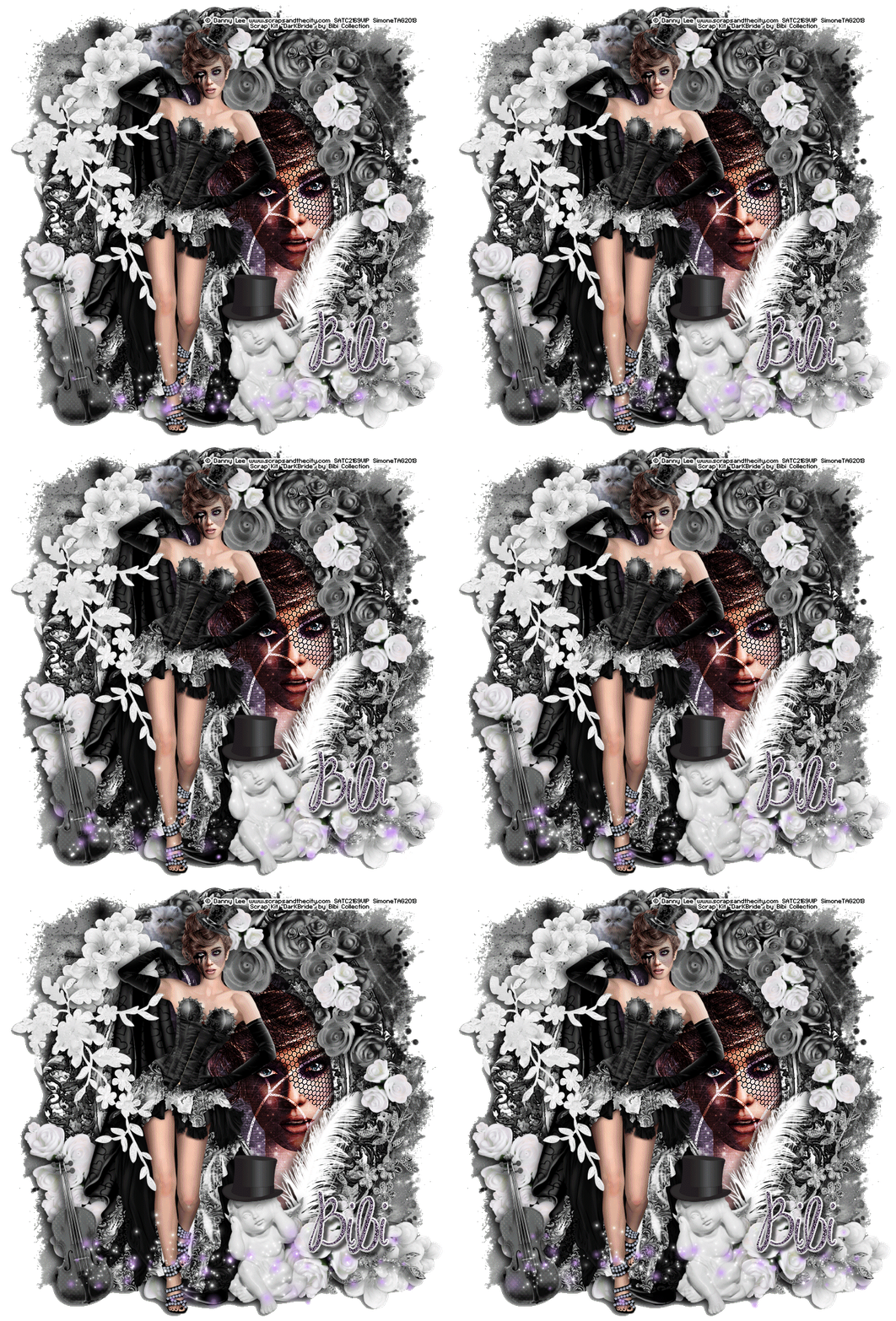
Tube of choice: I'm using "Dark Bride" by Danny Lee from SATC.
Scrap Kit : I'm using "Dark Bride"by Bibi's Collection from SATC
Animation: SimoneAni-453
Mask: Masks0114
________________________________________________________________________
♥♥♥
Save your tag often. Nothing like working long and hard on a tag and PSP crashes.
♥♥♥
Open your mask of choice in PSP and minimize. I used Mask 0114.
Open Paper 2 and duplicate. Re-size by 90%, 72 dpi, smart size.
Apply mask to the paper. Merge group.
Copy and paste your tube as a new layer. I had to re-size mine by 70%.
Move tube a little to the left. Add drop shadow.
Copy and paste element 1 as a new layer. Move up just a little bit. Move this frame below your tube layer.
Select your magic wand feather set to 0. Click inside the frame. Go to selections, modify and expand by 10.
Copy and paste a close up of your tube. Move it to the right a bit.
Go to Selections and invert. Hit delete on your keyboard.
Open Paper 5 and duplicate. Re-size by 70%.
Copy and paste as a new layer and drag down below your tube close up.
Hit delete on your keyboard.
On this paper layer, change the blend mode to Overlay.
On your close up layer, change blend mode to Hard Light.
Copy and paste element 88 as a now layer, position so larger portion of web is over close up. This web element should be above the close up layer. Hit delete on your keyboard.
Copy and paste element 26 as a new layer and move down to right lower hand side of tag. Drag down below all layers except the mask/background layer. Add drop shadow.
OK you can now de-select. Go to Selections, select none.
Duplicate spider web element. On the bottom layer add a drop shadow. On the top layer add noise.
Go to Adjust, Add/Remove Noise, Add Noise. Check : Gaussian and set to 73%, monochrome checked.
Merge all visible.
Copy and paste element 84 as a new layer. Re-size by 34% and move to the right side of frame, down near bottom. Add drop shadow.
Copy and paste element 61as a new layer and flip it. Move to the right side of frame, down near bottom. Add drop shadow.
Copy and paste element 68 as a new layer. Flip it and mirror it. Move to the left bottom side of frame. Duplicate and move it in towards the center of frame. Add drop shadow to each.
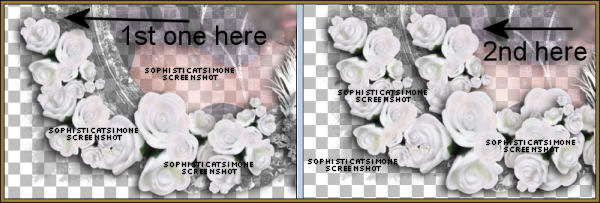
Copy and paste element 19 as a new layer and re-size by 50%. Add drop shadow and position behind your tube.
Copy and paste element 69 as move to the upper right hand side of the frame. Add drop shadow.
Copy and paste element 26 as a new layer and move to upper left hand side and re-size by 60%. Free rotate by 90 degrees to the right. Add drop shadow.
Copy and paste element 80 as a new layer. Move to the left side of frame/tag and position near your tube's shoulder. See my tag for reference. Add drop shadow. This element should be above your tube layer.
Copy and paste element 57 as a new layer. Re-size by 35% and triplicate. Position a few along the black flower cluster on the upper right hand side. Rotate a few of them and drop shadow each.
Do the same for the following elements: 5, 41 and 99. That's the top hat, cherub and violin. I positioned them all along the front bottom of tag.
Add anything else you would like or merge all visible.
Save your tag.
To animate.
Go to Selections, select all.
Go to Edit and copy merged. Paste as a new animation in Animation Shop.
Hold your Ctrl key down and repeatedly hit letter L on your keyboard for a total of 16 frames.
You can watch the count on the lower right hand side of your screen in AS.
Open SimoneAni-453
Go to Edit, select all.
Go to Edit, copy.
Activate your tag.
Go to Edit, select all.
Go to Edit, make sure Propagate Paste is selected.
Go to Edit, Paste, paste into selected frames.
Position on your tag and click into place.
Play and save.
Don't forget to add your name.
You can see my name tutorial HERE.
To save:
Go to File, Save as, enter the name of your file and select the folder to save to.
Now click on Customize:
Under COLORS TAB:
Number of colors: 255 Colors
Create palette by: OPTIMIZED OCTREE
Reduce colors by: Error Diffusion
Under OPTIMIZATIONS TAB:
set a check mark beside the second, third and forth choices. UN-check the 1st and last.
Under PARTIAL TRANSPARENCY:
check Convert pixels less than 92
Yes, blend with this color: change to white #FFFFFF
Click OK. Click Next, next, next, next.
Play your animation.
At times your animation may or will come out terrible. Optimization in Animation Shop is not the greatest.
You can play around will your settings, especially under the Tab: Optimization. I change this setting at times from anywhere between 70 and 100.
Some people add a white background. To add background, go to Animation: Animation Properties, select Opaque and change color to white.
Hope you enjoyed this tutorial,
Hugs Simone
Please, always direct people to my blog to download my animations.
Do not load to any other download site and don't claim as your own.
Tutorial written by SophisticatSimone aka Lorraine Halle on Sunday, May 26, 2013.
Please click on TAG to see in full size.
••• Supplies needed to complete this tutorial. •••
________________________________________________________________________
Programs: Paint Shop Pro, I'm using version 10. Animation Shop 3.
Plugin : Gradient Glow by Eye Candy 4000 (for name)
Font used:
Tube of choice: I'm using "Dark Bride" by Danny Lee from SATC.
Scrap Kit : I'm using "Dark Bride"by Bibi's Collection from SATC
Animation: SimoneAni-453
Mask: Masks0114
________________________________________________________________________
♥♥♥
Save your tag often. Nothing like working long and hard on a tag and PSP crashes.
♥♥♥
Open your mask of choice in PSP and minimize. I used Mask 0114.
Open Paper 2 and duplicate. Re-size by 90%, 72 dpi, smart size.
Apply mask to the paper. Merge group.
Copy and paste your tube as a new layer. I had to re-size mine by 70%.
Move tube a little to the left. Add drop shadow.
Copy and paste element 1 as a new layer. Move up just a little bit. Move this frame below your tube layer.
Select your magic wand feather set to 0. Click inside the frame. Go to selections, modify and expand by 10.
Copy and paste a close up of your tube. Move it to the right a bit.
Go to Selections and invert. Hit delete on your keyboard.
Open Paper 5 and duplicate. Re-size by 70%.
Copy and paste as a new layer and drag down below your tube close up.
Hit delete on your keyboard.
On this paper layer, change the blend mode to Overlay.
On your close up layer, change blend mode to Hard Light.
Copy and paste element 88 as a now layer, position so larger portion of web is over close up. This web element should be above the close up layer. Hit delete on your keyboard.
Copy and paste element 26 as a new layer and move down to right lower hand side of tag. Drag down below all layers except the mask/background layer. Add drop shadow.
OK you can now de-select. Go to Selections, select none.
Duplicate spider web element. On the bottom layer add a drop shadow. On the top layer add noise.
Go to Adjust, Add/Remove Noise, Add Noise. Check : Gaussian and set to 73%, monochrome checked.
Merge all visible.
Copy and paste element 84 as a new layer. Re-size by 34% and move to the right side of frame, down near bottom. Add drop shadow.
Copy and paste element 61as a new layer and flip it. Move to the right side of frame, down near bottom. Add drop shadow.
Copy and paste element 68 as a new layer. Flip it and mirror it. Move to the left bottom side of frame. Duplicate and move it in towards the center of frame. Add drop shadow to each.
Copy and paste element 19 as a new layer and re-size by 50%. Add drop shadow and position behind your tube.
Copy and paste element 69 as move to the upper right hand side of the frame. Add drop shadow.
Copy and paste element 26 as a new layer and move to upper left hand side and re-size by 60%. Free rotate by 90 degrees to the right. Add drop shadow.
Copy and paste element 80 as a new layer. Move to the left side of frame/tag and position near your tube's shoulder. See my tag for reference. Add drop shadow. This element should be above your tube layer.
Copy and paste element 57 as a new layer. Re-size by 35% and triplicate. Position a few along the black flower cluster on the upper right hand side. Rotate a few of them and drop shadow each.
Do the same for the following elements: 5, 41 and 99. That's the top hat, cherub and violin. I positioned them all along the front bottom of tag.
Add anything else you would like or merge all visible.
Save your tag.
To animate.
Go to Selections, select all.
Go to Edit and copy merged. Paste as a new animation in Animation Shop.
Hold your Ctrl key down and repeatedly hit letter L on your keyboard for a total of 16 frames.
You can watch the count on the lower right hand side of your screen in AS.
Open SimoneAni-453
Go to Edit, select all.
Go to Edit, copy.
Activate your tag.
Go to Edit, select all.
Go to Edit, make sure Propagate Paste is selected.
Go to Edit, Paste, paste into selected frames.
Position on your tag and click into place.
Play and save.
Don't forget to add your name.
You can see my name tutorial HERE.
To save:
Go to File, Save as, enter the name of your file and select the folder to save to.
Now click on Customize:
Under COLORS TAB:
Number of colors: 255 Colors
Create palette by: OPTIMIZED OCTREE
Reduce colors by: Error Diffusion
Under OPTIMIZATIONS TAB:
set a check mark beside the second, third and forth choices. UN-check the 1st and last.
Under PARTIAL TRANSPARENCY:
check Convert pixels less than 92
Yes, blend with this color: change to white #FFFFFF
Click OK. Click Next, next, next, next.
Play your animation.
At times your animation may or will come out terrible. Optimization in Animation Shop is not the greatest.
You can play around will your settings, especially under the Tab: Optimization. I change this setting at times from anywhere between 70 and 100.
Some people add a white background. To add background, go to Animation: Animation Properties, select Opaque and change color to white.
Hope you enjoyed this tutorial,
Hugs Simone
Please, always direct people to my blog to download my animations.
Do not load to any other download site and don't claim as your own.
Tutorial written by SophisticatSimone aka Lorraine Halle on Sunday, May 26, 2013.
Subscribe to:
Posts
(Atom)
CT TEAM