My Blinkie

Monday, April 1, 2013


MY PANDA
Please click on TAG to see in full size.
Supplies needed to complete this tutorial.
Programs: Paint Shop Pro, I'm using version 10, Animation Shop 3
Plugin : Gradient Glow by Eye Candy
Font used: Valken for Upper case letter and Xiomara for lower case letter for Bibi's name.
Tube of choice: Tag 1: Danny Lee "Sugar Girl" found at SATC
Tube of choice: Tag 2: Panda form Bibi's Collections scrap kit "Sugar Girl" from SATC
Scrap Kit: "Sugar Girl" by Bibi's Collections at SATC
Animations: by me Scrappy Bit Of Fun HERE
Save your tag often. Nothing like working long and hard on a tag and PSP crashes.
Please make sure you add a drop shadow of choice to each and every element as you add them.
Remember to close out your original elements and papers once your copy and pasted them on your working tag.
♥♥♥
Let's start
♥♥♥
Open Element (4) purple clouds. Copy and paste as a new Image.
Let's re-size our tag.
Enter Resolution : 72 Pixels/Centimeter
Resample using: Bicubic
Resize all layers: Checked
Width and Height: 80%
Duplicate layer and merge down.
Open Element (33) purple scatter. Copy and paste as a new Image.
Re-size
Enter Resolution : 72 Pixels/Centimeter
Resample using: Bicubic
Resize all layers: Checked
Width and Height: 45%
Duplicate layer and merge down.
Move lower down on your tag.
Duplicate, flip and mirror.
Merge down.
Add your drop shadow.
Open Element (9) doodle. Copy and paste as a new Image.
Delete a little at the top. See Screenshot.

Re-size
Enter Resolution : 72 Pixels/Centimeter
Resample using: Bicubic
Resize all layers: Checked
Width and Height: 60%
Duplicate layer and merge down.
Duplicate again and merge down.
Go to Adjust, Add/Remove Noise, Add Noise
50%, gaussian checked.
Position in center of tag. Make sure the doodle in contained within the tag.
Nothing worse then cut off on a tag :)
Add your drop shadow. Make sure shadow opacity is low.
This is what I used:
Vertical: 1
Horizontal: -2
Opacity: 40
Blur: 2
Color: black
Open Element (62) leafy branch. Copy and paste as a new Image.
Move to upper right hand side of tag.
Duplicate layer, mirror and flip.
Merge together.
Add your drop shadow.
Open Element (6) fan. Copy and paste as a new Image.
Image, free rotate, right, 110 degrees, all layers UN-checked.
Move to lower right hand side of tag.
Add your drop shadow.
Copy and paste again, it should still be in your copy memory. If not, just copy again.
Image, free rotate, left, 50 degrees, all layers UN-checked.
Move to center of tag for now. You can tweak it later once your tube is positioned.
Add your drop shadow.
Move this layer below the other fan layer.
Open Element (46) black grass. Copy and paste as a new Image.
Re-size by 70%. Move to left side of tag.
Add drop shadow.
Open Element (38) branch with buds. Copy and paste as a new Image.
Move to upper portion of your tag.
Add drop shadow.
Open Element ( 30 ) bird. Copy and paste as a new Image.
Re-size by 40%. Move to upper right hand side of tag.
Add drop shadow.
Open Element (67) black leaves. Copy and paste as a new Image.
Re-size by 40%. Move to left lower side of tag.
Duplicate, mirror and flip. Free rotate to the left by 20%
Move to the right of the tag and about the middle of the tag.
Add drop shadow on each layer.
Open Element (69) Panda Bear. Copy and paste as a new Image.
Position him over the leaves, and behind the fan.
You may need to remove the cord on the fan.
Using your selection tool, set to Point to Point, feather = 0
Click around and be careful over the edge of the fan, just click more often over this area.
Now delete.
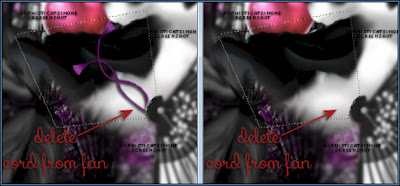
Drop shadow I used on my panda is:
V= -4
H= -6
Opacity= 56
Blur= 8
Color= black
Open Element (21) paper flower. Copy and paste as a new Image.
Re-size by 40%. Move to bottom of tag over Panda's derriere.
Add drop shadow.
Open Element (13) flower. Copy and paste as a new Image.
Re-size by 40%. Position over the paper flower on the left upper edge.
Duplicate and mirror. Position slightly lower and more to the left.
See my tag for reference.
Add drop shadow to both.
Open Element (47) long purple grass. Copy and paste as a new Image.
Re-size by 40%. Position to the left of tag.
Duplicate, mirror. Position to the left of tag as well.
Add drop shadow to each.
Open Element (55) mauve flower. Copy and paste as a new Image.
Position to upper right of tag.
Duplicate, mirror and flop . Position to bottom left of tag. Make sure this layer is over the the long purple grass and your black leaf.
Add drop shadow to each.
Open Element (20) sushi. Copy and paste as a new Image.
Re-size by 80%, position at bottom near flower.
Add drop shadow.
Open Element (68) tea set. Copy and paste as a new Image.
Re-size by 60%, position at bottom of tag, see my tag for reference.
I placed it over the fan and the paper flower.
Add drop shadow.
Open Element (53) sushi2. Copy and paste as a new Image.
Re-size by 48%, position at bottom of tag, see my tag for reference.
I placed it between the 1st sushi and the tea set.
Add drop shadow.
Ok tweek your layers now if you need too. If something just doesn't look right, move it around.
Make sure you've drop shadowed all your layers.
Add copyright layer, scrap kit by " " etc.
Go to Edit, Copy Merged.
In Animation Shop, right click and paste as a New Animation.
Hold ctrl key down and tag letter L until you have a total of 24 frames.
Go to Edit, select all.
Open SimoneAni371-with drop shadow.
Go to Edit, select all.
Go to Edit, copy.
Go to Edit, make sure Propagate Paste is depressed.
Activate your tag.
Got to Edit, Paste, Paste into selected frames.
Using your cursor, move the first bubble you see and place on the big black leaf.
See screenshot.
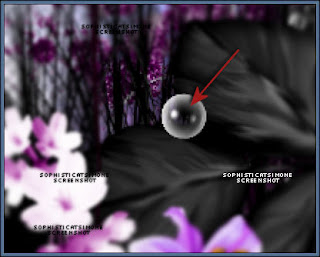
Click into place.
Play your animation.
Hopefully you like it.
Add your name using a font of choice.You can now save it either with transparent background or add a white background.
To add white background, go to Animation: Animation Properties, select Opaque and change color to white.
Hope you enjoyed this tutorial,
Hugs Simone
Please, always direct people to my blog to download my animations.
Do not load to any other download site and don't claim as your own.
Tutorial written by SophisticatSimone aka Lorraine Halle on Monday, April 1st, 2013.
Enjoy!
Supplies needed to complete this tutorial.
Programs: Paint Shop Pro, I'm using version 10, Animation Shop 3
Plugin : Gradient Glow by Eye Candy
Font used: Valken for Upper case letter and Xiomara for lower case letter for Bibi's name.
Tube of choice: Tag 1: Danny Lee "Sugar Girl" found at SATC
Tube of choice: Tag 2: Panda form Bibi's Collections scrap kit "Sugar Girl" from SATC
Scrap Kit: "Sugar Girl" by Bibi's Collections at SATC
Animations: by me Scrappy Bit Of Fun HERE
Save your tag often. Nothing like working long and hard on a tag and PSP crashes.
Please make sure you add a drop shadow of choice to each and every element as you add them.
Remember to close out your original elements and papers once your copy and pasted them on your working tag.
♥♥♥
Let's start
♥♥♥
Open Element (4) purple clouds. Copy and paste as a new Image.
Let's re-size our tag.
Enter Resolution : 72 Pixels/Centimeter
Resample using: Bicubic
Resize all layers: Checked
Width and Height: 80%
Duplicate layer and merge down.
Open Element (33) purple scatter. Copy and paste as a new Image.
Re-size
Enter Resolution : 72 Pixels/Centimeter
Resample using: Bicubic
Resize all layers: Checked
Width and Height: 45%
Duplicate layer and merge down.
Move lower down on your tag.
Duplicate, flip and mirror.
Merge down.
Add your drop shadow.
Open Element (9) doodle. Copy and paste as a new Image.
Delete a little at the top. See Screenshot.
Re-size
Enter Resolution : 72 Pixels/Centimeter
Resample using: Bicubic
Resize all layers: Checked
Width and Height: 60%
Duplicate layer and merge down.
Duplicate again and merge down.
Go to Adjust, Add/Remove Noise, Add Noise
50%, gaussian checked.
Position in center of tag. Make sure the doodle in contained within the tag.
Nothing worse then cut off on a tag :)
Add your drop shadow. Make sure shadow opacity is low.
This is what I used:
Vertical: 1
Horizontal: -2
Opacity: 40
Blur: 2
Color: black
Open Element (62) leafy branch. Copy and paste as a new Image.
Move to upper right hand side of tag.
Duplicate layer, mirror and flip.
Merge together.
Add your drop shadow.
Open Element (6) fan. Copy and paste as a new Image.
Image, free rotate, right, 110 degrees, all layers UN-checked.
Move to lower right hand side of tag.
Add your drop shadow.
Copy and paste again, it should still be in your copy memory. If not, just copy again.
Image, free rotate, left, 50 degrees, all layers UN-checked.
Move to center of tag for now. You can tweak it later once your tube is positioned.
Add your drop shadow.
Move this layer below the other fan layer.
Open Element (46) black grass. Copy and paste as a new Image.
Re-size by 70%. Move to left side of tag.
Add drop shadow.
Open Element (38) branch with buds. Copy and paste as a new Image.
Move to upper portion of your tag.
Add drop shadow.
Open Element ( 30 ) bird. Copy and paste as a new Image.
Re-size by 40%. Move to upper right hand side of tag.
Add drop shadow.
Open Element (67) black leaves. Copy and paste as a new Image.
Re-size by 40%. Move to left lower side of tag.
Duplicate, mirror and flip. Free rotate to the left by 20%
Move to the right of the tag and about the middle of the tag.
Add drop shadow on each layer.
Open Element (69) Panda Bear. Copy and paste as a new Image.
Position him over the leaves, and behind the fan.
You may need to remove the cord on the fan.
Using your selection tool, set to Point to Point, feather = 0
Click around and be careful over the edge of the fan, just click more often over this area.
Now delete.

Drop shadow I used on my panda is:
V= -4
H= -6
Opacity= 56
Blur= 8
Color= black
Open Element (21) paper flower. Copy and paste as a new Image.
Re-size by 40%. Move to bottom of tag over Panda's derriere.
Add drop shadow.
Open Element (13) flower. Copy and paste as a new Image.
Re-size by 40%. Position over the paper flower on the left upper edge.
Duplicate and mirror. Position slightly lower and more to the left.
See my tag for reference.
Add drop shadow to both.
Open Element (47) long purple grass. Copy and paste as a new Image.
Re-size by 40%. Position to the left of tag.
Duplicate, mirror. Position to the left of tag as well.
Add drop shadow to each.
Open Element (55) mauve flower. Copy and paste as a new Image.
Position to upper right of tag.
Duplicate, mirror and flop . Position to bottom left of tag. Make sure this layer is over the the long purple grass and your black leaf.
Add drop shadow to each.
Open Element (20) sushi. Copy and paste as a new Image.
Re-size by 80%, position at bottom near flower.
Add drop shadow.
Open Element (68) tea set. Copy and paste as a new Image.
Re-size by 60%, position at bottom of tag, see my tag for reference.
I placed it over the fan and the paper flower.
Add drop shadow.
Open Element (53) sushi2. Copy and paste as a new Image.
Re-size by 48%, position at bottom of tag, see my tag for reference.
I placed it between the 1st sushi and the tea set.
Add drop shadow.
Ok tweek your layers now if you need too. If something just doesn't look right, move it around.
Make sure you've drop shadowed all your layers.
Add copyright layer, scrap kit by " " etc.
Go to Edit, Copy Merged.
In Animation Shop, right click and paste as a New Animation.
Hold ctrl key down and tag letter L until you have a total of 24 frames.
Go to Edit, select all.
Open SimoneAni371-with drop shadow.
Go to Edit, select all.
Go to Edit, copy.
Go to Edit, make sure Propagate Paste is depressed.
Activate your tag.
Got to Edit, Paste, Paste into selected frames.
Using your cursor, move the first bubble you see and place on the big black leaf.
See screenshot.

Click into place.
Play your animation.
Hopefully you like it.
Add your name using a font of choice.You can now save it either with transparent background or add a white background.
To add white background, go to Animation: Animation Properties, select Opaque and change color to white.
Hope you enjoyed this tutorial,
Hugs Simone
Please, always direct people to my blog to download my animations.
Do not load to any other download site and don't claim as your own.
Tutorial written by SophisticatSimone aka Lorraine Halle on Monday, April 1st, 2013.
Enjoy!

Sunday, March 31, 2013

Please click on TAG to see in full size.
Supplies needed to complete this tutorial.
Supplies needed to complete this tutorial.
Programs: Paint Shop Pro, I'm using version 10, Animation Shop 3
Plugin : Eye Candy 4: Gradient Glow for Name, and MuRa Meister-Cloud.
Font used: Xiomara
Tube of choice, I'm using tube "Huntress"by Angelica S from SATC
Scrap Kit "Fairytale" by Angelica S at SATC
Animations: by me Scrappy Bit Of Fun HERE Mask: by me Mask94SophisticatSimone HERE
Scrap Kit "Fairytale" by Angelica S at SATC
Animations: by me Scrappy Bit Of Fun HERE Mask: by me Mask94SophisticatSimone HERE
Save your tag often. Nothing like working long and hard on a tag and PSP crashes.
•••
Please make sure you add a drop shadow of choice to each and every element as you add them.
♥Let's start♥
Open element 05, duplicate and close original. Always close the original when done with it.
Re-size, 72dpi, smart size, 70%
Rotate, free rotate, right, 90 degrees, all layers UN-checked.
Re-size canvas, 700 x 700
Open element 03, (bridge) copy and paste as a new layer on your canvas.
Move your frame up a little and position bridge a little lower.
Open element 28, (white castle) copy and paste as a new layer.
Re-size, 72dpi, smart size, 40%
Position over the frame and on the lower portion of the frame.
Open element 81, (leaves)copy and paste as a new layer.
Re-size, 72dpi, smart size, 60%
Position to the upper left hand side of frame.
Duplicate. On duplicated image,
Go to Image, free rotate, rotate, right, 90 degrees, all layers UN-checked.
Image, flip.
Move to the upper edge of the frame on the left, creating a leaf corner.
Duplicate this layer, free rotate 90 degrees and place on right side of frame closer to the top.
Open element 74, (Ivy) copy and paste as a new layer.
Re-size, 72dpi, smart size, 40%
Position to the right on the frame.
Duplicate. Mirror.
Open element 33, (curtain) copy and paste as a new layer.
Position over right hand side of frame.
Open element 63, (bow) copy and paste as a new layer.
Re-size, 72dpi, smart size, 18%
Position top right corner of frame over curtain. See my tag for reference.
Open element 67, (rose) copy and paste as a new layer.
Re-size, 72dpi, smart size, 20%
Position on the left side of frame at the middle.
Open element 80, (branch+leaves) copy and paste as a new layer.
Position to the right, behind the bridge railing. Make it appear as though it's a part of the structure.
You may need to use your selection tool and remove some of the bottom edge of the branch.
This layer sound be above the curtain and below the bridge.
Open element 61, (eagle) copy and paste as a new layer.
Re-size, 72dpi, smart size, 70%
Position on the right side making it appear that he is perched on the branch.
Add whatever other little element you think will enhance your tag.
I added a butterfly at the top.
Open paper04, promote background to layer.
Apply your mask to this layer.
Merge group.
Copy and paste on your tag and make sure it's your bottom layer.
Add noise of 27% (gaussian), monochrome checked.
Using your selection tool, set to magic wand, click inside the frame.
Go to Selections, modify, expand by 6
Make sure your mask is the active layer.
Promote selection to layer.
Go to MuRa Meister-Cloud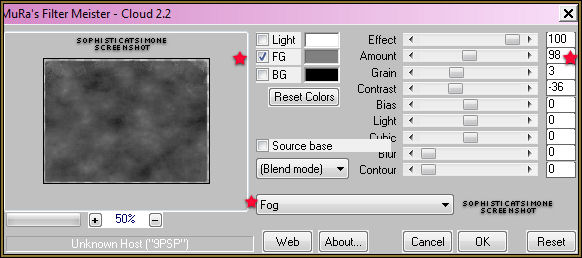
♥Let's start♥
Open element 05, duplicate and close original. Always close the original when done with it.
Re-size, 72dpi, smart size, 70%
Rotate, free rotate, right, 90 degrees, all layers UN-checked.
Re-size canvas, 700 x 700
Open element 03, (bridge) copy and paste as a new layer on your canvas.
Move your frame up a little and position bridge a little lower.
Open element 28, (white castle) copy and paste as a new layer.
Re-size, 72dpi, smart size, 40%
Position over the frame and on the lower portion of the frame.
Open element 81, (leaves)copy and paste as a new layer.
Re-size, 72dpi, smart size, 60%
Position to the upper left hand side of frame.
Duplicate. On duplicated image,
Go to Image, free rotate, rotate, right, 90 degrees, all layers UN-checked.
Image, flip.
Move to the upper edge of the frame on the left, creating a leaf corner.
Duplicate this layer, free rotate 90 degrees and place on right side of frame closer to the top.
Open element 74, (Ivy) copy and paste as a new layer.
Re-size, 72dpi, smart size, 40%
Position to the right on the frame.
Duplicate. Mirror.
Open element 33, (curtain) copy and paste as a new layer.
Position over right hand side of frame.
Open element 63, (bow) copy and paste as a new layer.
Re-size, 72dpi, smart size, 18%
Position top right corner of frame over curtain. See my tag for reference.
Open element 67, (rose) copy and paste as a new layer.
Re-size, 72dpi, smart size, 20%
Position on the left side of frame at the middle.
Open element 80, (branch+leaves) copy and paste as a new layer.
Position to the right, behind the bridge railing. Make it appear as though it's a part of the structure.
You may need to use your selection tool and remove some of the bottom edge of the branch.
This layer sound be above the curtain and below the bridge.
Open element 61, (eagle) copy and paste as a new layer.
Re-size, 72dpi, smart size, 70%
Position on the right side making it appear that he is perched on the branch.
Add whatever other little element you think will enhance your tag.
I added a butterfly at the top.
Open paper04, promote background to layer.
Apply your mask to this layer.
Merge group.
Copy and paste on your tag and make sure it's your bottom layer.
Add noise of 27% (gaussian), monochrome checked.
Using your selection tool, set to magic wand, click inside the frame.
Go to Selections, modify, expand by 6
Make sure your mask is the active layer.
Promote selection to layer.
Go to MuRa Meister-Cloud
Set to FOG (drop down)
have a check beside FG only, my color choice is:#808080
Effect=100
Amount=98
Gain=3
Contrast=-36
Bias=0
Light=0
Cubic=0
Blur=0
Contour=0
Click OK
Selections/ Select All
Copy Merged
In Animation Shop, right click and paste as a new animation.
Back in PSP, go to edit and select undo selected all,
Go to Edit and undo Cloud.
Now repeat the filter 3 more times, changing the amount to
83 then, 73 then, 63
Always select all after each and copy merge and paste in AS after current frame.
You should end up with a total of 4 frames.
Working in AS.
Go to Edit, Select ALL.
Go to Edit, Copy.
Click on your last frame to activate it.
Right click and paste after frame.
Scroll to the last frame, you'll notice you have 8 now.
Activate the last frame and repeat.
You will now have 12 frames.
Open animation SimoneAni356-starTrail
Go to Edit, Select all.
Go to Edit, Copy.
Activate your tag.
Go to Edit, Select All.
Go to Edit, choose Propagate Paste.
Go to Edit, Paste, Paste into selected frames.
Position with your cursor.
I placed mine just over the bird's beak.
have a check beside FG only, my color choice is:#808080
Effect=100
Amount=98
Gain=3
Contrast=-36
Bias=0
Light=0
Cubic=0
Blur=0
Contour=0
Click OK
Selections/ Select All
Copy Merged
In Animation Shop, right click and paste as a new animation.
Back in PSP, go to edit and select undo selected all,
Go to Edit and undo Cloud.
Now repeat the filter 3 more times, changing the amount to
83 then, 73 then, 63
Always select all after each and copy merge and paste in AS after current frame.
You should end up with a total of 4 frames.
Working in AS.
Go to Edit, Select ALL.
Go to Edit, Copy.
Click on your last frame to activate it.
Right click and paste after frame.
Scroll to the last frame, you'll notice you have 8 now.
Activate the last frame and repeat.
You will now have 12 frames.
Open animation SimoneAni356-starTrail
Go to Edit, Select all.
Go to Edit, Copy.
Activate your tag.
Go to Edit, Select All.
Go to Edit, choose Propagate Paste.
Go to Edit, Paste, Paste into selected frames.
Position with your cursor.
I placed mine just over the bird's beak.

If you chose the same tube I did this animation will work well, if
you didn't I'm sure you can be creative and play around with positioning.
Click in place.
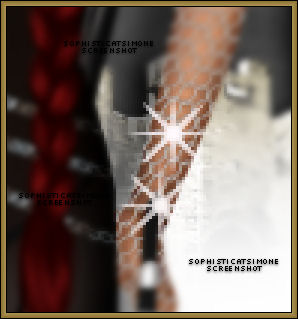
You can add the other animation SimoneAni357-doubleStar as well anywhere around on the tag just to glitz it up a bit.
I added mine on HER left wrist. See screenshot. I also added it to the name.
you didn't I'm sure you can be creative and play around with positioning.
Click in place.
You can add the other animation SimoneAni357-doubleStar as well anywhere around on the tag just to glitz it up a bit.
I added mine on HER left wrist. See screenshot. I also added it to the name.
Make sure you've added your copyright and license number.
Add your name using a font of choice.You can now save it either with transparent background or add a white background.
To add white background, go to Animation: Animation Properties, select Opaque and change color to white.
Hope you enjoyed this tutorial,
Hugs Simone
Please, always direct people to my blog to download my animations.
Do not load to any other download site and don't claim as your own.
Tutorial written by SophisticatSimone aka Lorraine Halle on Sunday, March 31, 2013.
Enjoy!
Add your name using a font of choice.You can now save it either with transparent background or add a white background.
To add white background, go to Animation: Animation Properties, select Opaque and change color to white.
Hope you enjoyed this tutorial,
Hugs Simone
Please, always direct people to my blog to download my animations.
Do not load to any other download site and don't claim as your own.
Tutorial written by SophisticatSimone aka Lorraine Halle on Sunday, March 31, 2013.
Enjoy!
Tuesday, March 26, 2013

Good Candy
Please click on TAG to see in full size.
Supplies needed to complete this tutorial.
Supplies needed to complete this tutorial.
Programs: Paint Shop Pro, I'm using version 10
Plugin : Eye Candy 4: Gradient Glow for Name.
Font used: Saginaw
Tube of choice, I'm using tube "Bunny Toon"by Jose A Cano
Scrap Kit "Over The Rainbow" by SkyScraps
Save your tag often. Nothing like working long and hard on a tag and PSP crashes.
Open SkyScraps-ovr-34 in PSP. Duplicate and close original.
Re-size: Resolution set at 72 dpi
Re-sample using: Bicubic
Size: 75%
Re-size all layers: UN-checked.
Add drop shadow:
V=3 H=3 Opacity=71 Blur=5 Color=black
Add your tube of choice.
Open element 35, (pink cutie) copy and paste as new layer bring to top.
Re-size by 40%. Position to the left lower portion of circle.
Open element 36, (yellow cutie) copy and paste as new layer, tuck
Add d/s to each. Merge together.
Open element 24, copy and paste as new layer.
Re-size by 50%. Position to the right side of circle.
Add drop shadow.
Open element 60 (pink background), copy and paste as new layer, bring to bottom.
Open element 50, (flowers) copy and paste as new layer, bring behind tube and position to the left upper section of circle frame.
Duplicate, go to Image, Free Rotate, right, 90 degrees. Move to upper right section of circle frame.
Add drop shadow: V + H = 4 Opacity=70 Blur=8 Color=black.
Merge them together, duplicate this layer now and flip. Tweak your layers if you need too.
Open element 48, (butterfly)copy and paste as new layer bring to top.
Re-size by 30%. Re-sample using: Smart Size.
Place upper right side.
Open element 41, (big pink bow) copy and paste as new layer bring to top.
Re-size by 70%. Re-sample using: Smart Size. Place on right side, about middle of tag.
Open element 59, (purple balloons) Copy and paste as a new layer. Mirror.
I place this layer below the butterfly and below the pink bow.
Re-size by 85% and add drop shadow.
Add any other elements you want.
I added:
candy apple (25)
candy pops (26)
butterfly (03)
Love word (12)
Re-size: Resolution set at 72 dpi
Re-sample using: Bicubic
Size: 75%
Re-size all layers: UN-checked.
Add drop shadow:
V=3 H=3 Opacity=71 Blur=5 Color=black
Add your tube of choice.
Open element 35, (pink cutie) copy and paste as new layer bring to top.
Re-size by 40%. Position to the left lower portion of circle.
Open element 36, (yellow cutie) copy and paste as new layer, tuck
Add d/s to each. Merge together.
Open element 24, copy and paste as new layer.
Re-size by 50%. Position to the right side of circle.
Add drop shadow.
Open element 60 (pink background), copy and paste as new layer, bring to bottom.
Open element 50, (flowers) copy and paste as new layer, bring behind tube and position to the left upper section of circle frame.
Duplicate, go to Image, Free Rotate, right, 90 degrees. Move to upper right section of circle frame.
Add drop shadow: V + H = 4 Opacity=70 Blur=8 Color=black.
Merge them together, duplicate this layer now and flip. Tweak your layers if you need too.
Open element 48, (butterfly)copy and paste as new layer bring to top.
Re-size by 30%. Re-sample using: Smart Size.
Place upper right side.
Open element 41, (big pink bow) copy and paste as new layer bring to top.
Re-size by 70%. Re-sample using: Smart Size. Place on right side, about middle of tag.
Open element 59, (purple balloons) Copy and paste as a new layer. Mirror.
I place this layer below the butterfly and below the pink bow.
Re-size by 85% and add drop shadow.
Add any other elements you want.
I added:
candy apple (25)
candy pops (26)
butterfly (03)
Love word (12)
White Bunny (40)
Add your copyright information and license number if needed.
Add name to your tag.
Merge all visible.
Select your crop tool and merge opaque.
Save as png.
Add your copyright information and license number if needed.
Add name to your tag.
Merge all visible.
Select your crop tool and merge opaque.
Save as png.
Hope you enjoyed this tutorial,
Hugs Simone
Tutorial written by SophisticatSimone aka Lorraine Halle on Sunday, March 25, 2013.
Enjoy!
Friday, March 22, 2013

Please click on TAG to see in full size.
Supplies needed to complete this tutorial.
Supplies needed to complete this tutorial.
Programs: Paint Shop Pro, I'm using version 10
Animation Shop 3
Plugin : Eye Candy 4: Gradient Glow for Name.
Font used: Valentine
Tube of choice, I'm using tube "Chloe"by Zlata M from SATC
Scrap Kit "BALLERINA FAIRY" by Bibi's Collection at SATC
Scrap Kit "BALLERINA FAIRY" by Bibi's Collection at SATC
My Animations: Bubbles and Glitter/Bling: HERE
Mask: Mask 89 SophisticatSimone HERE
Save your tag often. Nothing like working long and hard on a tag and PSP crashes.
File, New Image, Width=700, Height=600
Open paper(1). C/P as a new layer on your canvas.
Using your Mover Tool position paper where you like it.
Click on your Crop Tool and select Merged Opaque, apply.
Open Mask 89SophisticatSimone.
Go to Layers, New Mask Layer, From Image.
In source window find the Mask.
Create mask from : source luminance and make sure Invert mask data is UN-checked.
In layers Palette, right click on layer and merge group.
•
Open element(89) sparkles. C/P as a new layer. Make sure it's on top of Mask layer.
Open element(104) circular window. C/P as a new layer. Re-size by 60%. Position in upper right hand side.
Activate your selection tool, set to Ellipse, feather=0 and starting at center of element 104 drag out a circle that goes half way past the gold edge.
Open paper(1). C/P as a new layer on your canvas.
Using your Mover Tool position paper where you like it.
Click on your Crop Tool and select Merged Opaque, apply.
Open Mask 89SophisticatSimone.
Go to Layers, New Mask Layer, From Image.
In source window find the Mask.
Create mask from : source luminance and make sure Invert mask data is UN-checked.
In layers Palette, right click on layer and merge group.
•
Open element(89) sparkles. C/P as a new layer. Make sure it's on top of Mask layer.
Open element(104) circular window. C/P as a new layer. Re-size by 60%. Position in upper right hand side.
Activate your selection tool, set to Ellipse, feather=0 and starting at center of element 104 drag out a circle that goes half way past the gold edge.
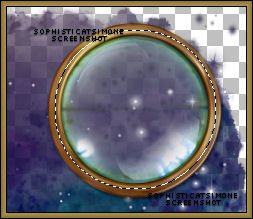
Copy and paste a close up of your tube. Invert selection and delete extra.
Selection none.
Duplicate your close up. Bottom layer has a blur of 3
Top close up layer is set to Soft Light.
Add drop shadow to element 104.
Shadow I use:
V=3 H=2 Opacity=73 Blur=7.25 Color=black.
•
Copy and paste your tube and add drop shadow.
Open element(98) Large stone.C/P as a new layer. Position to lower left hand side of tag. Add DS. Make sure it's behind your tube layer.
Copy and paste your tube and add drop shadow.
Open element(98) Large stone.C/P as a new layer. Position to lower left hand side of tag. Add DS. Make sure it's behind your tube layer.
•
Open element(80) Stone steps. C/P as a new layer. Position so the stone steps start on the lower edge of circle window. Select your selection tool, set to Point to point, feather 0, and remove extra step that is at bottom edge of tag. Add DS.
•
Select your crop tool, and select Merged Opaque, apply.
•
Open element(47) Water Fountain. C/P as a new layer. Re-size by 55%. Position to lower right hand side of tag.
Shadow I use:
V=-2 H=-4 Opacity=57 Blur=7.25 Color=black.
•
Open element(107) Bottled fish. C/P as a new layer. Re-size by 55%. Position bottom of tag, near your tube. See my tag for reference.
Shadow I use:
V=3 H=2 Opacity=57 Blur=7.25 Color=black.
•
Open element(113) Large mushrooms. C/P as a new layer. Re-size by 55%. Position behind your tube between the stone step layer and the circle frame layer.
Shadow I use:
V=3 H=2 Opacity=67 Blur=9 Color=black.
•
Open element(28) Tree branch with flowers. C/P as a new layer. Re-size by 55%. Position behind your tube at top of tag. Overlap the circle frame a little. Duplicate layer, mirror. Go to Image, Free Rotate, right, 90 degrees, All layers UN-checked. Position on circle frame to the right, behind water fountain layer.
Shadow I use:
V=2 H=1 Opacity=67 Blur=5 Color=black.
Merge those two layers. (Merge down).
•
Open element(114) mushrooms. C/P as a new layer. Re-size by 55%. Position in front of your tube layer.
Duplicate and merge down. Duplicate and mirror.
•
Let's re-size our canvas.
Go to Image, Canvas Size, change dimensions to W=700, H=780
Shadow I use on those mushrooms:
V=2 H=1 Opacity=67 Blur=5 Color=black.
Merge those two layers. (Merge down).
•
Open element(105) Circle water feature. C/P as a new layer. Position in front of your tube layer and behind mushrooms layer.
Shadow I use:
V=2 H=1 Opacity=67 Blur=5 Color=black.
Merge those two layers. (Merge down).
•
Open element(93) Blowing flowers. C/P as a new layer. Position in front of your tube layer. This should be your top layer now. Re-size by 80%.
Shadow I use:
V=11 H=14 Opacity=34 Blur=13.04 Color=black.
Duplicate layer.
Merge those two layers. (Merge down).
•
Open element(70) Flower. C/P as a new layer. Position on top of your circle frame.
Shadow I use:
V=6 H=0 Opacity=50 Blur=13.04 Color=black.
•
Open element(106) fish. C/P as a new layer. Re-size by 55%. Position behind the circular water element at bottom of frame.
Shadow I use:
V=-8 H=-30 Opacity=66 Blur=21.74 Color=black.
•
Go to Selections, Select all.
Go to Edit/ Copy Merged.
•
Go to Animation Shop and right click paste as a new animation.
Hold Ctrl key down and tap letter "L" until you have 11 frames.
Go to Edit, Select All.
Go to Edit, Select Propagate Paste.
Open SimoneAni352-blitzblingsmall.
Go to Edit, Select All.
Go to Edit, Copy.
Activate your tag.
Go to Edit, Paste, Paste into selected frames.
Place over the lantern your tube is holding. If you've used another tube, then you may wish to place this animation elsewhere. I also pasted it over the bottle containing the fish.
•
Open SimoneAni353-blitzbling. Go to Edit, select all.
Go to Edit, Copy.
Activate your tag. Go to Edit/Paste into selected frames.
I positioned this animation at the bottom of tag closer to the left.
Now activate that same animation (353) and go to View/ Mirror.
Go to Edit, select all.
Go to Edit, Copy.
•
Activate your tag. Go to Edit/Paste into selected frames.
Position at bottom and to the right of tag.
•
Let's open the bubbles animation.
I used the larger one, SimoneAni354-bubblesLarge.
Select All/Copy.
On your tag, Paste. I position near the fish's mouth.
Play your animation. If you like it you can now add your name and save your tag.
Open element(80) Stone steps. C/P as a new layer. Position so the stone steps start on the lower edge of circle window. Select your selection tool, set to Point to point, feather 0, and remove extra step that is at bottom edge of tag. Add DS.
•
Select your crop tool, and select Merged Opaque, apply.
•
Open element(47) Water Fountain. C/P as a new layer. Re-size by 55%. Position to lower right hand side of tag.
Shadow I use:
V=-2 H=-4 Opacity=57 Blur=7.25 Color=black.
•
Open element(107) Bottled fish. C/P as a new layer. Re-size by 55%. Position bottom of tag, near your tube. See my tag for reference.
Shadow I use:
V=3 H=2 Opacity=57 Blur=7.25 Color=black.
•
Open element(113) Large mushrooms. C/P as a new layer. Re-size by 55%. Position behind your tube between the stone step layer and the circle frame layer.
Shadow I use:
V=3 H=2 Opacity=67 Blur=9 Color=black.
•
Open element(28) Tree branch with flowers. C/P as a new layer. Re-size by 55%. Position behind your tube at top of tag. Overlap the circle frame a little. Duplicate layer, mirror. Go to Image, Free Rotate, right, 90 degrees, All layers UN-checked. Position on circle frame to the right, behind water fountain layer.
Shadow I use:
V=2 H=1 Opacity=67 Blur=5 Color=black.
Merge those two layers. (Merge down).
•
Open element(114) mushrooms. C/P as a new layer. Re-size by 55%. Position in front of your tube layer.
Duplicate and merge down. Duplicate and mirror.
•
Let's re-size our canvas.
Go to Image, Canvas Size, change dimensions to W=700, H=780
Shadow I use on those mushrooms:
V=2 H=1 Opacity=67 Blur=5 Color=black.
Merge those two layers. (Merge down).
•
Open element(105) Circle water feature. C/P as a new layer. Position in front of your tube layer and behind mushrooms layer.
Shadow I use:
V=2 H=1 Opacity=67 Blur=5 Color=black.
Merge those two layers. (Merge down).
•
Open element(93) Blowing flowers. C/P as a new layer. Position in front of your tube layer. This should be your top layer now. Re-size by 80%.
Shadow I use:
V=11 H=14 Opacity=34 Blur=13.04 Color=black.
Duplicate layer.
Merge those two layers. (Merge down).
•
Open element(70) Flower. C/P as a new layer. Position on top of your circle frame.
Shadow I use:
V=6 H=0 Opacity=50 Blur=13.04 Color=black.
•
Open element(106) fish. C/P as a new layer. Re-size by 55%. Position behind the circular water element at bottom of frame.
Shadow I use:
V=-8 H=-30 Opacity=66 Blur=21.74 Color=black.
•
Go to Selections, Select all.
Go to Edit/ Copy Merged.
•
Go to Animation Shop and right click paste as a new animation.
Hold Ctrl key down and tap letter "L" until you have 11 frames.
Go to Edit, Select All.
Go to Edit, Select Propagate Paste.
Open SimoneAni352-blitzblingsmall.
Go to Edit, Select All.
Go to Edit, Copy.
Activate your tag.
Go to Edit, Paste, Paste into selected frames.
Place over the lantern your tube is holding. If you've used another tube, then you may wish to place this animation elsewhere. I also pasted it over the bottle containing the fish.
•
Open SimoneAni353-blitzbling. Go to Edit, select all.
Go to Edit, Copy.
Activate your tag. Go to Edit/Paste into selected frames.
I positioned this animation at the bottom of tag closer to the left.
Now activate that same animation (353) and go to View/ Mirror.
Go to Edit, select all.
Go to Edit, Copy.
•
Activate your tag. Go to Edit/Paste into selected frames.
Position at bottom and to the right of tag.
•
Let's open the bubbles animation.
I used the larger one, SimoneAni354-bubblesLarge.
Select All/Copy.
On your tag, Paste. I position near the fish's mouth.
Play your animation. If you like it you can now add your name and save your tag.
Make sure you've added artist copyright and your license number. You can also give credit for the scrap kit.
Select your crop tool. Select Options, choose surround the opaque area.
Double click your tag.
You can now save it either with transparent background or add a white background.
To add bg, go to Animation: Animation Properties, select Opaque and change color to white.
Hope you enjoyed this tutorial,
Hugs Simone
Please, always direct people to my blog to download my animations.
Do not load to any other download site and don't claim as your own.
Tutorial written by SophisticatSimone aka Lorraine Halle on Sunday, March 21, 2013.
Enjoy!
Double click your tag.
You can now save it either with transparent background or add a white background.
To add bg, go to Animation: Animation Properties, select Opaque and change color to white.
Hope you enjoyed this tutorial,
Hugs Simone
Please, always direct people to my blog to download my animations.
Do not load to any other download site and don't claim as your own.
Tutorial written by SophisticatSimone aka Lorraine Halle on Sunday, March 21, 2013.
Enjoy!
Wednesday, March 20, 2013
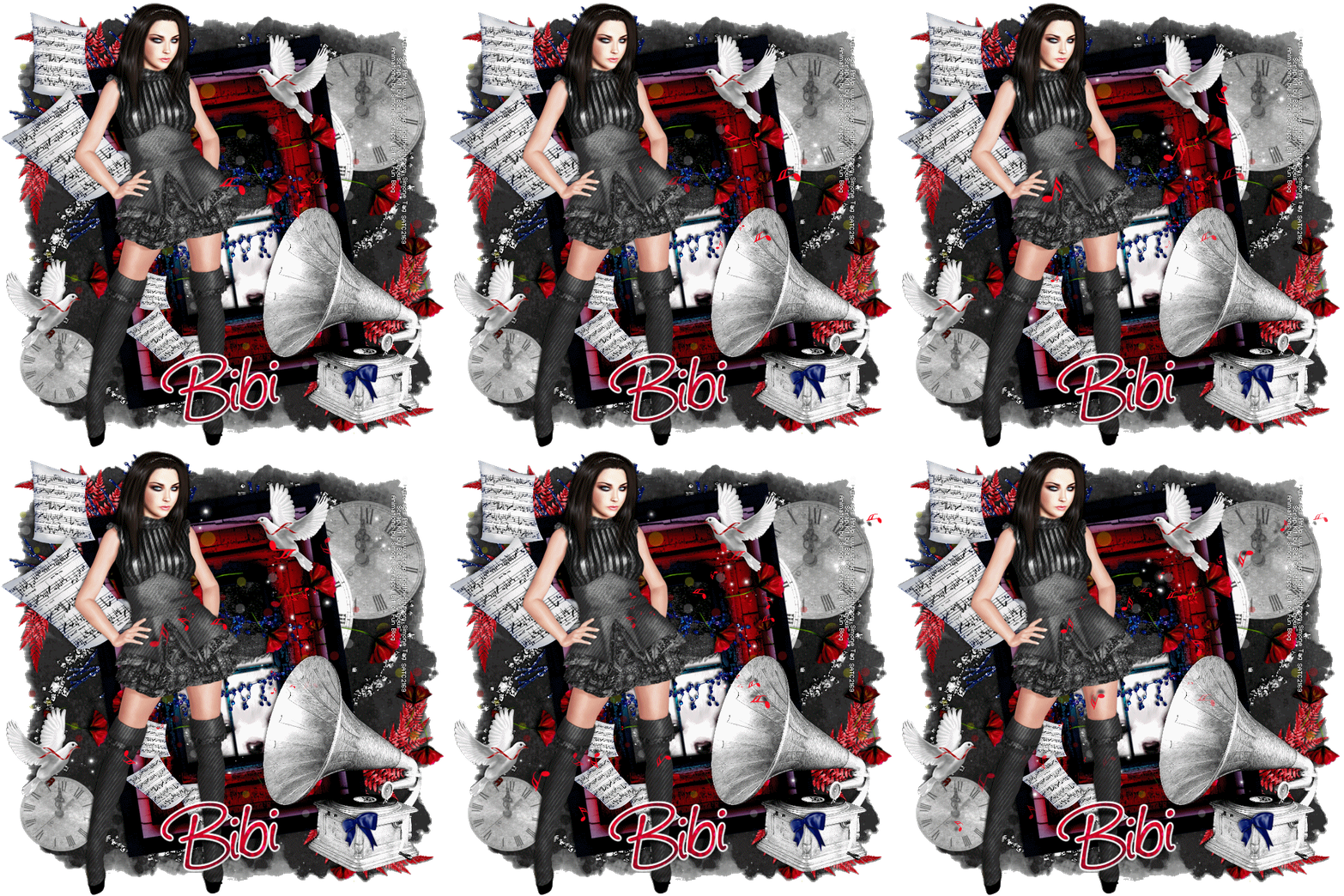
Please click on TAG to see in full size.
Supplies needed to complete this tutorial.
Supplies needed to complete this tutorial.
Programs: Paint Shop Pro, I'm using version 10
Animation Shop 3
Plugin : Eye Candy 4: Gradient Glow for Name and Redfield/Seamless Workshop
Font used:
Saginaw
Tube of choice, I'm using tube Amy Lee by SkyScraps from SATC
Scrap Kit "Verylicious" by Bibi's Collection at SATC
Scrap Kit "Verylicious" by Bibi's Collection at SATC
My Animations: Red Music Notes and Bling: HERE
Mask: Mask 87 SophisticatSimone HERE

Save your tag often. Nothing like working long and hard on a tag and PSP crashes.
Open BIBI VERYLICIOUS ELEM (10) frame in PSP. Duplicate and delete original.
Re-size: Resolution : 72 dpi
Width and Height: 92%
Re-sample using: Smart Size
Re-size all layers: UN-checked
Add drop shadow. I used, V & H -2, Opacity 70, Blur 4, Color=black.
Open Paper (7) in PSP. Copy layer and paste as a new layer on your tag.
Move to bottom.
Using your mover tool, position your favorite part of the paper in the window.
Select Magic Wand, feather : 0
Click in each little rectangle of window.
Go to Selections, modify, expand by 3.
Go to Selections, Invert and hit delete on your keyboard.
Open Paper (14) in PSP. Copy layer and paste as a new layer on your tag.
Move to bottom. Open Mask 87SophisticatSimone in PSP.
Go to Layers, New Mask Layer, From Image.
In source window find the Mask.
Create mask from : source luminance and make sure Invert mask data is UN-checked.
In layers Palette, right click on layer and merge group.
Duplicate twice and merge down the 3 mask layers.
Open Element (68) in PSP. Copy layer and paste as a new layer on your tag.
Close original. Using your mover tool to place in the left lower hand side of tag.
Duplicate layer.
Mirror layer and flip layer.
You can merge the duplicated layer down and make sure this layer is just above the mask layer.
Add drop shadow.
Open Element (1) in PSP. Copy layer and paste as a new layer on your tag.
Re-size: Resolution : 72 dpi
Width and Height: 65%
Re-sample using: Smart Size
Re-size all layers: UN-checked
Add drop shadow. I used, V & H -2, Opacity 70, Blur 4, Color=black.
Duplicate layer. Position one layer in upper right hand corner of tag and the other layer in the lower left hand side of tag.
Using your selection tool, set to rectangle and feather of 0 remove any extra clocks from the layers.
See my tag for reference.
Open Element (27) in PSP. Copy layer and paste as a new layer on your tag.
Re-size by 30%.
Hold down your shift key and using your mover tool click on your tag and move that element to the upper left hand corner of frame.
Duplicate.
Go to Image, Free Rotate, Rotate left, 90 degrees. All layers UN-checked.
Add drop shadow to each and merge down.
Duplicate, mirror and flip. Position if you need to, at the lower right hand side of frame.
Merge down.
Open Element (46) in PSP. Copy layer and paste as a new layer on your tag.
Position at upper left hand corner. Add drop shadow.
Open Element (76) in PSP. Copy layer and paste as a new layer on your tag.
Move to layer just below your window frame and position the doggie head in lower window.
I didn't re-size. Add drop shadow.
Go to Edit, Copy merged and open Animation Shop.
Right click and paste as new animation. Hold Ctrl key down and hit L key for a total of 11 frames.
Go to Edit, select all.
Open SimoneAni348-SweetBling. Go to Edit, Select All.
Go to Edit, Make sure Propagate Paste is selected.
Go to Edit, Copy.
Activate your tag. Go to Edit, Paste, Paste into selected frames.
Position in center of tag. Play your animation. Hopefully you like it. If not go to Edit and Undo.
Try pasting in different area of tag if this is what needs to be done. Once satisfied go back to PSP.
Back in PSP.
We will be working above the window layer now so make sure it's active.
Open Element (67) in PSP. Copy layer and paste as a new layer on your tag.
Re-size by 30%. DPI 72.
Position in upper window. Duplicate layer and merge down.
Duplicate layer again and mirror.
Move this layer a little lower. See my tag for reference. Add drop shadow to each and merge them.
Open Element (37) in PSP. Copy layer and paste as a new layer on your tag.
Re-size by 92%. DPI 72.
Duplicate and re-size this one by 70% and move lower down. Add drop shadow to each and merge them together.
Be careful with this element as it may be larger than your canvas. You can re-size canvas to make sure you don't get any cutoff.
Open Element (54) in PSP. Copy layer and paste as a new layer on your tag.
Move to upper left hand side of canvas. Duplicate and re-size by 50%. Sharpen.
Move to lower inner edge of window frame. Merge the music sheet layers together and add drop shadow.
I decreased to Opacity on this drop shadow as it was way to dark.
Open Element (58) in PSP. Copy layer and paste as a new layer on your tag.
Move to lower right hand side of tag. Add drop shadow. Make sure you're not totally covering up your doggie.
Open Element (74) in PSP. Copy layer and paste as a new layer on your tag.
Re-size by 30%. DPI 72. Position on corner of gramophone.
Open Element (17) in PSP. Copy layer and paste as a new layer on your tag.
Re-size by 40%. DPI 72. Position in upper right hand side of window frame.
Duplicate and mirror. Move down to lower left hand side of tag.
Add drop shadow and merge these layers.
Copy and paste your tube as a new layer, re-size if you need to and add drop shadow.
Add your copyright information. Merge all your top layers together, except the bottom ones we did earlier.
Copy and paste in AS as a new animation.
Go to Edit and Copy.
Activate your tag. Go to Edit and Paste/Paste into selected frames.
Now open SimoneAni349-RedMusicNotes
Go to Edit, Select All.
Go to Edit, Copy.
Activate your tag.
Go to Edit/Paste/Paste into selected frames.
Play your animation.
If you like it you can now add your name as save your tag.
For the name.
Select your font. I used Saginaw, size: 100, Bold, Sharp and no stroke width.
Kerning: 0
Open Paper(15) from the kit.
Re-size: 72dpi and 50%.
Promote background to layer.
Go Effects/Redfield/Seamless Workshop: select Preset 1 in drop down box.
Copy and paste as a new layer.
I re-sized it again with same settings.
On your tag activate with your text tool.
Make sure that in the material palette your set your background color to pattern.
Find your paper you just re sized and set to 0 angle and scale is 100%.
Foreground color is blank/off.
Type your name out.
Add very small drop shadow: V & H= -1 Opacity=40 Blur=2 Color=black.
Go to Eye Candy/Gradient Glow and select:
Under Color Tab, select FAT
Under Basic Tab, enter 3, 25, 100 click OK
Go to Effect and add this drop shadow:
V= 5
H= -5
Opacity: 80
Blur: 2
Color: black
Copy and paste back into animation shop as a new animation.
Copy and paste into your selected frames.
SAVE your tag.
Select your crop tool. Select Options, choose surround the opaque area.
Double click your tag.
You can now save it either with transparent background or add a white background.
To add bg, go to Animation: Animation Properties, select Opaque and change color to white.
Hope you enjoyed this tutorial,
Hugs Simone
Please, always direct people to my blog to download my animations.
Do not load to any other download site and don't claim as your own.
Tutorial written by SophisticatSimone aka Lorraine Halle on Sunday, March 20, 2013.
Enjoy!
Re-size: Resolution : 72 dpi
Width and Height: 92%
Re-sample using: Smart Size
Re-size all layers: UN-checked
Add drop shadow. I used, V & H -2, Opacity 70, Blur 4, Color=black.
Open Paper (7) in PSP. Copy layer and paste as a new layer on your tag.
Move to bottom.
Using your mover tool, position your favorite part of the paper in the window.
Select Magic Wand, feather : 0
Click in each little rectangle of window.
Go to Selections, modify, expand by 3.
Go to Selections, Invert and hit delete on your keyboard.
Open Paper (14) in PSP. Copy layer and paste as a new layer on your tag.
Move to bottom. Open Mask 87SophisticatSimone in PSP.
Go to Layers, New Mask Layer, From Image.
In source window find the Mask.
Create mask from : source luminance and make sure Invert mask data is UN-checked.
In layers Palette, right click on layer and merge group.
Duplicate twice and merge down the 3 mask layers.
Open Element (68) in PSP. Copy layer and paste as a new layer on your tag.
Close original. Using your mover tool to place in the left lower hand side of tag.
Duplicate layer.
Mirror layer and flip layer.
You can merge the duplicated layer down and make sure this layer is just above the mask layer.
Add drop shadow.
Open Element (1) in PSP. Copy layer and paste as a new layer on your tag.
Re-size: Resolution : 72 dpi
Width and Height: 65%
Re-sample using: Smart Size
Re-size all layers: UN-checked
Add drop shadow. I used, V & H -2, Opacity 70, Blur 4, Color=black.
Duplicate layer. Position one layer in upper right hand corner of tag and the other layer in the lower left hand side of tag.
Using your selection tool, set to rectangle and feather of 0 remove any extra clocks from the layers.
See my tag for reference.
Open Element (27) in PSP. Copy layer and paste as a new layer on your tag.
Re-size by 30%.
Hold down your shift key and using your mover tool click on your tag and move that element to the upper left hand corner of frame.
Duplicate.
Go to Image, Free Rotate, Rotate left, 90 degrees. All layers UN-checked.
Add drop shadow to each and merge down.
Duplicate, mirror and flip. Position if you need to, at the lower right hand side of frame.
Merge down.
Open Element (46) in PSP. Copy layer and paste as a new layer on your tag.
Position at upper left hand corner. Add drop shadow.
Open Element (76) in PSP. Copy layer and paste as a new layer on your tag.
Move to layer just below your window frame and position the doggie head in lower window.
I didn't re-size. Add drop shadow.
Go to Edit, Copy merged and open Animation Shop.
Right click and paste as new animation. Hold Ctrl key down and hit L key for a total of 11 frames.
Go to Edit, select all.
Open SimoneAni348-SweetBling. Go to Edit, Select All.
Go to Edit, Make sure Propagate Paste is selected.
Go to Edit, Copy.
Activate your tag. Go to Edit, Paste, Paste into selected frames.
Position in center of tag. Play your animation. Hopefully you like it. If not go to Edit and Undo.
Try pasting in different area of tag if this is what needs to be done. Once satisfied go back to PSP.
Back in PSP.
We will be working above the window layer now so make sure it's active.
Open Element (67) in PSP. Copy layer and paste as a new layer on your tag.
Re-size by 30%. DPI 72.
Position in upper window. Duplicate layer and merge down.
Duplicate layer again and mirror.
Move this layer a little lower. See my tag for reference. Add drop shadow to each and merge them.
Open Element (37) in PSP. Copy layer and paste as a new layer on your tag.
Re-size by 92%. DPI 72.
Duplicate and re-size this one by 70% and move lower down. Add drop shadow to each and merge them together.
Be careful with this element as it may be larger than your canvas. You can re-size canvas to make sure you don't get any cutoff.
Open Element (54) in PSP. Copy layer and paste as a new layer on your tag.
Move to upper left hand side of canvas. Duplicate and re-size by 50%. Sharpen.
Move to lower inner edge of window frame. Merge the music sheet layers together and add drop shadow.
I decreased to Opacity on this drop shadow as it was way to dark.
Open Element (58) in PSP. Copy layer and paste as a new layer on your tag.
Move to lower right hand side of tag. Add drop shadow. Make sure you're not totally covering up your doggie.
Open Element (74) in PSP. Copy layer and paste as a new layer on your tag.
Re-size by 30%. DPI 72. Position on corner of gramophone.
Open Element (17) in PSP. Copy layer and paste as a new layer on your tag.
Re-size by 40%. DPI 72. Position in upper right hand side of window frame.
Duplicate and mirror. Move down to lower left hand side of tag.
Add drop shadow and merge these layers.
Copy and paste your tube as a new layer, re-size if you need to and add drop shadow.
Add your copyright information. Merge all your top layers together, except the bottom ones we did earlier.
Copy and paste in AS as a new animation.
Go to Edit and Copy.
Activate your tag. Go to Edit and Paste/Paste into selected frames.
Now open SimoneAni349-RedMusicNotes
Go to Edit, Select All.
Go to Edit, Copy.
Activate your tag.
Go to Edit/Paste/Paste into selected frames.
Play your animation.
If you like it you can now add your name as save your tag.
For the name.
Select your font. I used Saginaw, size: 100, Bold, Sharp and no stroke width.
Kerning: 0
Open Paper(15) from the kit.
Re-size: 72dpi and 50%.
Promote background to layer.
Go Effects/Redfield/Seamless Workshop: select Preset 1 in drop down box.
Copy and paste as a new layer.
I re-sized it again with same settings.
On your tag activate with your text tool.
Make sure that in the material palette your set your background color to pattern.
Find your paper you just re sized and set to 0 angle and scale is 100%.
Foreground color is blank/off.
Type your name out.
Add very small drop shadow: V & H= -1 Opacity=40 Blur=2 Color=black.
Go to Eye Candy/Gradient Glow and select:
Under Color Tab, select FAT
Under Basic Tab, enter 3, 25, 100 click OK
Go to Effect and add this drop shadow:
V= 5
H= -5
Opacity: 80
Blur: 2
Color: black
Copy and paste back into animation shop as a new animation.
Copy and paste into your selected frames.
SAVE your tag.
Select your crop tool. Select Options, choose surround the opaque area.
Double click your tag.
You can now save it either with transparent background or add a white background.
To add bg, go to Animation: Animation Properties, select Opaque and change color to white.
Hope you enjoyed this tutorial,
Hugs Simone
Please, always direct people to my blog to download my animations.
Do not load to any other download site and don't claim as your own.
Tutorial written by SophisticatSimone aka Lorraine Halle on Sunday, March 20, 2013.
Enjoy!
Sunday, March 10, 2013

Please click on TAG to see in full size.
Supplies needed to complete this tutorial.
Supplies needed to complete this tutorial.
Programs: Paint Shop Pro, I'm using version 10
Animation Shop 3
Plugin : Eye Candy 4000 and Xenofex 2: Constellation.
Font used: Will & Grace
Tube of choice, I'm using Jose A Cano from SATC
Scrap Kit "I wanna Rock You" by Disturbed Scraps at SATC
Tube of choice, I'm using Jose A Cano from SATC
Scrap Kit "I wanna Rock You" by Disturbed Scraps at SATC
Animations: Music Notes 1 & 2 and Music Bar by me Simone
Mask: Mask 85 SophisticatSimone HERE
Save your tag often. Nothing like working long and hard on a tag and PSP crashes.
Open Mask 85SophisticatSimone.
Open paper DS - IWR - Paper08 in PSP. Duplicate layer and close original.
Resize paper by 80%. Right click on layer in Palette window and promote Background to layer.
Go to Layers/New Mask Layer/From Image.
Find Mask 85 in drop down box and select.
Click : Create mask from "Source luminance" and make sure there is NO check mark beside "Invert mask data"
Click OK.
In layers palette, right click and merge group.
Duplicate layer as many times as you like to get the look you want.
I duplicated it twice and merged layers.
Now duplicate again. On duplicated layer, re-size by 85%.
Go to Effects/ Xenofex 2/ Constellation.
Star Size: 3.98
Size Variation: 93
Edge Star Density: 13
Overall Star Density: 3
Overdrive: 99
Twinkly Amount: 75
Rotation: 45
Check: Keep original image.
Merge down. Duplicate and merge down again.
Re-size Canvas to 690 x 690.
Open DS - IWR - 056. Copy and paste as a new layer on your tag and re-size by 50%. Add drop shadow.
H=2
V=2
Opacity=75
Blur=5
Color=Black
Open DS - IWR - 042. Copy and paste as a new layer on your tag and re-size by 70%. Add same drop shadow.
See my tag for reference to position.
Open DS - IWR - 046. Copy and paste as a new layer on your tag and duplicate.
Merge down and leave it in it's current position.
Open DS - IWR - 027. Copy and paste as a new layer on your tag and re-size by 40% and position behind the keyboard.
Duplicate and mirror. Move this flower back to the left and a bit higher then the 1st flower.
Duplicate 1st flower again and position even higher. You should have 3 flowers, staggered top to bottom.
Add a drop shadow to each and merge each one down to form one layer.
Now duplicate that layer and mirror. Move it slightly higher. It should be on the right side of the tag.
Back to original. Duplicate and rotate to the left by 14 degrees and position as you like.
These should all be behind the keyboard layer.
Open DS - IWR - 004. Copy and paste as a new layer on your tag and re-size by 80%. Add different drop shadow.
H=2
V=2
Opacity=43
Blur=4
Color=Black
Go to Selections/ Select All.
Go to Edit/ Copy Merged.
Go to Animation Shop and right click and paste as a new animation.
Holding down the Ctrl key, tap the letter "L" until you have a total of 10 frames.
You can count as you tap or you can look at the bottom right hand area of AS and you will see the frame number increasing.
Open SimoneAni344-MusicNotes.
Go to Edit/Select All.
Go to Edit/Copy.
Go to Edit, make sure Propagate Paste is depressed (turned on).
Activate your tag.
Go to Edit/Select All.
Go to Edit/ Paste into Selected Frames.
Position in upper left hand side of tag.

Back in PSP
Reminder: Save your tag
Merge all visible.
Open DS - IWR - 040 (Music Pod) Add same drop shadow.
Copy and go to AS. Paste as a new animation.
Holding down the Ctrl key, tap the letter "L" until you have a total of 10 frames.
Open SimoneAni346-MusicNotes.
Go to Edit/Select All.
Go to Edit/Copy.
Activate the music pod.
Go to Edit/Select All.
Go to Edit/ Paste into Selected Frames.
Try your best to fit just right. I did make it so it would fit nice and snug in there.
Click into place. Play animation. If you like, go to edit, select all.
Edit/Copy.
Activate your tag. Make sure all frames are selected.
Go to Edit/Paste/Paste in selected frames.
Move it to the right side off the tag.
Click in place.
Let's go back to PSP.
Let's continue building our tag.
Open DS - IWR - 037. Copy and paste as a new layer on your tag and re-size by 60%. Add same drop shadow.
Position at lower left hand side of tag. (Speaker)
Open DS - IWR - 058. Copy and paste as a new layer on your tag and re-size by 40%. Add same drop shadow.
Position on top of the speaker. (Bottle of liquor)
Open DS - IWR - 028. Copy and paste as a new layer on your tag and re-size by 40%. Add same drop shadow as before.
Move to upper left hand side of tag. Position on edge of target element. (Bow)
Open DS - IWR - 079. Copy and paste as a new layer on your tag and re-size by 40%.
Position on top of the speaker. (Gem) Duplicate and mirror. Position bottom right hand side of tag.
Drop shadow the 1st gem and with the gem that is on lower right hand side add this drop shadow:
H=-1
V=-2
Opacity=73
Blur=4
Color=Black
DS - IWR - 035. Copy and paste as a new layer on your tag and re-size by 60%. Add original drop shadow. (Triple speaker)
Position at bottom of tag, slightly to the left.
Open DS - IWR - 029. Copy and paste as a new layer on your tag and re-size by 40%. Add same drop shadow. (Skull bow)
Position on the top center speaker.
Open DS - IWR - 024. Copy and paste as a new layer on your tag and re-size by 45%. Add same drop shadow. (Butterfly)
Position at top left hand corner of tag. Check my tag for reference. Duplicate this layer and mirror. Position to the right of tag at middle.
Open DS - IWR - 031. Copy and paste as a new layer on your tag and re-size by 37%. Add same drop shadow. (Black shoes)
Position at bottom, duplicate and move just a bit to the right.
Open DS - IWR - 019. Copy and paste as a new layer on your tag and re-size by 30%. Add same drop shadow. (Pink glitter heart)
Position at bottom, between and in front of the two speakers. Duplicate and move to middle right side of tag. See my tag for reference.
Open DS - IWR - 059. Copy and paste as a new layer on your tag and re-size by 40%. (Parental Advisory Tag) Add new drop shadow.
H=-1
V=-2
Opacity=73
Blur=4
Color=Black
Move your gem above this sign.
Open your tube. If you're using the same one as me, I re-sized by 60%.
Drag below all your layers to just above the keyboard. Make sure the bubbles aren't over your tubes face LOL.
Duplicate. On one layer add this drop shadow:
H=-1
V=-2
Opacity=73
Blur=4
Color=Black
On the other layer add this drop shadow:
Merge down.
Open DS - IWR - 004 (again). Using your selection tool, set to Magic Wand, Point to point, feather=0.
Now select the bubble with the double note. Just click all around.

Copy and paste onto your tag.
Re-size by 80%. Duplicate and merge down. Duplicate again.
Using your shift key, keep your finger on it and with your mouse click on your tag and move your bubble note to just over the speaker.
Activate the other note and once again using the shift key and your mouse, move that bubble note to the top of your tag near butterfly.
Add your copyright information on your tag. Somewhere it won't interfere with anything.
If you merged all your bottom layers earlier, all you need to do now is x out that layer.
Now go to Selections/Select All.
Go to Edit/Copy Merged and paste into AS
IF you didn't merge all your bottom layers earlier, do the following.
Merge all layers down till you get to your tube. Include your tube in the merged layer.
Copy and paste in AS as a new animation.
Go to Edit/Copy.
Make sure your tag is activated. Go to Edit/Select All.
Go to Edit and paste/Paste into selected frames.
Position carefully.
Now I've included another little musical note. Just repeat the steps and paste in lower left hand corner near the speakers.
Now for the Name animation.
Back in PSP.
I used Will and Grace font.
Activate your Text Tool.
Set size to 150. Background color to black. Stroke width: 0 Kerning : -75.
Click on your tag and Type name out. Upper case, (1st letter of your name) hit space bar, and type using all lower case for remainder of your name.
Don't click Enter yet.
Using your mouse, highlight all the letters in your name except the 1st letter (Yes, do this in the text box).
Click on your color palette and change your background color to a color from your tag. With letters still highlighted, change text size to 90.
Now you can click enter.
Position approximately where you want your name to start on the tag.
Convert to raster layer.
Using your selection tool. Set to rectangle. Feather 0.
Surround all the lower case letters and promote selection to layer.
Activate the name layer again and hit delete. Now deselect.
Using mover tool positon lower case letters at the upper edge of your Upper case letter.
Merge down.
Go to Effect and add this drop shadow:
V=1 H=0 Opacity=37 Blur=2 Color=black
Go to Adjust and add noise, Gaussian, 70
Go to Effect, Eye Candy 4000, Gradient Glow,
Under Color Tab, select FAT
Under Basic Tab, enter 3, 25, 100 click OK
Go to Effect and add this drop shadow:
V=3 H=3 Opacity=78 Blur=5 Color=black
Copy and paste as a New Animation in AS
Back in PSP, go to Edit and undo until you get to the 1st drop shadow.
Repeat the above, but change the noise 71.
Copy name and right click on the name in AS and paste AFTER current frame.
Go to Edit/Select All.
Go to Edit/Copy.
Activate your tag, make sure all your frames are selected.
Go to Edit/Paste/Paste into selected frames.
Play your animation.
Hope you like it.
Select your crop tool. Select Options, choose surround the opaque area.
Double click your tag.
You can now save it either with transparent background or add a white background.
To add bg, go to Animation: Animation Properties, select Opaque and change color to white.
Hope you enjoyed this tutorial,
Hugs Simone
Please, always direct people to my blog to download my animations.
Do not load to any other download site and don't claim as your own.
Do not load to any other download site and don't claim as your own.
Tutorial writen by SophisticatSimone aka Lorraine Halle on Sunday, March 10, 2013.

What you will need for this tutorial:
Tube of choice, I'm using Nina by Lady Mishka found at SATC.
This tube is an exclusive commission for SATC, but if you are a member of Facebook Fan Page
there is a way to get this little cutie.
Facebook HERE
Scrap Kit "Early Spring" by Disturbed Scraps at SATC
Paint Shop Pro, I'm using version 10 and Animation Shop
My two animations SimoneAni299-Fairy and SimoneAni343
Scrap Kit "Early Spring" by Disturbed Scraps at SATC
Paint Shop Pro, I'm using version 10 and Animation Shop
My two animations SimoneAni299-Fairy and SimoneAni343
The font I used is A&S Christmas Script
Please DO NOT share these supplies or use in other tutorials.
Thank you.
Thank you.
Open paper: DS -Early Spring - Paper04. Duplicate and close original.
Promote background layer.
Open element: DS -Early Spring - 011
Activate your your paper and go to Layers/New Mask Layer/From Image.
Find element: DS -Early Spring - 011 in drop down box and select.
Click : Create mask from "Source luminance" and make sure there is NO check mark beside "Invert mask data"
Click OK.
In layers palette, right click and merge group.
Duplicate layer as many times as you like to get the look you want.
I duplicated it twice and merged layers.
Let's re-size this layer now.
Go to Image/Re-size
Make sure your Print Size Resolution is 72 dpi
Now enter dimensions as 84% or 672x672
Re-sample using: Smart Size.
NO check mark beside : Re-size all layers.
Click OK
NB: all elements in this kit are 300 dpi. Make sure to save as 72 dpi as you are doing your tag.
This is only for your tag. Don't alter the original elements in your kit.
Copy and paste the element: DS -Early Spring - 011 as a new layer on your mask.
Re-size by 82% (make sure your dpi is set to 72)
Add drop shadow: V=2, H=0, Opacity=73, Blur=5, Color=Black
Copy and paste your tube. Re-size is needed. I had to re-size mine by 75%.
Add same drop shadow.
Open element: DS -Early Spring - 032, copy and paste as a new layer, close original.
Re-size to 45% and add same drop shadow.
Open element: DS -Early Spring - 053, copy and paste as a new layer, close original.
Re-size to 85% and duplicate layer. Merge down. I placed this element to the right of my tag.
I added a small drop shadow.
V=3, H=0, Opacity=20, Blur=7, Color=Black
Open element: DS -Early Spring - 004, copy and paste as a new layer, close original.
Move this element to the lower left hand side slightly and duplicate layer.
Mirror duplicated element.
Merge down and position layer behind your tube.
Add drop shadow: V=2, H=0, Opacity=73, Blur=5, Color=Black
Open element: DS -Early Spring - 021, copy and paste as a new layer, close original.
Re-size by 65% (make sure your dpi is set to 72)
Add drop shadow: V=2, H=0, Opacity=73, Blur=5, Color=Black
Open element: DS -Early Spring - 020, copy and paste as a new layer, close original.
Re-size by 100% (make sure your dpi is set to 72)
Add drop shadow: V=2, H=0, Opacity=73, Blur=5, Color=Black
Open elements: DS -Early Spring - 025 and 026, copy and paste as a new layer, close original.
Re-size element 026 by 30% (make sure your dpi is set to 72)
Add drop shadow: V=2, H=0, Opacity=73, Blur=5, Color=Black
Open element: DS -Early Spring - 071, copy and paste as a new layer, close original.
Re-size by 100% (make sure your dpi is set to 72)
Add drop shadow: V=2, H=0, Opacity=73, Blur=5, Color=Black
Position behind tube, to the right.
Open element: DS -Early Spring - 076, copy and paste as a new layer, close original.
Re-size by 40% (make sure your dpi is set to 72)
Add drop shadow: V=2, H=0, Opacity=73, Blur=5, Color=Black
I duplicated twice and positioned them:
- 1-by her head, behind
- 2-left side of tag
- 3-lower right side by her leg
Open element: DS -Early Spring - 067, copy and paste as a new layer, close original.
Drop layer down to below the tube and above the foliage.
Duplicate layer twice. On the very bottom one, blur it.
Go to Adjust/ Blur/ Gaussian Blur; enter 2.
Open element: DS -Early Spring - 079, copy and paste as a new layer, close original.
Re-size by 25% (make sure your dpi is set to 72). Position to the left lower hand side of tag.
Duplicate layer and mirror.
Add drop shadow: V=2, H=0, Opacity=73, Blur=5, Color=Black to both flowers.
Merging layers.
Starting below the horse layer, one by one, merge your layers down till you've merged down to the mask layer.
Don't include the horse in this portion.

Copy and paste in Animation shop.
Holding down the Ctrl key, tap the letter "L" until you have a total of 20 frames.
You can count as you tap or you can look at the bottom right hand area of AS and you will see the frame number increasing.

Open SimoneAni343.
Go to Edit/Select All.
Go to Edit/Copy.
Go to Edit, make sure Propagate Paste is depressed (turned on).
Activate your tag.
Go to Edit/Select All.
Go to Edit/ Paste into Selected Frames.
Center as best as you can.
Back in PSP, merge down all other layers.
Don't include the other merged layer. We don't need that one anymore.
Go to Edit and Copy.
Back in AS, right click on work space and paste as new animation.
Go to Edit/Copy.
Activate your main tag.
Go to Edit/Select All.
Go to Edit/ Paste into Selected Frames.
Position as well as possible. You can look back at your main tag in PSP and gauge where it should go.
Click into place.
Open SimoneAni299-FairySprinkle.
Go to Edit/Select All.
Go to Edit/Copy.
Activate your main tag.
Go to Edit/Select All.
Go to Edit/ Paste into Selected Frames.
Using your cursor move the little mini-fairy so it appears just over her hand.
See my image below for accuracy.
Click into place.

Play your animation. If you like it, you need to add your copyright information and add your name.
Save your animation.
Go to File, Save as, enter the name of your file and select the folder to save to.
Now click on Customize:
Under COLORS TAB:
Number of colors: 255 Colors
Create palette by: OPTIMIZED OCTREE
Reduce colors by: Error Diffusion
Under OPTIMIZATIONS TAB:
set a check mark beside the second, third and forth choices. Uncheck the 1st and last.
Under PARTIAL TRANSPARENCY:
check Convert pixels less than 92
Yes, blend with this color: change to white #FFFFFF
Click OK. Click Next, next, next, next.
Play your animation.
At times your animation may or will come out terrible. Optimization in Animation Shop is not the greatest.
You can play around will your settings, especially under the Tab: Optimization. I change this setting at times from anywhere between 50 and 110.
Some people add a white background. I don't. I prefer not seeing a white background if I'm posting it in a forum that has a colored background.
For this tag I did indeed add a white background. It helped with the optimization.
Hope you enjoyed this tutorial,
Hugs Simone
Please, always direct people to my blog to download my animations.
Do not load to any other download site and don't claim as your own.
This tutorial was written by SophisticatSimone aka Lorraine Halle
March 10, 2013
Subscribe to:
Posts
(Atom)
CT TEAM