My Blinkie

Saturday, May 11, 2013

♥♥♥
Please click on TAG to see in full size.
••• Supplies needed to complete this tutorial. •••
________________________________________________________________________
Programs: Paint Shop Pro, I'm using version 10. Animation Shop 3.
Plugin : AAA Filters/ Blot and Smudge and Xero_Fritillary
Font used: Croissant
Tube of choice: I'm using "Beth" by Jose A Cano from SATC.
Scrap Kit : I'm using "Rock a Babe" by Bibi's Collection from SATC
Animation: I'm using my own, SimoneAni441-443
________________________________________________________________________
♥♥♥
Save your tag often. Nothing like working long and hard on a tag and PSP crashes.
♥♥♥
Open element 7 and duplicate. Close original.
Go to image and canvas size. Enter the new size of 700 x 650.
Re-size screen element to 90%, 72dpi, smart size.
Copy and paste element 2 as a new layer.
Copy and paste your tube as a new layer and re-size by 75%.
Using your magic wand, feather set to 0, Mode set to Add shift, Match mode set to RGB Value, Tolerance set to 12 and anti-alias
checked, select all the white portions of the screen.
Go to selections invert and promote selection to layer.
Leave selected.
In layers palette, highlight the original screen again and now copy and paste a close up of your tube. Position it where you can see
the majority of her/his face. Now hit delete on your screen.
Deselect. On promoted layer, (frame outline), add drop shadow.
On tube close up layer, change opacity to 40 and blend mode to Multiply.
Go to Effects/Plugins/ AAA Filters/ Blot and Smudge and enter:
Blot=10
Smudge=100
Go to Effects/Plugins/Xero/Fritillary and enter the following numbers:
10
100
0
0
X-out the red flower spill and merge visible.
Un-hide the flower spill element.
Copy and paste as a new layer element 68.
Move behind your screen layer. Place in the upper right hand corner of tag. See my tag for reference. Add drop shadow.
Copy and paste as a new layer element 64.
Move behind your screen layer. Place in the upper right hand corner of tag in front of palm trees. See my tag for reference.
Add drop shadow.
Copy and paste as a new layer element 63.
Move behind your screen layer. Place on the right side of the screen in front of palm trees and the red leaf. Duplicate and move that layer just a little lower. Add drop shadow to both.
Please click on TAG to see in full size.
••• Supplies needed to complete this tutorial. •••
________________________________________________________________________
Programs: Paint Shop Pro, I'm using version 10. Animation Shop 3.
Plugin : AAA Filters/ Blot and Smudge and Xero_Fritillary
Font used: Croissant
Tube of choice: I'm using "Beth" by Jose A Cano from SATC.
Scrap Kit : I'm using "Rock a Babe" by Bibi's Collection from SATC
Animation: I'm using my own, SimoneAni441-443
________________________________________________________________________
♥♥♥
Save your tag often. Nothing like working long and hard on a tag and PSP crashes.
♥♥♥
Open element 7 and duplicate. Close original.
Go to image and canvas size. Enter the new size of 700 x 650.
Re-size screen element to 90%, 72dpi, smart size.
Copy and paste element 2 as a new layer.
Copy and paste your tube as a new layer and re-size by 75%.
Using your magic wand, feather set to 0, Mode set to Add shift, Match mode set to RGB Value, Tolerance set to 12 and anti-alias
checked, select all the white portions of the screen.
Go to selections invert and promote selection to layer.
Leave selected.
In layers palette, highlight the original screen again and now copy and paste a close up of your tube. Position it where you can see
the majority of her/his face. Now hit delete on your screen.
Deselect. On promoted layer, (frame outline), add drop shadow.
On tube close up layer, change opacity to 40 and blend mode to Multiply.
Go to Effects/Plugins/ AAA Filters/ Blot and Smudge and enter:
Blot=10
Smudge=100
Go to Effects/Plugins/Xero/Fritillary and enter the following numbers:
10
100
0
0
X-out the red flower spill and merge visible.
Un-hide the flower spill element.
Copy and paste as a new layer element 68.
Move behind your screen layer. Place in the upper right hand corner of tag. See my tag for reference. Add drop shadow.
Copy and paste as a new layer element 64.
Move behind your screen layer. Place in the upper right hand corner of tag in front of palm trees. See my tag for reference.
Add drop shadow.
Copy and paste as a new layer element 63.
Move behind your screen layer. Place on the right side of the screen in front of palm trees and the red leaf. Duplicate and move that layer just a little lower. Add drop shadow to both.
Copy and paste as a new layer element 49.
Move behind your screen layer. Place on the left side of the screen. Add drop shadow to both.
I add a few more of these leaves just around the screen. You can duplicate, re-size and mirror. Add drop shadow to all layers.
Copy and paste element 60 as a new layer, re-size by 58 % and move to the right hand side of tag/screen and add drop shadow.
Merge all visible layers.
We will be working on top of the screen layer now. Nothing else for background unless you choose to add a mask layer, which I didn't.
Copy and paste your tube as a new layer. Move her to the bottom of screen and add drop shadow.
All elements will be below tube layer now.
Copy and paste element 66 as a new layer and move to the left. I didn't re-size but I did remove extra at the bottom. You can do
this by using your selection tool. Just select area to remove and delete. Add drop shadow. *On this layer in the layers palette,
double click it to open Layer properties box. Place check mark next to: Highlight in layers palette. Choose color of choice.*
Copy and paste element 46 as a new layer and move to the left. I re-sized by 40%. Duplicate and free rotate by 90 degrees to the
right. Position these flowers, by her hands and her head. Add drop shadow to each layer.
Paste the large flower again as a new layer and move this one to the right of tag and behind her legs. Re-size by 80% and Add drop shadow.
Copy and paste element 6 as a new layer and move to the left side of center. Add drop shadow.
Copy and paste element 40 as a new layer and move to the left side of center. Add drop shadow.
Remove extra that shows under your tube at the bottom of tag.
Copy and paste element 60 as a new layer and leave in center. Add drop shadow. Triplicate this layer and re-size them. Move them along the bottom of screen (in front) and create grassy area.
Add kitten element (79) as new layer, re-size and add drop shadow. This should be your top layer.
Element 15, which is bubbles, you can add here and there if you like.
Now merge all layers down to the highlighted layer in your layers palette. You added a check mark and color to it earlier.
This is your top layer.
Anything below that is merge down together.
You should have two layers.

Now to animate.
Make sure your bottom layer is active in layers palette.
Go to Selections, select all.
Go to Edit and copy merged. Paste as a new animation in Animation Shop.
Hold your Ctrl key down and repeatedly hit letter L on your keyboard for a total of 15 frames.
You can watch the count on the lower right hand side of your screen in AS.
Open SimoneAni443
Go to Edit, select all. Go to Animation / Flip
Go to Edit, copy.
Activate your tag.
Go to Edit, select all.
Go to Edit, make sure Propagate Paste is selected.
Go to Edit, Paste, paste into selected frames.
Position on your tag and click into place.
Play and save.
Don't forget to add your name.
You can see my name tutorial HERE.
To save:
Go to File, Save as, enter the name of your file and select the folder to save to.
Now click on Customize:
Under COLORS TAB:
Number of colors: 255 Colors
Create palette by: OPTIMIZED OCTREE
Reduce colors by: Error Diffusion
Under OPTIMIZATIONS TAB:
set a check mark beside the second, third and forth choices. UN-check the 1st and last.
Under PARTIAL TRANSPARENCY:
check Convert pixels less than 92
Yes, blend with this color: change to white #FFFFFF
Click OK. Click Next, next, next, next.
Play your animation.
At times your animation may or will come out terrible. Optimization in Animation Shop is not the greatest.
You can play around will your settings, especially under the Tab: Optimization. I change this setting at times from anywhere between 70 and 100.
Some people add a white background. To add background, go to Animation: Animation Properties, select Opaque and change color to white.
Hope you enjoyed this tutorial,
Hugs Simone
Please, always direct people to my blog to download my animations.
Do not load to any other download site and don't claim as your own.
Tutorial written by SophisticatSimone aka Lorraine Halle on Saturday, May 11, 2013.

Monday, May 6, 2013

♥♥♥
Please click on TAG to see in full size.
••• Supplies needed to complete this tutorial. •••
________________________________________________________________________
Programs: Paint Shop Pro, I'm using version 10. Animation Shop 3.
Plugin : none
Font used: Croissant
Tube of choice: I'm using "Spring Girl" by VeryMany from SATC.
Scrap Kit : I'm using "Once Upon A Time" by Amy Marie's Kits from SATC
Animation: I'm using my own, SimoneAni441-443
________________________________________________________________________
♥♥♥
Save your tag often. Nothing like working long and hard on a tag and PSP crashes.
♥♥♥
Open element 95 and duplicate. Close original. Please make sure to always close your originals without altering them.
Re-size by 80%.
Copy and paste your tube as a new layer and re-size if you need too. Add drop shadow.
Copy and paste element 125 as a new layer, duplicate and merge down. You may need to crop this layer as it's too large to fit the canvas.
Copy and paste element 124 as a new layer, move to the left and behind your tube.
Copy and paste element 123 as a new layer, free rotate by 90 degrees to the left and move to the left and behind your tube. Re-size by 70%.
Copy and paste element 122 as a new layer, duplicate and merge down. This layer should be just above your background layer.
Copy and paste element 90 as a new layer, duplicate and merge down. This layer should be above the glitter layer you just added.
Add drop shadow.
Do same for element 90.
Copy and paste element 126 as a new layer and re-size by 43%, move to the right and tuck in behind the green leaves.
Activate background layer. Copy and paste element 14 as a new layer and re-size by 86%. Add drop shadow, tuck the castle in behind the leaves.
Copay and paste element 136 as a new layer. Mirror and re-size by 57%. This layer should be just above the castle layer.
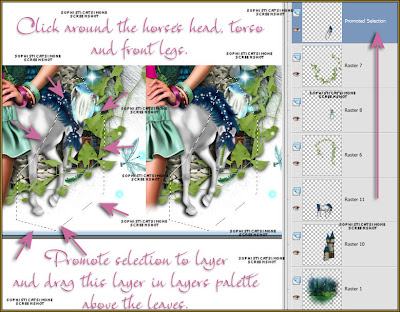
Add drop shadow. Now using your lasso tool, set to Point to Point, feather 0, click around the area of the horse that you want to appear above the leaves, like he's stepping over them. Now promote that layer and in your layers palette, drag that layer up above the leaves. De-select.
Please click on TAG to see in full size.
••• Supplies needed to complete this tutorial. •••
________________________________________________________________________
Programs: Paint Shop Pro, I'm using version 10. Animation Shop 3.
Plugin : none
Font used: Croissant
Tube of choice: I'm using "Spring Girl" by VeryMany from SATC.
Scrap Kit : I'm using "Once Upon A Time" by Amy Marie's Kits from SATC
Animation: I'm using my own, SimoneAni441-443
________________________________________________________________________
♥♥♥
Save your tag often. Nothing like working long and hard on a tag and PSP crashes.
♥♥♥
Open element 95 and duplicate. Close original. Please make sure to always close your originals without altering them.
Re-size by 80%.
Copy and paste your tube as a new layer and re-size if you need too. Add drop shadow.
Copy and paste element 125 as a new layer, duplicate and merge down. You may need to crop this layer as it's too large to fit the canvas.
Copy and paste element 124 as a new layer, move to the left and behind your tube.
Copy and paste element 123 as a new layer, free rotate by 90 degrees to the left and move to the left and behind your tube. Re-size by 70%.
Copy and paste element 122 as a new layer, duplicate and merge down. This layer should be just above your background layer.
Copy and paste element 90 as a new layer, duplicate and merge down. This layer should be above the glitter layer you just added.
Add drop shadow.
Do same for element 90.
Copy and paste element 126 as a new layer and re-size by 43%, move to the right and tuck in behind the green leaves.
Activate background layer. Copy and paste element 14 as a new layer and re-size by 86%. Add drop shadow, tuck the castle in behind the leaves.
Copay and paste element 136 as a new layer. Mirror and re-size by 57%. This layer should be just above the castle layer.
Add drop shadow. Now using your lasso tool, set to Point to Point, feather 0, click around the area of the horse that you want to appear above the leaves, like he's stepping over them. Now promote that layer and in your layers palette, drag that layer up above the leaves. De-select.
CLICK TO ENLARGE
Copy and paste element 137 as a new layer and re-size by 56%, move to the left and at bottom of tag.
Repeat, but this time after you've re-sized, free rotate 90 degrees to the right. Move this layer under the white flowers that are on the left side of tag and place at the top of the tag.
Copy and paste element 130 as a new layer, move to the left and keep behind the white flower, but the grass peek out. Add drop shadow.
Copy and paste element 80 as a new layer and position at bottom of tag in front of your tube. If you need to bring your promoted "horse legs" layer higher up in layers, do so now.
TO ANIMATE:
Go to Selections, select all.
Go to Edit and copy.
Paste as a new animation in Animation Shop.
Hold your Ctrl key down and repeatedly hit letter L on your keyboard for a total of 20 frames.
You can watch the count on the lower right hand side of your screen in AS.
Open SimoneAni444
Go to Edit, select all.
Go to Edit, copy.
Activate your tag.
Go to Edit, select all.
Go to Edit, make sure Propagate Paste is selected.
Go to Edit, Paste, paste into selected frames.
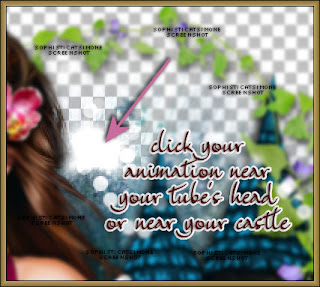
Position on your tag NEAR your tubes head or near the castle, click into place.
Play and save.
Don't forget to add your name.
You can see my name tutorial HERE.
To save:
Go to File, Save as, enter the name of your file and select the folder to save to.
Now click on Customize:
Under COLORS TAB:
Number of colors: 255 Colors
Create palette by: OPTIMIZED OCTREE
Reduce colors by: Error Diffusion
Under OPTIMIZATIONS TAB:
set a check mark beside the second, third and forth choices. UN-check the 1st and last.
Under PARTIAL TRANSPARENCY:
check Convert pixels less than 92
Yes, blend with this color: change to white #FFFFFF
Click OK. Click Next, next, next, next.
Play your animation.
At times your animation may or will come out terrible. Optimization in Animation Shop is not the greatest.
You can play around will your settings, especially under the Tab: Optimization. I change this setting at times from anywhere between 70 and 100.
Some people add a white background. To add background, go to Animation: Animation Properties, select Opaque and change color to white.
Hope you enjoyed this tutorial,
Hugs Simone
Please, always direct people to my blog to download my animations.
Do not load to any other download site and don't claim as your own.
Tutorial written by SophisticatSimone aka Lorraine Halle on Monday, May 6, 2013.

Copy and paste element 137 as a new layer and re-size by 56%, move to the left and at bottom of tag.
Repeat, but this time after you've re-sized, free rotate 90 degrees to the right. Move this layer under the white flowers that are on the left side of tag and place at the top of the tag.
Copy and paste element 130 as a new layer, move to the left and keep behind the white flower, but the grass peek out. Add drop shadow.
Copy and paste element 80 as a new layer and position at bottom of tag in front of your tube. If you need to bring your promoted "horse legs" layer higher up in layers, do so now.
TO ANIMATE:
Go to Selections, select all.
Go to Edit and copy.
Paste as a new animation in Animation Shop.
Hold your Ctrl key down and repeatedly hit letter L on your keyboard for a total of 20 frames.
You can watch the count on the lower right hand side of your screen in AS.
Open SimoneAni444
Go to Edit, select all.
Go to Edit, copy.
Activate your tag.
Go to Edit, select all.
Go to Edit, make sure Propagate Paste is selected.
Go to Edit, Paste, paste into selected frames.
Position on your tag NEAR your tubes head or near the castle, click into place.

Play and save.
Don't forget to add your name.
You can see my name tutorial HERE.
To save:
Go to File, Save as, enter the name of your file and select the folder to save to.
Now click on Customize:
Under COLORS TAB:
Number of colors: 255 Colors
Create palette by: OPTIMIZED OCTREE
Reduce colors by: Error Diffusion
Under OPTIMIZATIONS TAB:
set a check mark beside the second, third and forth choices. UN-check the 1st and last.
Under PARTIAL TRANSPARENCY:
check Convert pixels less than 92
Yes, blend with this color: change to white #FFFFFF
Click OK. Click Next, next, next, next.
Play your animation.
At times your animation may or will come out terrible. Optimization in Animation Shop is not the greatest.
You can play around will your settings, especially under the Tab: Optimization. I change this setting at times from anywhere between 70 and 100.
Some people add a white background. To add background, go to Animation: Animation Properties, select Opaque and change color to white.
Hope you enjoyed this tutorial,
Hugs Simone
Please, always direct people to my blog to download my animations.
Do not load to any other download site and don't claim as your own.
Tutorial written by SophisticatSimone aka Lorraine Halle on Monday, May 6, 2013.

♥♥♥
Please click on TAG to see in full size.
••• Supplies needed to complete this tutorial. •••
________________________________________________________________________
Programs: Paint Shop Pro, I'm using version 10. Animation Shop 3.
Plugin : none
Font used: Genial
Tube of choice: I'm using "Roxanne" by Diana Gali from SATC.
Scrap Kit : I'm using "Roxanne" by Bibi's Collection from SATC
Please click on TAG to see in full size.
••• Supplies needed to complete this tutorial. •••
________________________________________________________________________
Programs: Paint Shop Pro, I'm using version 10. Animation Shop 3.
Plugin : none
Font used: Genial
Tube of choice: I'm using "Roxanne" by Diana Gali from SATC.
Scrap Kit : I'm using "Roxanne" by Bibi's Collection from SATC
Animation: I'm using my own, SimoneAni441-443
________________________________________________________________________
♥♥♥
Save your tag often. Nothing like working long and hard on a tag and PSP crashes.
♥♥♥
________________________________________________________________________
♥♥♥
Save your tag often. Nothing like working long and hard on a tag and PSP crashes.
♥♥♥
Open element 103, duplicate. Close original.
Re-size by 60%.
Change canvas size to 650 x 650.
Move skyline up higher on tag.
C/P element 61 as a new layer. Using your selection tool, set to rectangle, feather of 10.
Select each side, and delete extra water from edges.
Should look like this:
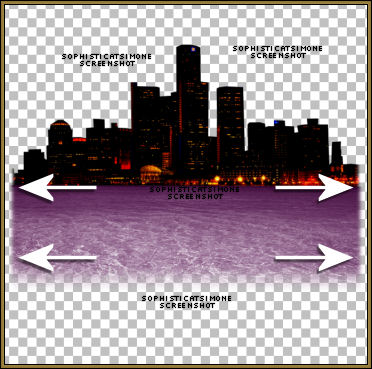
C/P element 56 as a new layer. Using your selection tool, set to rectangle, feather of 10.
Select each side, and delete extra sand from edges.
C/P element 89 as a new layer. Move to left side of tag and place top edge of sand. Add drop shadow.
C/P element 20 as a new layer. Move to right side of tag and place near bottom edge of sand. Add drop shadow.
C/P element 37 as a new layer. Re-size by 25%. Duplicate till you have 4 layers. Position each at base of palm tree. Add drop
shadow. Two of them I mirrored.
C/P element 51 as a new layer. Re-size by 64%. Place at edge of water, center tag. Add drop shadow.
C/P element 81 as a new layer. Re-size by 43%. Place center of palm trees and behind them. Add drop shadow.
C/P element 67 as a new layer. Re-size by 43%. Place to left side of tag. Add drop shadow.
C/P element 2 as a new layer. Re-size by 30%. Place in front of palm trees and behind fence, duplicate and move over. Add drop
shadow.
C/P element 23 as a new layer. Re-size by 26%. Place in front of fence. Add drop shadow.
C/P element 45 as a new layer. Re-size by 26%. Duplicate and place one on each fire pole. Add drop shadow.
C/P element 93 as a new layer. Re-size by 50%. Move to the upper right hand side of tag. Add drop shadow.
C/P element 82 as a new layer. Move to the left hand side of tag. Add drop shadow. Should be behind fence layer.
C/P element 79 as a new layer. Move to center of tag. Duplicate if it's to light. Should be behind purple left tree layer.
C/P element 1 as a new layer. Re-size by 50%. Move doggie near fence. Add drop shadow.
Copy and paste your tube of choice as a new layer. Move it behind the car layer and add drop shadow.
Merge all top layers down to sand.
Merge sand layer all the way down to bottom layer.
You can add another paper if you choose to, for the sky. I added paper 4.
Feather your sky like you did the water and sand.
Grab your crop tool and Snap crop rectangle to : Merged Opaque.
You should have two layers
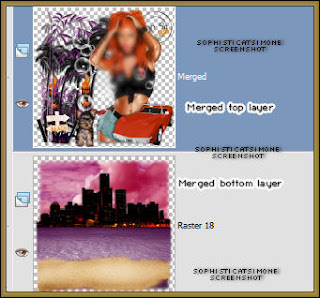
Now to animate.
Click on bottom layer.
Go to Selections, select all.
Go to Edit and copy. Paste as a new animation in Animation Shop.
Hold your Ctrl key down and repeatedly hit letter L on your keyboard for a total of 16 frames.
You can watch the count on the lower right hand side of your screen in AS.
Open SimoneAni443
Go to Edit, select all.
Go to Edit, copy.
Activate your tag.
Go to Edit, select all.
Go to Edit, make sure Propagate Paste is selected.
Go to Edit, Paste, paste into selected frames.
Position on your tag ALONG the water and city edge and click into place.
Copy and paste your top layer as a new animation in AS.
Go to Edit and Copy.
Activate your tag.
Go to Edit, select all.
Go to Edit, Paste, paste into selected frames. If you add it selected in PSP if should line right up.
Play and save.
Don't forget to add your name.
You can see my name tutorial HERE.
To save:
Go to File, Save as, enter the name of your file and select the folder to save to.
Now click on Customize:
Under COLORS TAB:
Number of colors: 255 Colors
Create palette by: OPTIMIZED OCTREE
Reduce colors by: Error Diffusion
Under OPTIMIZATIONS TAB:
set a check mark beside the second, third and forth choices. UN-check the 1st and last.
Under PARTIAL TRANSPARENCY:
check Convert pixels less than 92
Yes, blend with this color: change to white #FFFFFF
Click OK. Click Next, next, next, next.
Play your animation.
At times your animation may or will come out terrible. Optimization in Animation Shop is not the greatest.
You can play around will your settings, especially under the Tab: Optimization. I change this setting at times from anywhere between 70 and 100.
Some people add a white background. To add background, go to Animation: Animation Properties, select Opaque and change color to white.
Hope you enjoyed this tutorial,
Hugs Simone
Please, always direct people to my blog to download my animations.
Do not load to any other download site and don't claim as your own.
Tutorial written by SophisticatSimone aka Lorraine Halle on Monday, May 6, 2013.
Re-size by 60%.
Change canvas size to 650 x 650.
Move skyline up higher on tag.
C/P element 61 as a new layer. Using your selection tool, set to rectangle, feather of 10.
Select each side, and delete extra water from edges.
Should look like this:
C/P element 56 as a new layer. Using your selection tool, set to rectangle, feather of 10.
Select each side, and delete extra sand from edges.
C/P element 89 as a new layer. Move to left side of tag and place top edge of sand. Add drop shadow.
C/P element 20 as a new layer. Move to right side of tag and place near bottom edge of sand. Add drop shadow.
C/P element 37 as a new layer. Re-size by 25%. Duplicate till you have 4 layers. Position each at base of palm tree. Add drop
shadow. Two of them I mirrored.
C/P element 51 as a new layer. Re-size by 64%. Place at edge of water, center tag. Add drop shadow.
C/P element 81 as a new layer. Re-size by 43%. Place center of palm trees and behind them. Add drop shadow.
C/P element 67 as a new layer. Re-size by 43%. Place to left side of tag. Add drop shadow.
C/P element 2 as a new layer. Re-size by 30%. Place in front of palm trees and behind fence, duplicate and move over. Add drop
shadow.
C/P element 23 as a new layer. Re-size by 26%. Place in front of fence. Add drop shadow.
C/P element 45 as a new layer. Re-size by 26%. Duplicate and place one on each fire pole. Add drop shadow.
C/P element 93 as a new layer. Re-size by 50%. Move to the upper right hand side of tag. Add drop shadow.
C/P element 82 as a new layer. Move to the left hand side of tag. Add drop shadow. Should be behind fence layer.
C/P element 79 as a new layer. Move to center of tag. Duplicate if it's to light. Should be behind purple left tree layer.
C/P element 1 as a new layer. Re-size by 50%. Move doggie near fence. Add drop shadow.
Copy and paste your tube of choice as a new layer. Move it behind the car layer and add drop shadow.
Merge all top layers down to sand.
Merge sand layer all the way down to bottom layer.
You can add another paper if you choose to, for the sky. I added paper 4.
Feather your sky like you did the water and sand.
Grab your crop tool and Snap crop rectangle to : Merged Opaque.
You should have two layers

Now to animate.
Click on bottom layer.
Go to Selections, select all.
Go to Edit and copy. Paste as a new animation in Animation Shop.
Hold your Ctrl key down and repeatedly hit letter L on your keyboard for a total of 16 frames.
You can watch the count on the lower right hand side of your screen in AS.
Open SimoneAni443
Go to Edit, select all.
Go to Edit, copy.
Activate your tag.
Go to Edit, select all.
Go to Edit, make sure Propagate Paste is selected.
Go to Edit, Paste, paste into selected frames.
Position on your tag ALONG the water and city edge and click into place.
Copy and paste your top layer as a new animation in AS.
Go to Edit and Copy.
Activate your tag.
Go to Edit, select all.
Go to Edit, Paste, paste into selected frames. If you add it selected in PSP if should line right up.
Play and save.
Don't forget to add your name.
You can see my name tutorial HERE.
To save:
Go to File, Save as, enter the name of your file and select the folder to save to.
Now click on Customize:
Under COLORS TAB:
Number of colors: 255 Colors
Create palette by: OPTIMIZED OCTREE
Reduce colors by: Error Diffusion
Under OPTIMIZATIONS TAB:
set a check mark beside the second, third and forth choices. UN-check the 1st and last.
Under PARTIAL TRANSPARENCY:
check Convert pixels less than 92
Yes, blend with this color: change to white #FFFFFF
Click OK. Click Next, next, next, next.
Play your animation.
At times your animation may or will come out terrible. Optimization in Animation Shop is not the greatest.
You can play around will your settings, especially under the Tab: Optimization. I change this setting at times from anywhere between 70 and 100.
Some people add a white background. To add background, go to Animation: Animation Properties, select Opaque and change color to white.
Hope you enjoyed this tutorial,
Hugs Simone
Please, always direct people to my blog to download my animations.
Do not load to any other download site and don't claim as your own.
Tutorial written by SophisticatSimone aka Lorraine Halle on Monday, May 6, 2013.
Sunday, May 5, 2013

♥♥♥
Please click on TAG to see in full size.
••• Supplies needed to complete this tutorial. •••
________________________________________________________________________
Programs: Paint Shop Pro, I'm using version 10. Animation Shop 3.
Plugin : none
Font used: Olivier
Tube of choice: I'm using "Sybil" by Misticheskaya from SATC.
Scrap Kit : I'm using "Fresh" by SkyScrap
Please click on TAG to see in full size.
••• Supplies needed to complete this tutorial. •••
________________________________________________________________________
Programs: Paint Shop Pro, I'm using version 10. Animation Shop 3.
Plugin : none
Font used: Olivier
Tube of choice: I'm using "Sybil" by Misticheskaya from SATC.
Scrap Kit : I'm using "Fresh" by SkyScrap
_________
♥♥♥
Save your tag often. Nothing like working long and hard on a tag and PSP crashes.
♥♥♥
Open a new Image size 770 x 650. You can re-size later if you choose to.
Open, copy and paste SkyScraps-Fresh-E95 as a new layer on your canvas.
Close original.
Duplicate your layer. On your duplicated layer, add (random) noise of 60% and change your Blend Mode to "Hard Light".
On the original layer add drop shadow: V & H =0 Opacity = 80 Blur = 2 Color =black.
Merge these two layers together.
Open, copy and paste SkyScraps-Fresh-E13 as a new layer on your canvas. Re-size by 90%. Nudge it slightly to the right and make
sure it's up nice and high on your canvas. You will want to see it peeking out at the top. Duplicate, merge down and add same drop shadow.
Open, copy and paste SkyScraps-Fresh-E47 as a new layer on your canvas and move it to the upper right hand corner of canvas.
Duplicate your layer. On original layer ass same drop shadow as before. Merge top layer down.
Open, copy and paste SkyScraps-Fresh-E37 as a new layer on your canvas. Move to the left of Eiffel tower. Add drop shadow.
V =-1 H = 2 Opacity = 82 Blur = 6 Color =black.
Open, copy and paste SkyScraps-Fresh-E56 as a new layer on your canvas. Re-size by 60%. Move to the left of tag in front of tree.
Add drop shadow. V =-2 H = 5 Opacity = 82 Blur = 6 Color =black.
Open, copy and paste SkyScraps-Fresh-E69 as a new layer on your canvas. Re-size by 70%. Move to the right of tag. Add drop
shadow. V =0 H = 2 Opacity = 82 Blur = 4 Color =black.
Open, copy and paste SkyScraps-Fresh-E62 as a new layer on your canvas. Re-size by 25%. Move to the left upper hand side. Add
drop shadow. V =0 H = 4 Opacity = 60 Blur = 5 Color =black.
Open, copy and paste SkyScraps-Fresh-E36 as a new layer on your canvas. Move to the left hand side of tag, behind the house.
Duplicate and move to the right.
Open, copy and paste SkyScraps-Fresh-E61 as a new layer on your canvas. Move to the left hand side of tag, in front of house and hill. Re-size by 25% add drop shadow V =0 H = 4 Opacity = 60 Blur = 5 Color =black.
Open, copy and paste SkyScraps-Fresh-E34 as a new layer on your canvas. Place in center of tag and slightly lower then the fence.
See tag for reference.
Open, copy and paste SkyScraps-Fresh-E68 as a new layer on your canvas. Place horse to the right side of tag. See tag for reference.
Add drop shadow V =-1 H = -4 Opacity = 60 Blur = 13 Color =black.
Open, copy and paste SkyScraps-Fresh-E12 as a new layer on your canvas. Place yellow grass in center of tag. It should be behind the horse layer. Re-size by 80%. Add drop shadow V =-1 H = -4 Opacity = 60 Blur = 5 Color =black.
Duplicate and re-size by 80% again. Move to the left side of tag and behind the house layer.
Open, copy and paste SkyScraps-Fresh-E41 as a new layer on your canvas. Place this element on right side of tag. It should be in
front of the horse layer. Re-size by 80%. Add drop shadow V =-1 H = -4 Opacity = 60 Blur = 5 Color =black.
Open, copy and paste SkyScraps-Fresh-E55 as a new layer on your canvas. Re-size by 60%. Place this element in front of the horse
layer and it should be around his shoulder area. Duplicate and merge down. Add drop shadow V =-1 H = -4 Opacity = 60 Blur = 5 Color =black.
Open, copy and paste SkyScraps-Fresh-E93 as a new layer on your canvas. Re-size by 35%. Place this element above the horse layer and it should be up over his. Add drop shadow V =-1 H = -4 Opacity = 60 Blur = 5 Color=black.
Open, copy and paste SkyScraps-Fresh-E11 as a new layer on your canvas. Re-size by 80%. Place this element to the left side of tag
in front of fence. Add drop shadow V =-1 H = -4 Opacity = 60 Blur = 5 Color =black.
Open, copy and paste SkyScraps-Fresh-E9 as a new layer on your canvas. Re-size by 30-40%. Do about 4 of these and scatter them
along the bottom of tag. Add drop shadow V =-1 H = -4 Opacity = 60 Blur = 5 Color =black. Make sure you put about 2-3 of them by the horse back leg, see my tag.
Repeat and do the same for E3. Make sure you place one by the horse's back leg. One will be in front of tube later on.
Copy and paste element 97 as a new layer and re-size by 30%. Place on horse's head. Add this drop shadow:
V =-3 H = -1 Opacity = 60 Blur = 5 Color =black.
On element 11 will select only the rocks and the sand. So grab your lasso tool, set Point to Point, with a feather of 8.
Click around the grass and delete. Copy the rocks & sand that's left over. So what we are trying to do here is add some sand and some rocks to the bottom of tag to make it look like a sandy beach is starting. So have fun with this part. You can re-size, you can mirror, etc...
Add your tube of choice, and re-size if you need too. Add drop shadow.
I added the little bunny and the windmill as well. You can pick and choose from the elements what you'd like to add.
There's a very cute little puppy as well.
Merge all visible and save as PNG.
Add name, I used font Olivier.
Hope you enjoyed this tutorial,
Hugs Simone
Please, always direct people to my blog to download my animations.
Do not load to any other download site and don't claim as your own.
Tutorial written by SophisticatSimone aka Lorraine Halle on Sunday, May 6, 2013.
♥♥♥
Save your tag often. Nothing like working long and hard on a tag and PSP crashes.
♥♥♥
Open a new Image size 770 x 650. You can re-size later if you choose to.
Open, copy and paste SkyScraps-Fresh-E95 as a new layer on your canvas.
Close original.
Duplicate your layer. On your duplicated layer, add (random) noise of 60% and change your Blend Mode to "Hard Light".
On the original layer add drop shadow: V & H =0 Opacity = 80 Blur = 2 Color =black.
Merge these two layers together.
Open, copy and paste SkyScraps-Fresh-E13 as a new layer on your canvas. Re-size by 90%. Nudge it slightly to the right and make
sure it's up nice and high on your canvas. You will want to see it peeking out at the top. Duplicate, merge down and add same drop shadow.
Open, copy and paste SkyScraps-Fresh-E47 as a new layer on your canvas and move it to the upper right hand corner of canvas.
Duplicate your layer. On original layer ass same drop shadow as before. Merge top layer down.
Open, copy and paste SkyScraps-Fresh-E37 as a new layer on your canvas. Move to the left of Eiffel tower. Add drop shadow.
V =-1 H = 2 Opacity = 82 Blur = 6 Color =black.
Open, copy and paste SkyScraps-Fresh-E56 as a new layer on your canvas. Re-size by 60%. Move to the left of tag in front of tree.
Add drop shadow. V =-2 H = 5 Opacity = 82 Blur = 6 Color =black.
Open, copy and paste SkyScraps-Fresh-E69 as a new layer on your canvas. Re-size by 70%. Move to the right of tag. Add drop
shadow. V =0 H = 2 Opacity = 82 Blur = 4 Color =black.
Open, copy and paste SkyScraps-Fresh-E62 as a new layer on your canvas. Re-size by 25%. Move to the left upper hand side. Add
drop shadow. V =0 H = 4 Opacity = 60 Blur = 5 Color =black.
Open, copy and paste SkyScraps-Fresh-E36 as a new layer on your canvas. Move to the left hand side of tag, behind the house.
Duplicate and move to the right.
Open, copy and paste SkyScraps-Fresh-E61 as a new layer on your canvas. Move to the left hand side of tag, in front of house and hill. Re-size by 25% add drop shadow V =0 H = 4 Opacity = 60 Blur = 5 Color =black.
Open, copy and paste SkyScraps-Fresh-E34 as a new layer on your canvas. Place in center of tag and slightly lower then the fence.
See tag for reference.
Open, copy and paste SkyScraps-Fresh-E68 as a new layer on your canvas. Place horse to the right side of tag. See tag for reference.
Add drop shadow V =-1 H = -4 Opacity = 60 Blur = 13 Color =black.
Open, copy and paste SkyScraps-Fresh-E12 as a new layer on your canvas. Place yellow grass in center of tag. It should be behind the horse layer. Re-size by 80%. Add drop shadow V =-1 H = -4 Opacity = 60 Blur = 5 Color =black.
Duplicate and re-size by 80% again. Move to the left side of tag and behind the house layer.
Open, copy and paste SkyScraps-Fresh-E41 as a new layer on your canvas. Place this element on right side of tag. It should be in
front of the horse layer. Re-size by 80%. Add drop shadow V =-1 H = -4 Opacity = 60 Blur = 5 Color =black.
Open, copy and paste SkyScraps-Fresh-E55 as a new layer on your canvas. Re-size by 60%. Place this element in front of the horse
layer and it should be around his shoulder area. Duplicate and merge down. Add drop shadow V =-1 H = -4 Opacity = 60 Blur = 5 Color =black.
Open, copy and paste SkyScraps-Fresh-E93 as a new layer on your canvas. Re-size by 35%. Place this element above the horse layer and it should be up over his. Add drop shadow V =-1 H = -4 Opacity = 60 Blur = 5 Color=black.
Open, copy and paste SkyScraps-Fresh-E11 as a new layer on your canvas. Re-size by 80%. Place this element to the left side of tag
in front of fence. Add drop shadow V =-1 H = -4 Opacity = 60 Blur = 5 Color =black.
Open, copy and paste SkyScraps-Fresh-E9 as a new layer on your canvas. Re-size by 30-40%. Do about 4 of these and scatter them
along the bottom of tag. Add drop shadow V =-1 H = -4 Opacity = 60 Blur = 5 Color =black. Make sure you put about 2-3 of them by the horse back leg, see my tag.
Repeat and do the same for E3. Make sure you place one by the horse's back leg. One will be in front of tube later on.
Copy and paste element 97 as a new layer and re-size by 30%. Place on horse's head. Add this drop shadow:
V =-3 H = -1 Opacity = 60 Blur = 5 Color =black.
On element 11 will select only the rocks and the sand. So grab your lasso tool, set Point to Point, with a feather of 8.
Click around the grass and delete. Copy the rocks & sand that's left over. So what we are trying to do here is add some sand and some rocks to the bottom of tag to make it look like a sandy beach is starting. So have fun with this part. You can re-size, you can mirror, etc...
Add your tube of choice, and re-size if you need too. Add drop shadow.
I added the little bunny and the windmill as well. You can pick and choose from the elements what you'd like to add.
There's a very cute little puppy as well.
Merge all visible and save as PNG.
Add name, I used font Olivier.
Hope you enjoyed this tutorial,
Hugs Simone
Please, always direct people to my blog to download my animations.
Do not load to any other download site and don't claim as your own.
Tutorial written by SophisticatSimone aka Lorraine Halle on Sunday, May 6, 2013.
Thursday, May 2, 2013

♥♥♥
Please click on TAG to see in full size.
••• Supplies needed to complete this tutorial. •••
________________________________________________________________________
Programs: Paint Shop Pro, I'm using version 10. Animation Shop 3.
Plugin : none
Font used: Carpenter
Tube of choice: I'm using "Roxy" by Jose Cano
Scrap Kit : I'm using "Sexylicious" by SkyScraps
Mask: By me, Mask0115SophisticatSimone HERE
Animations: By me, SimoneAni-Aquarium HERE
________________________________________________________________________
♥♥♥
Save your tag often. Nothing like working long and hard on a tag and PSP crashes.
♥♥♥
Open Mask0115 in PSP and minimize.
Open a new image 750 Width x 650 Height.
Copy and paste element 75 as a new layer and re-size by 65%.
Position in the center of tag and add drop shadow.
Repeat for element 55. Re-size by 80%. Position in front of skyline.
Repeat for element 13. Re-size by 50%. Position behind skyline on the right side.
Repeat for element 61. Position low on tag in front of all other elements.
Copy and paste your tube as a new layer. Re-size and add drop shadow.
Copy and paste element 69 and move it to the right side of tag.
Copy and paste element 45 and move it to the back of skyline.
Copy and paste element 43 and move it to the front but behind the ducks and to the right of tag.
Copy and paste element 42 and re-size by 70%. Move to right side of tag.
Add black palm tree as a new layer. Place it to the left on your tag.
C/P element 64 as a new layer and move to the lower right hand side and behind the skyline layer.
Duplicate and merge down. Duplicate and mirror. Merge down.
C/P element 7 as a new layer and move to the right in front of beach sign.
Duplicate and mirror, re-size by 65% and move behind small boat.
C/P element 38 as a new layer, re-size by 65% and move to the right in front of beach sign.
C/P element 37 as a new layer, re-size by 48% and move to the top of tag and at center.
C/P element 34 as a new layer, re-size by 39% and move to the left side of tag and behind the small boat.
C/P element 18 as a new layer, re-size by 39% and move to the right side of tag and behind the bottle.
C/P element 41 as a new layer, and leave in center and should be the layer just above your tube.
C/P element 15 as a new layer, re-size by 45% and place on right side of tag.
C/P element 3 as a new layer, move the layer just above element 61 and using your rectangle selection tool, remove all netting on
the left side. So from the center of tag to the left should be selected and deleted. You should have the tall grey seaweed in front so it
hides the cut off edge.
Add drop shadow to all layers. Tweak your elements now, re-position if you need to.
Click on your crop tool and select snap crop rectangle to: Merged Opaque.
Open paper 4. C/P as new layer and move to the bottom.
Click on your crop tool and select snap crop rectangle to: Merged Opaque.
Apply mask of choice. I used one of my own, Mask0115.
Merge visible.
Add artist copyright and scrap kit credit.
Add your name.
Copy Merged and Paste as a new Animation in animation shop.
Hold your Ctrl key down and repeatedly hit letter L on your keyboard for a total of 10 frames.
You can watch the count on the lower right hand side of your screen in AS.
Open SimoneAni-Aquarium-Tutorial
Go to Edit, select all. Go to Animation and cull every 2.
Go to Edit, copy.
Activate your tag.
Go to Edit, select all.
Go to Edit, make sure Propagate Paste is selected.
Go to Edit, Paste, paste into selected frames.
Position on your tag and click into place. I placed near her hand.
Play and save.
To save:
Go to File, Save as, enter the name of your file and select the folder to save to.
Now click on Customize:
Under COLORS TAB:
Number of colors: 255 Colors
Create palette by: OPTIMIZED OCTREE
Reduce colors by: Error Diffusion
Under OPTIMIZATIONS TAB:
set a check mark beside the second, third and forth choices. UN-check the 1st and last.
Under PARTIAL TRANSPARENCY:
check Convert pixels less than 92
Yes, blend with this color: change to white #FFFFFF
Click OK. Click Next, next, next, next.
Play your animation.
At times your animation may or will come out terrible. Optimization in Animation Shop is not the greatest.
You can play around will your settings, especially under the Tab: Optimization. I change this setting at times from anywhere between 70 and 100.
Some people add a white background. To add background, go to Animation: Animation Properties, select Opaque and change color
to white.
Hope you enjoyed this tutorial,
Hugs Simone
Please, always direct people to my blog to download my animations.
Do not load to any other download site and don't claim as your own.
Tutorial written by SophisticatSimone aka Lorraine Halle on Thursday, May 2, 2013.
Please click on TAG to see in full size.
••• Supplies needed to complete this tutorial. •••
________________________________________________________________________
Programs: Paint Shop Pro, I'm using version 10. Animation Shop 3.
Plugin : none
Font used: Carpenter
Tube of choice: I'm using "Roxy" by Jose Cano
Scrap Kit : I'm using "Sexylicious" by SkyScraps
Mask: By me, Mask0115SophisticatSimone HERE
Animations: By me, SimoneAni-Aquarium HERE
________________________________________________________________________
♥♥♥
Save your tag often. Nothing like working long and hard on a tag and PSP crashes.
♥♥♥
Open Mask0115 in PSP and minimize.
Open a new image 750 Width x 650 Height.
Copy and paste element 75 as a new layer and re-size by 65%.
Position in the center of tag and add drop shadow.
Repeat for element 55. Re-size by 80%. Position in front of skyline.
Repeat for element 13. Re-size by 50%. Position behind skyline on the right side.
Repeat for element 61. Position low on tag in front of all other elements.
Copy and paste your tube as a new layer. Re-size and add drop shadow.
Copy and paste element 69 and move it to the right side of tag.
Copy and paste element 45 and move it to the back of skyline.
Copy and paste element 43 and move it to the front but behind the ducks and to the right of tag.
Copy and paste element 42 and re-size by 70%. Move to right side of tag.
Add black palm tree as a new layer. Place it to the left on your tag.
C/P element 64 as a new layer and move to the lower right hand side and behind the skyline layer.
Duplicate and merge down. Duplicate and mirror. Merge down.
C/P element 7 as a new layer and move to the right in front of beach sign.
Duplicate and mirror, re-size by 65% and move behind small boat.
C/P element 38 as a new layer, re-size by 65% and move to the right in front of beach sign.
C/P element 37 as a new layer, re-size by 48% and move to the top of tag and at center.
C/P element 34 as a new layer, re-size by 39% and move to the left side of tag and behind the small boat.
C/P element 18 as a new layer, re-size by 39% and move to the right side of tag and behind the bottle.
C/P element 41 as a new layer, and leave in center and should be the layer just above your tube.
C/P element 15 as a new layer, re-size by 45% and place on right side of tag.
C/P element 3 as a new layer, move the layer just above element 61 and using your rectangle selection tool, remove all netting on
the left side. So from the center of tag to the left should be selected and deleted. You should have the tall grey seaweed in front so it
hides the cut off edge.
Add drop shadow to all layers. Tweak your elements now, re-position if you need to.
Click on your crop tool and select snap crop rectangle to: Merged Opaque.
Open paper 4. C/P as new layer and move to the bottom.
Click on your crop tool and select snap crop rectangle to: Merged Opaque.
Apply mask of choice. I used one of my own, Mask0115.
Merge visible.
Add artist copyright and scrap kit credit.
Add your name.
Copy Merged and Paste as a new Animation in animation shop.
Hold your Ctrl key down and repeatedly hit letter L on your keyboard for a total of 10 frames.
You can watch the count on the lower right hand side of your screen in AS.
Open SimoneAni-Aquarium-Tutorial
Go to Edit, select all. Go to Animation and cull every 2.
Go to Edit, copy.
Activate your tag.
Go to Edit, select all.
Go to Edit, make sure Propagate Paste is selected.
Go to Edit, Paste, paste into selected frames.
Position on your tag and click into place. I placed near her hand.
Play and save.
To save:
Go to File, Save as, enter the name of your file and select the folder to save to.
Now click on Customize:
Under COLORS TAB:
Number of colors: 255 Colors
Create palette by: OPTIMIZED OCTREE
Reduce colors by: Error Diffusion
Under OPTIMIZATIONS TAB:
set a check mark beside the second, third and forth choices. UN-check the 1st and last.
Under PARTIAL TRANSPARENCY:
check Convert pixels less than 92
Yes, blend with this color: change to white #FFFFFF
Click OK. Click Next, next, next, next.
Play your animation.
At times your animation may or will come out terrible. Optimization in Animation Shop is not the greatest.
You can play around will your settings, especially under the Tab: Optimization. I change this setting at times from anywhere between 70 and 100.
Some people add a white background. To add background, go to Animation: Animation Properties, select Opaque and change color
to white.
Hope you enjoyed this tutorial,
Hugs Simone
Please, always direct people to my blog to download my animations.
Do not load to any other download site and don't claim as your own.
Tutorial written by SophisticatSimone aka Lorraine Halle on Thursday, May 2, 2013.
Wednesday, May 1, 2013

♥♥♥
Please click on TAG to see in full size.
••• Supplies needed to complete this tutorial. •••
________________________________________________________________________
♥♥♥
Save your tag often. Nothing like working long and hard on a tag and PSP crashes.
♥♥♥
Open Mask0113 and minimize in PSP.
Open a new image 600 x 600.
Open element 88, copy and paste as a new layer on your canvas.
Open Poser 1, re-size by 30% and paste as a new layer.
Duplicate. On bottom tube layer, add blur of 3. On top tube layer change blend mode to screen.
Add drop shadow.
Open Poser 7, copy and paste as a new layer and move below your flower frame.
Using your mover tool, move your tube more to the left side.
With your magic wand, feather set to zero, click inside.
Go to selections, modify, expand by 10.
Go to selections, invert and delete.
Leave selected.
Open paper of choice, I used Paper 22.
Copy and paste as a new layer. Move below your tube close up.
Hit delete on your keyboard.
De-select.
On your tube close-up, decrease to opacity to 48 and change the blend mode to overlay.
Copy and paste element 45 as a new layer. Re-size by 70%. Move this layer to the bottom and add drop shadow.
Copy and paste element 39 as a new layer. Re-size by 44%. Leave this layer above the purple roped frame.
Duplicate and free rotate to the left by 45 degrees. Move this leaf to the very bottom layer.
Drag the leaf so it peaks out at the bottom towards the left side of frame. Add drop shadow.
Copy and paste element 100 and mirror.
Free rotate to the right by 45 degrees.
Duplicate. Mirror and Flip.
Merge these two layers together.
Duplicate. On the bottom layer add drop shadow.
On top layer, add blur of 2 and change blend mode to Multiple.
Copy and paste element 96 and re-size by 36%. Position at bottom of tag and add drop shadow.
Copy and paste element 93 and re-size by 36%. Position at bottom of tag to the left side and add drop shadow.
Copy and paste element 92 and re-size by 32%. Position to top of bucket and add drop shadow.
Copy and paste element 85. Position at bottom of tag and add drop shadow.
Copy and paste element 84. Free rotate to the left by 90 degrees and mirror. Add drop shadow. Position on the right side of flower frame.
Copy and paste element 28 and re-size by 30%. Position behind the tube on the right side of tag. Duplicate and mirror.
Drop shadow both layers.
Copy and paste element 48 and re-size by 26%. Position to top of bucket and add drop shadow.
Copy and paste element 35 and re-size by 26%. Position to top of frame just above the leaves and add drop shadow.
Copy and paste element 34 and re-size by 25%. Position at bottom of bucket and add drop shadow.
Copy and paste element 22. Position behind lilac layer and add drop shadow.
Copy and paste element 1 as new layer, re-size by 25% and move to the right side of tag at bottom. Add drop shadow.
Copy and paste element 105 as new layer, re-size by 25% and move to the left side of tag at bottom. Add drop shadow.
Copy and paste element 87 as new layer, re-size by 20% and move to the right side of tag at bottom. Add drop shadow.
Copy and paste a paper of choice as a new layer on your tag and move it to the bottom.
Apply your mask. Merge group.
If you're not animating you can stop here and add the finishing details, such as Artist Copyright and scrap kit maker.
Add your name and merge All visible. Save as a PNG file.
If you are animating, go ahead and still add the copyright details.
Now starting with your top layer, X-out all layers working your way down to the purple vine just above your flower frame.
Right click on your mask layer and merge visible.
Go to Selections, select all and copy.
In Animation Shop, right click and paste as a new animation.
Hold Crtl key on keyboard and tap letter L until you have a total of 17 frames.
Open SimoneAni413
Go to Edit, select all.
Go to Edit, copy.
Activate your tag.
Go to Edit, select all.
Go to Edit, make sure Propagate Paste is selected.
Go to Edit, Paste, paste into selected frames.
Position on your tag and click into place.
Open SimoneAni418
Go to Edit, select all.
Go to Edit, copy.
Activate your tag.
Go to Edit, Paste, paste into selected frames.
Position on your tag and click into place. I placed one to the left side and one to the right side.
Go back to PSP and X-out the bottom layer and UN-hide all your hidden layers.
Merge visible. Copy layer and paste as a new layer in AS.
Go to Edit, copy.
Activate your tag.
Go to Edit, Paste, paste into selected frames.
Play and save.
Don't forget to add your name.
You can see my name tutorial HERE.
You can either do it animated like in the tutorial or still.
To save:
Go to File, Save as, enter the name of your file and select the folder to save to.
Now click on Customize:
Under COLORS TAB:
Number of colors: 255 Colors
Create palette by: OPTIMIZED OCTREE
Reduce colors by: Error Diffusion
Under OPTIMIZATIONS TAB:
set a check mark beside the second, third and forth choices.
UN-check the 1st and last.
Under PARTIAL TRANSPARENCY:
check Convert pixels less than 92
Yes, blend with this color: change to white #FFFFFF
Click OK. Click Next, next, next, next.
Play your animation.
At times your animation may or will come out terrible.
Optimization in Animation Shop is not the greatest.
You can play around will your settings, especially under the Tab: Optimization.
I change this setting at times from anywhere between 70 and 100.
Some people add a white background. To add background, go to Animation:
Animation Properties, select Opaque and change color to white.
Hope you enjoyed this tutorial,
Hugs Simone
Please, always direct people to my blog to download my animations.
Do not load to any other download site and don't claim as your own.
Please click on TAG to see in full size.
••• Supplies needed to complete this tutorial. •••
________________________________________________________________________
Programs: Paint Shop Pro, I'm using version 10. Animation Shop 3.
Plugin : NONE
Font used: Olivier
Tube of choice: I'm using "Mindy4" by Mirka Designs from Heartbeatz Creationz. There are 9 tubes in this set.
Scrap Kit : I'm using "Bunny Meadows" by Tiny Turtle Designs from SATC
Animations : Made by me, Bling Series Two. I used 413 and 418 which you can download HERE
Mask: Made by me, Mask0113 HERE.
________________________________________________________________________Plugin : NONE
Font used: Olivier
Tube of choice: I'm using "Mindy4" by Mirka Designs from Heartbeatz Creationz. There are 9 tubes in this set.
Scrap Kit : I'm using "Bunny Meadows" by Tiny Turtle Designs from SATC
Animations : Made by me, Bling Series Two. I used 413 and 418 which you can download HERE
Mask: Made by me, Mask0113 HERE.
♥♥♥
Save your tag often. Nothing like working long and hard on a tag and PSP crashes.
♥♥♥
Open Mask0113 and minimize in PSP.
Open a new image 600 x 600.
Open element 88, copy and paste as a new layer on your canvas.
Open Poser 1, re-size by 30% and paste as a new layer.
Duplicate. On bottom tube layer, add blur of 3. On top tube layer change blend mode to screen.
Add drop shadow.
Open Poser 7, copy and paste as a new layer and move below your flower frame.
Using your mover tool, move your tube more to the left side.
With your magic wand, feather set to zero, click inside.
Go to selections, modify, expand by 10.
Go to selections, invert and delete.
Leave selected.
Open paper of choice, I used Paper 22.
Copy and paste as a new layer. Move below your tube close up.
Hit delete on your keyboard.
De-select.
On your tube close-up, decrease to opacity to 48 and change the blend mode to overlay.
Copy and paste element 45 as a new layer. Re-size by 70%. Move this layer to the bottom and add drop shadow.
Copy and paste element 39 as a new layer. Re-size by 44%. Leave this layer above the purple roped frame.
Duplicate and free rotate to the left by 45 degrees. Move this leaf to the very bottom layer.
Drag the leaf so it peaks out at the bottom towards the left side of frame. Add drop shadow.
Copy and paste element 100 and mirror.
Free rotate to the right by 45 degrees.
Duplicate. Mirror and Flip.
Merge these two layers together.
Duplicate. On the bottom layer add drop shadow.
On top layer, add blur of 2 and change blend mode to Multiple.
Copy and paste element 96 and re-size by 36%. Position at bottom of tag and add drop shadow.
Copy and paste element 93 and re-size by 36%. Position at bottom of tag to the left side and add drop shadow.
Copy and paste element 92 and re-size by 32%. Position to top of bucket and add drop shadow.
Copy and paste element 85. Position at bottom of tag and add drop shadow.
Copy and paste element 84. Free rotate to the left by 90 degrees and mirror. Add drop shadow. Position on the right side of flower frame.
Copy and paste element 28 and re-size by 30%. Position behind the tube on the right side of tag. Duplicate and mirror.
Drop shadow both layers.
Copy and paste element 48 and re-size by 26%. Position to top of bucket and add drop shadow.
Copy and paste element 35 and re-size by 26%. Position to top of frame just above the leaves and add drop shadow.
Copy and paste element 34 and re-size by 25%. Position at bottom of bucket and add drop shadow.
Copy and paste element 22. Position behind lilac layer and add drop shadow.
Copy and paste element 1 as new layer, re-size by 25% and move to the right side of tag at bottom. Add drop shadow.
Copy and paste element 105 as new layer, re-size by 25% and move to the left side of tag at bottom. Add drop shadow.
Copy and paste element 87 as new layer, re-size by 20% and move to the right side of tag at bottom. Add drop shadow.
Copy and paste a paper of choice as a new layer on your tag and move it to the bottom.
Apply your mask. Merge group.
If you're not animating you can stop here and add the finishing details, such as Artist Copyright and scrap kit maker.
Add your name and merge All visible. Save as a PNG file.
If you are animating, go ahead and still add the copyright details.
Now starting with your top layer, X-out all layers working your way down to the purple vine just above your flower frame.
Right click on your mask layer and merge visible.
Go to Selections, select all and copy.
In Animation Shop, right click and paste as a new animation.
Hold Crtl key on keyboard and tap letter L until you have a total of 17 frames.
Open SimoneAni413
Go to Edit, select all.
Go to Edit, copy.
Activate your tag.
Go to Edit, select all.
Go to Edit, make sure Propagate Paste is selected.
Go to Edit, Paste, paste into selected frames.
Position on your tag and click into place.
Open SimoneAni418
Go to Edit, select all.
Go to Edit, copy.
Activate your tag.
Go to Edit, Paste, paste into selected frames.
Position on your tag and click into place. I placed one to the left side and one to the right side.
Go back to PSP and X-out the bottom layer and UN-hide all your hidden layers.
Merge visible. Copy layer and paste as a new layer in AS.
Go to Edit, copy.
Activate your tag.
Go to Edit, Paste, paste into selected frames.
Play and save.
Don't forget to add your name.
You can see my name tutorial HERE.
You can either do it animated like in the tutorial or still.
To save:
Go to File, Save as, enter the name of your file and select the folder to save to.
Now click on Customize:
Under COLORS TAB:
Number of colors: 255 Colors
Create palette by: OPTIMIZED OCTREE
Reduce colors by: Error Diffusion
Under OPTIMIZATIONS TAB:
set a check mark beside the second, third and forth choices.
UN-check the 1st and last.
Under PARTIAL TRANSPARENCY:
check Convert pixels less than 92
Yes, blend with this color: change to white #FFFFFF
Click OK. Click Next, next, next, next.
Play your animation.
At times your animation may or will come out terrible.
Optimization in Animation Shop is not the greatest.
You can play around will your settings, especially under the Tab: Optimization.
I change this setting at times from anywhere between 70 and 100.
Some people add a white background. To add background, go to Animation:
Animation Properties, select Opaque and change color to white.
Hope you enjoyed this tutorial,
Hugs Simone
Please, always direct people to my blog to download my animations.
Do not load to any other download site and don't claim as your own.
Tutorial written by SophisticatSimone aka Lorraine Halle on Wednesday, May 1, 2013.
Sunday, April 28, 2013

♥♥♥
Please click on TAG to see in full size.
••• Supplies needed to complete this tutorial. •••
________________________________________________________________________
Programs: Paint Shop Pro, I'm using version 10. Animation Shop 3.
Plugin : NONE
Font used: Bangle
Tube of choice: I'm using "Spring" by Alex Prihodko from Pics For Design
Scrap Kit : I'm using "Katy Love" by Bibi's Collection from SATC
Animations : Made by me, Mask0112, HERE.
Mask: Made by me, HERE.
________________________________________________________________________
♥♥♥
Save your tag often. Nothing like working long and hard on a tag and PSP crashes.
♥♥♥
Open Paper 9 from kit "Bibi Katy Love". Duplicate and close original. Re-size by 60% at 72 dpi and check Smart Size.
Right click in layers palette and promote background to layer.
Open your mask of choice in PSP. I'm using Mask0112-SophisticatSimone.
Activate your paper. Go to Layers, New Mask Layer, From Image.
In drop down list find your mask and select.
Check : Source luminance
and make sure Invert mask data is UN-checked.
Click OK.
Copy and paste element 83 as a new layer and re-size by 75%.
Move a little to the left and add drop shadow.
Copy and paste element 28 as a new layer and re-size by 45%.
Move to the left in front of tree and add drop shadow.
Copy and paste element 60 as a new layer and re-size by 25%.
Place anywhere on your tree and add drop shadow.
Copy and paste element 9 as a new layer and re-size by 30%.
Mirror image and place anywhere on your tree and add drop shadow.
Copy and paste element 61 as a new layer and re-size by 94%.
Move to the bottom of tag in front of tree layer.
Copy and paste your tube as a new layer. Place her/him on top of grass layer.
Add drop shadow.
Copy and paste element 26 as a new layer and re-size by 90%.
This layer should be between your mask layer and your tree layer.
You will notice a hard edge on the right hand side. Using your selection tool set to 20 feather, just select a small portion of that edge and delete. It should soften it up.
Copy and paste element 41 as a new layer and re-size by 45%.
Move this bird above your tube layer and place it on her knee and add drop shadow.
Copy and paste element 30 as a new layer and re-size by 45%.
Move the chest by the cat and add drop shadow.
Copy and paste element 46 as a new layer and re-size by 22%.
Move in front of tube at bottom of tag and add drop shadow.
Copy and paste element 68 as a new layer and re-size by 40%.
Move so the grass appears behind the tube and add drop shadow.
Do the same for element 51.
Add the sun, element 50 and re-size by 40. Move to the upper right hand side of tag.
Copy and paste element 45 and re-size by 35%. Place at the bottom of tag in front of tube.
Copy and paste element 82 and re-size by 35%. Place behind your cat element and in front of tree. Add drop shadow.
Copy and paste element 66 and re-size by 50%. Place at your tubes knees and behind your tube. Add drop shadow.
Copy and paste element 49 and re-size by 20%. Place at your tubes feet in front of tube and add drop shadow.Duplicate and move to the left side in front of chest.
Paste again as a new layer and re-size by 25%. Mirror and add drop shadow. Place in front of chest as well, but behind the 1st flower.
Add any other element that you think would fill any blank spots and add to the overall look of your tag.
Add artist copyright and scrap kit maker credit.
Save your tag in layers.
Make sure you've added drop shadows to all your layers.
Grab your crop tool and on tool bar where it says Snap crop rectangle to: choose "merged opaque".
Either click Apply or double click your tag.
Add your name, merge all visible and save as a PNG.
♥♥♥
If you choose to animate, don't add your name yet.
Go to Selections, select all.
Go to Edit and copy merged. Paste as a new animation in Animation Shop.
Hold your Ctrl key down and repeatedly hit letter L on your keyboard for a total of 20 frames.
You can watch the count on the lower right hand side of your screen in AS.
Open SimoneAni-LazyDays-Tutorial
Go to Edit, select all.
Go to Edit, copy.
Activate your tag.
Go to Edit, select all.
Go to Edit, make sure Propagate Paste is selected.
Go to Edit, Paste, paste into selected frames.
Position on your tag and click into place.
Play and save.
Don't forget to add your name.
You can see my name tutorial HERE.
To save:
Go to File, Save as, enter the name of your file and select the folder to save to.
Now click on Customize:
Under COLORS TAB:
Number of colors: 255 Colors
Create palette by: OPTIMIZED OCTREE
Reduce colors by: Error Diffusion
Under OPTIMIZATIONS TAB:
set a check mark beside the second, third and forth choices. UN-check the 1st and last.
Under PARTIAL TRANSPARENCY:
check Convert pixels less than 92
Yes, blend with this color: change to white #FFFFFF
Click OK. Click Next, next, next, next.
Play your animation.
At times your animation may or will come out terrible. Optimization in Animation Shop is not the greatest.
You can play around will your settings, especially under the Tab: Optimization. I change this setting at times from anywhere between 70 and 100.
Some people add a white background. To add background, go to Animation: Animation Properties, select Opaque and change color to white.
Please click on TAG to see in full size.
••• Supplies needed to complete this tutorial. •••
________________________________________________________________________
Programs: Paint Shop Pro, I'm using version 10. Animation Shop 3.
Plugin : NONE
Font used: Bangle
Tube of choice: I'm using "Spring" by Alex Prihodko from Pics For Design
Scrap Kit : I'm using "Katy Love" by Bibi's Collection from SATC
Animations : Made by me, Mask0112, HERE.
Mask: Made by me, HERE.
________________________________________________________________________
♥♥♥
Save your tag often. Nothing like working long and hard on a tag and PSP crashes.
♥♥♥
Open Paper 9 from kit "Bibi Katy Love". Duplicate and close original. Re-size by 60% at 72 dpi and check Smart Size.
Right click in layers palette and promote background to layer.
Open your mask of choice in PSP. I'm using Mask0112-SophisticatSimone.
Activate your paper. Go to Layers, New Mask Layer, From Image.
In drop down list find your mask and select.
Check : Source luminance
and make sure Invert mask data is UN-checked.
Click OK.
Copy and paste element 83 as a new layer and re-size by 75%.
Move a little to the left and add drop shadow.
Copy and paste element 28 as a new layer and re-size by 45%.
Move to the left in front of tree and add drop shadow.
Copy and paste element 60 as a new layer and re-size by 25%.
Place anywhere on your tree and add drop shadow.
Copy and paste element 9 as a new layer and re-size by 30%.
Mirror image and place anywhere on your tree and add drop shadow.
Copy and paste element 61 as a new layer and re-size by 94%.
Move to the bottom of tag in front of tree layer.
Copy and paste your tube as a new layer. Place her/him on top of grass layer.
Add drop shadow.
Copy and paste element 26 as a new layer and re-size by 90%.
This layer should be between your mask layer and your tree layer.
You will notice a hard edge on the right hand side. Using your selection tool set to 20 feather, just select a small portion of that edge and delete. It should soften it up.
Copy and paste element 41 as a new layer and re-size by 45%.
Move this bird above your tube layer and place it on her knee and add drop shadow.
Copy and paste element 30 as a new layer and re-size by 45%.
Move the chest by the cat and add drop shadow.
Copy and paste element 46 as a new layer and re-size by 22%.
Move in front of tube at bottom of tag and add drop shadow.
Copy and paste element 68 as a new layer and re-size by 40%.
Move so the grass appears behind the tube and add drop shadow.
Do the same for element 51.
Add the sun, element 50 and re-size by 40. Move to the upper right hand side of tag.
Copy and paste element 45 and re-size by 35%. Place at the bottom of tag in front of tube.
Copy and paste element 82 and re-size by 35%. Place behind your cat element and in front of tree. Add drop shadow.
Copy and paste element 66 and re-size by 50%. Place at your tubes knees and behind your tube. Add drop shadow.
Copy and paste element 49 and re-size by 20%. Place at your tubes feet in front of tube and add drop shadow.Duplicate and move to the left side in front of chest.
Paste again as a new layer and re-size by 25%. Mirror and add drop shadow. Place in front of chest as well, but behind the 1st flower.
Add any other element that you think would fill any blank spots and add to the overall look of your tag.
Add artist copyright and scrap kit maker credit.
Save your tag in layers.
Make sure you've added drop shadows to all your layers.
Grab your crop tool and on tool bar where it says Snap crop rectangle to: choose "merged opaque".
Either click Apply or double click your tag.
Add your name, merge all visible and save as a PNG.
♥♥♥
If you choose to animate, don't add your name yet.
Go to Selections, select all.
Go to Edit and copy merged. Paste as a new animation in Animation Shop.
Hold your Ctrl key down and repeatedly hit letter L on your keyboard for a total of 20 frames.
You can watch the count on the lower right hand side of your screen in AS.
Open SimoneAni-LazyDays-Tutorial
Go to Edit, select all.
Go to Edit, copy.
Activate your tag.
Go to Edit, select all.
Go to Edit, make sure Propagate Paste is selected.
Go to Edit, Paste, paste into selected frames.
Position on your tag and click into place.
Play and save.
Don't forget to add your name.
You can see my name tutorial HERE.
To save:
Go to File, Save as, enter the name of your file and select the folder to save to.
Now click on Customize:
Under COLORS TAB:
Number of colors: 255 Colors
Create palette by: OPTIMIZED OCTREE
Reduce colors by: Error Diffusion
Under OPTIMIZATIONS TAB:
set a check mark beside the second, third and forth choices. UN-check the 1st and last.
Under PARTIAL TRANSPARENCY:
check Convert pixels less than 92
Yes, blend with this color: change to white #FFFFFF
Click OK. Click Next, next, next, next.
Play your animation.
At times your animation may or will come out terrible. Optimization in Animation Shop is not the greatest.
You can play around will your settings, especially under the Tab: Optimization. I change this setting at times from anywhere between 70 and 100.
Some people add a white background. To add background, go to Animation: Animation Properties, select Opaque and change color to white.
Hope you enjoyed this tutorial,
Hugs Simone
Please, always direct people to my blog to download my animations.
Do not load to any other download site and don't claim as your own.
Tutorial written by SophisticatSimone aka Lorraine Halle on Sunday, April 28, 2013.
Hugs Simone
Please, always direct people to my blog to download my animations.
Do not load to any other download site and don't claim as your own.
Tutorial written by SophisticatSimone aka Lorraine Halle on Sunday, April 28, 2013.
Subscribe to:
Posts
(Atom)
CT TEAM