My Blinkie

Sunday, June 23, 2013

♥♥♥
Please click on TAG to see in full size.
••• Supplies needed to complete this tutorial. •••
________________________________________________________________________
Programs: Paint Shop Pro, I'm using version 10. Animation Shop 3.
Plugin : Eye Candy 4000 and Lokas Software/3D Shadow
Please click on TAG to see in full size.
••• Supplies needed to complete this tutorial. •••
________________________________________________________________________
Programs: Paint Shop Pro, I'm using version 10. Animation Shop 3.
Plugin : Eye Candy 4000 and Lokas Software/3D Shadow
Font used: Qwigley
Tube of choice: I'm using "Goth" by Jose A Cano from SATC.
Scrap Kit : I'm using "BoomBoom" by Bibi's Collection.
Animation: SimoneAni-BoomBoom-Tutorial
Mask: 0137 HERE
________________________________________________________________________
♥♥♥
Save your tag often. Nothing like working long and hard on a tag and PSP crashes.
♥♥♥
Scrap Kit : I'm using "BoomBoom" by Bibi's Collection.
Animation: SimoneAni-BoomBoom-Tutorial
Mask: 0137 HERE

________________________________________________________________________
♥♥♥
Save your tag often. Nothing like working long and hard on a tag and PSP crashes.
♥♥♥
Open element 31 and duplicate. Close original.
C/P your tube as a new layer. Re-size by 70%. Add drop shadow.
C/P element 55 as a new layer and send layer to bottom. Position in the right upper left hand side, behind the buildings.
Duplicate element and mirror. Add drop shadow to each layer.
C/P element 39 as a new layer and re-size by 45%. Move to left lower hand side, as your top layer. Add drop shadow.
C/P element 14 as a new layer and free rotate to the left by 90 degrees. Position in front of your tube. Add drop shadow.
C/P element 10 as a new layer and re-size by 45%. Move to right lower hand side, as your top layer. Add drop shadow.
C/P element 5 as a new layer and re-size by 50%. Position bottom center. Add drop shadow.
C/P element 23 as a new layer and re-size by 50%. Position behind the building on the lower left hand side.
Duplicate and mirror. Duplicate and move this left up and behind your purple leaves. Duplciate and mirror. Add drop shadow to each.
C/P element 43 as a new layer and re-size by 50%. Move to bottom right hand side behind the barrel. Add drop shadow.
C/P element 40 as a new layer and re-size by 50%. Move to left hand side of tag. Duplicate and mirror. Add drop shadow to each.
C/P element 37 as a new layer and re-size by 50%. Move to left hand side of tag. Duplicate and move to the right side. Add drop shadow to each.
C/P element 12 as a new layer and re-size by 90%. Move to left upper hand side of tag. Add drop shadow.
C/P element 25 and 4 as a new layer and re-size by 50% each. Move to left hand side of tag. Duplicate and mirror. Add drop shadow to each. Position as you like on your tag. This is the flower and purple leaf.
Open paper 4, duplicate, close original and change canvas size to : 700 x 650
Apply Mask of choice or mine(Masks0137). Merge group and copy.
Paste on your tag and send layer to bottom.
C/P element 57 as a new layer. Position this layer just above your mask layer. Position in upper left hand corner of tag.
Duplicate, mirror and flip. Move a bit more to the lower right hand side. Merge these two together.
Add noise, 100%, gaussian, twice.
Add drop shadow.
Make sure all your layers have a drop shadow.
Save your tag as pspimage file.
Add artist copyright.
Save again.
I always keep a copy of my finished original tag without a name on it, so duplicate this one and close it.
Merge visible the copied one.
Add your name, merge visible and save as PNG.
If animating, merge all layers one at a time down to and including your tube.
X-out this layer now. Click on Mask layer and merge all visible.
UN hide top layer.
Make sure your bottom layer is active. Go to Selections, select all and copy.
Paste as a new Animation in Animation Shop.
Hold your Ctrl key down and repeatedly hit letter L on your keyboard for a total of 10 frames.
You can watch the count on the lower right hand side of your screen in AS.
Open SimoneAni-BoomBoom
Go to Edit, select all.
Go to Edit, copy.
Activate your tag.
Go to Edit, select all.
Go to Edit, make sure Propagate Paste is selected.
Go to Edit, Paste, paste into selected frames.
Position on your tag and click into place. Center of tag and buildings.
Go back in PSP and activate the top layer. Copy and paste in AS as a new animation.
Go Edit and Copy.
Activate your tag.
Go to Edit, Paste, paste into selected frames.
Position as best as you can, the way it looked on your tag in PSP. Click into place.
Play and save.
To save:
Go to File, Save as, enter the name of your file and select the folder to save to.
Now click on Customize:
Under COLORS TAB:
Number of colors: 255 Colors
Create palette by: OPTIMIZED OCTREE
Reduce colors by: Error Diffusion
Under OPTIMIZATIONS TAB:
set a check mark beside the second, third and forth choices. UN-check the 1st and last.
Under PARTIAL TRANSPARENCY:
check Convert pixels less than 92
Yes, blend with this color: change to white #FFFFFF
Click OK. Click Next, next, next, next.
Play your animation.
At times your animation may or will come out terrible. Optimization in Animation Shop is not the greatest.
You can play around will your settings, especially under the Tab: Optimization. I change this setting at times from anywhere between 70 and 100.
Some people add a white background. To add background, go to Animation: Animation Properties, select Opaque and change color to white.
C/P your tube as a new layer. Re-size by 70%. Add drop shadow.
C/P element 55 as a new layer and send layer to bottom. Position in the right upper left hand side, behind the buildings.
Duplicate element and mirror. Add drop shadow to each layer.
C/P element 39 as a new layer and re-size by 45%. Move to left lower hand side, as your top layer. Add drop shadow.
C/P element 14 as a new layer and free rotate to the left by 90 degrees. Position in front of your tube. Add drop shadow.
C/P element 10 as a new layer and re-size by 45%. Move to right lower hand side, as your top layer. Add drop shadow.
C/P element 5 as a new layer and re-size by 50%. Position bottom center. Add drop shadow.
C/P element 23 as a new layer and re-size by 50%. Position behind the building on the lower left hand side.
Duplicate and mirror. Duplicate and move this left up and behind your purple leaves. Duplciate and mirror. Add drop shadow to each.
C/P element 43 as a new layer and re-size by 50%. Move to bottom right hand side behind the barrel. Add drop shadow.
C/P element 40 as a new layer and re-size by 50%. Move to left hand side of tag. Duplicate and mirror. Add drop shadow to each.
C/P element 37 as a new layer and re-size by 50%. Move to left hand side of tag. Duplicate and move to the right side. Add drop shadow to each.
C/P element 12 as a new layer and re-size by 90%. Move to left upper hand side of tag. Add drop shadow.
C/P element 25 and 4 as a new layer and re-size by 50% each. Move to left hand side of tag. Duplicate and mirror. Add drop shadow to each. Position as you like on your tag. This is the flower and purple leaf.
Open paper 4, duplicate, close original and change canvas size to : 700 x 650
Apply Mask of choice or mine(Masks0137). Merge group and copy.
Paste on your tag and send layer to bottom.
C/P element 57 as a new layer. Position this layer just above your mask layer. Position in upper left hand corner of tag.
Duplicate, mirror and flip. Move a bit more to the lower right hand side. Merge these two together.
Add noise, 100%, gaussian, twice.
Add drop shadow.
Make sure all your layers have a drop shadow.
Save your tag as pspimage file.
Add artist copyright.
Save again.
I always keep a copy of my finished original tag without a name on it, so duplicate this one and close it.
Merge visible the copied one.
Add your name, merge visible and save as PNG.
If animating, merge all layers one at a time down to and including your tube.
X-out this layer now. Click on Mask layer and merge all visible.
UN hide top layer.
Make sure your bottom layer is active. Go to Selections, select all and copy.
Paste as a new Animation in Animation Shop.
Hold your Ctrl key down and repeatedly hit letter L on your keyboard for a total of 10 frames.
You can watch the count on the lower right hand side of your screen in AS.
Open SimoneAni-BoomBoom
Go to Edit, select all.
Go to Edit, copy.
Activate your tag.
Go to Edit, select all.
Go to Edit, make sure Propagate Paste is selected.
Go to Edit, Paste, paste into selected frames.
Position on your tag and click into place. Center of tag and buildings.
Go back in PSP and activate the top layer. Copy and paste in AS as a new animation.
Go Edit and Copy.
Activate your tag.
Go to Edit, Paste, paste into selected frames.
Position as best as you can, the way it looked on your tag in PSP. Click into place.
Play and save.
To save:
Go to File, Save as, enter the name of your file and select the folder to save to.
Now click on Customize:
Under COLORS TAB:
Number of colors: 255 Colors
Create palette by: OPTIMIZED OCTREE
Reduce colors by: Error Diffusion
Under OPTIMIZATIONS TAB:
set a check mark beside the second, third and forth choices. UN-check the 1st and last.
Under PARTIAL TRANSPARENCY:
check Convert pixels less than 92
Yes, blend with this color: change to white #FFFFFF
Click OK. Click Next, next, next, next.
Play your animation.
At times your animation may or will come out terrible. Optimization in Animation Shop is not the greatest.
You can play around will your settings, especially under the Tab: Optimization. I change this setting at times from anywhere between 70 and 100.
Some people add a white background. To add background, go to Animation: Animation Properties, select Opaque and change color to white.
To create the same name as I did in this tag, please go to this tutorial HERE
Hope you enjoyed this tutorial,
Hugs Simone
Please, always direct people to my blog to download my animations.
Do not load to any other download site and don't claim as your own.
Tutorial written by SophisticatSimone aka Lorraine Halle on Sunday June 23, 2013


Another example of animation on a name.
You will need Paint Shop Pro, I'm using version 10.
Animation Shop 3.
Eye Candy 4000 and Lokas Software/3D Shadow
Select font of choice.
I'm using Qwigley
Using your text tool, click on your tag.
Set your font to "Qwigley" font or font of choice.
Size 100, Units: Pixel, Center Alignment.
Anti-alias: Sharp.
Stroke width: 0
Create as : Vector.
For this font I selected Kerning of -25. This does not apply to all fonts, but you can play around with it.
It brings your letters either closer or further apart.
Type your name out, choosing a color of choice in background materials box. Black is NOT a good color, doesn't show the effect very well, so choose a complimentary color from your tag/tube.
Click OK.
Convert to Raster Layer and duplicate.
On bottom name (original), add Effect of choice.
For this tutorial, go to Effects, Eye Candy 4000, Gradient Glow, enter the following:

Now add drop shadow. If using the plugin 3D Shadow by Lokas Software, use these settings:

If you don't have that plug in, use your normal drop shadow in PSP.
Go to Effects, 3d effects, drop shadow.
V=7 H=0 Opacity=83 Blur=6 Color=Black
Ok now click on the top name layer.
Go to Effect, Eye Candy, HSB Noise and enter the following settings:

Now add this drop shadow:
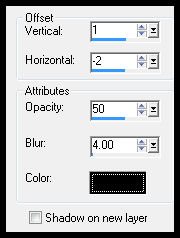
Go to Edit, copy merged.
Go to Animation Shop and right click paste as a new animation.
Back in PSP, go to Edit and undo drop shadow, undo HSB Noise.
Now repeat the effect, and click on Random Seed.
Add the same drop shadow.
Go to Edit, copy merged.
Go to Animation Shop and right click on the current name and paste after selected frame.
Back in PSP, go to Edit and undo drop shadow, undo HSB Noise.
Now repeat the effect, and click on Random Seed.
Add the same drop shadow.
Go to Edit, copy merged.
Go to Animation Shop and right click on the the last frame (2nd frame) and paste after selected frame.
You now have 3 frame with 3 different HSB Noise settings.
Play. If you like it, go to Edit, select all.
Go to Edit, Copy.
Activate your tag. Make sure all frames are selected.
Go to Edit, make sure Propagate Paste is depressed (selected).
Go to Edit, Paste, Paste into Selected Frame.
Position and click in place where you want name to appear.
SAVE
Hope you enjoyed this tutorial,
Hugs Simone
Please, always direct people to my blog to download my animations.
Do not load to any other download site and don't claim as your own.
Tutorial written by SophisticatSimone aka Lorraine Halle on Sunday June 23, 2013

♥♥♥
Please click on TAG to see in full size.
••• Supplies needed to complete this tutorial. •••
________________________________________________________________________
Programs: Paint Shop Pro, I'm using version 10. Animation Shop 3.
Plugin : Eye Candy: Gradient Glow for name.
Font used: Jenna Sue
Tube of choice: I'm using "The double trouble makers" by aLDoDarK from SATC.
Scrap Kit : I'm using "Zen Legend" by P-O Concept from SATC
Animation: none
Mask: 140
________________________________________________________________________
♥♥♥
Save your tag often. Nothing like working long and hard on a tag and PSP crashes.
♥♥♥
Open a new image 600 x 600
Copy and paste tube of choice on your banner. Re-size by 80% and remove the bottom portion of your tube with your selection tool.
Position tube over on the left side. Add drop shadow.
Open paper 10 and duplicate. Close original.
Apply Mask 140. Merge group. Copy and paste as a new layer on your tag.
Send this layer to bottom. Duplicate and merge. If you need to re-size your canvas, do so now.
C/P element 31 as a new layer and move to the left side of tag. Duplicate and merge together.
Duplicate and move this one to the right side.
C/P element 68 as a new layer and move to the right side of tag. Re-size by 70% and add drop shadow.
C/P element 38 as a new layer. Position in center of tag and behind your tube. Duplicate and free rotate by 40 degrees to the left.
Move this layer to the left of your tube. Add drop shadow to each.
C/P element 71 as a new layer. Move to left side. Position this layer behind the rotate feathers layer.
C/P element 29 as a new layer. Move to far right side of tag. Add drop shadow.
C/P element 21 as a new layer and re-size by 45%. Duplicate. Position flowers in front of eggs.
C/P element 61 as a new layer. Move a little to the right of your tube. Duplicate and merge together.
C/P element 32 as a new layer. Mirror your dragon and position on the eggs on the right side of tag. Add drop shadow.
C/P element 69 as a new layer. Move to the right side, add drop shadow.
C/P element 20 as a new layer and re-size by 40%. Move to the bottom left hand side of tag. Add drop shadow.
Merge all visible.
Add artist copyright.
Add name.
I used Jenna Sue as my font.
Used Eye Candy gradient glow and added a drop shadow.
Save as PNG.
Hope you enjoyed this tutorial,
Hugs Simone
Please, always direct people to my blog to download my animations.
Do not load to any other download site and don't claim as your own.
Tutorial written by SophisticatSimone aka Lorraine Halle on Sunday June 23, 2013.
Please click on TAG to see in full size.
••• Supplies needed to complete this tutorial. •••
________________________________________________________________________
Programs: Paint Shop Pro, I'm using version 10. Animation Shop 3.
Plugin : Eye Candy: Gradient Glow for name.
Font used: Jenna Sue
Tube of choice: I'm using "The double trouble makers" by aLDoDarK from SATC.
Scrap Kit : I'm using "Zen Legend" by P-O Concept from SATC
Animation: none
Mask: 140
________________________________________________________________________
♥♥♥
Save your tag often. Nothing like working long and hard on a tag and PSP crashes.
♥♥♥
Open a new image 600 x 600
Copy and paste tube of choice on your banner. Re-size by 80% and remove the bottom portion of your tube with your selection tool.
Position tube over on the left side. Add drop shadow.
Open paper 10 and duplicate. Close original.
Apply Mask 140. Merge group. Copy and paste as a new layer on your tag.
Send this layer to bottom. Duplicate and merge. If you need to re-size your canvas, do so now.
C/P element 31 as a new layer and move to the left side of tag. Duplicate and merge together.
Duplicate and move this one to the right side.
C/P element 68 as a new layer and move to the right side of tag. Re-size by 70% and add drop shadow.
C/P element 38 as a new layer. Position in center of tag and behind your tube. Duplicate and free rotate by 40 degrees to the left.
Move this layer to the left of your tube. Add drop shadow to each.
C/P element 71 as a new layer. Move to left side. Position this layer behind the rotate feathers layer.
C/P element 29 as a new layer. Move to far right side of tag. Add drop shadow.
C/P element 21 as a new layer and re-size by 45%. Duplicate. Position flowers in front of eggs.
C/P element 61 as a new layer. Move a little to the right of your tube. Duplicate and merge together.
C/P element 32 as a new layer. Mirror your dragon and position on the eggs on the right side of tag. Add drop shadow.
C/P element 69 as a new layer. Move to the right side, add drop shadow.
C/P element 20 as a new layer and re-size by 40%. Move to the bottom left hand side of tag. Add drop shadow.
Merge all visible.
Add artist copyright.
Add name.
I used Jenna Sue as my font.
Used Eye Candy gradient glow and added a drop shadow.
Save as PNG.
Hope you enjoyed this tutorial,
Hugs Simone
Please, always direct people to my blog to download my animations.
Do not load to any other download site and don't claim as your own.
Tutorial written by SophisticatSimone aka Lorraine Halle on Sunday June 23, 2013.
Saturday, June 22, 2013

♥♥♥
Please click on TAG to see in full size.
••• Supplies needed to complete this tutorial. •••
________________________________________________________________________
Programs: Paint Shop Pro, I'm using version 10. Animation Shop 3.
Plugin : Eye Candy: Gradient Glow for name.
Font used: Recorda Script Personal Use Only
Tube of choice: I'm using "Dark Fairytale" by The Hunter from SATC.
Scrap Kit : I'm using "Dark Fairytale" by Bibi's Collection from SATC
Animation: SimoneAni-DarkFairytale
Mask: none
________________________________________________________________________
♥♥♥
Save your tag often. Nothing like working long and hard on a tag and PSP crashes.
♥♥♥
Open element 20 and duplicate. Close original.
Copy and paste your fairy tube as a new layer.
Go to Image/ Re-size, all layers checked.
Resolution : 72, enter: 58% and re sample using: Smart Size
Go to Image, Canvas Size and enter:
700 x 650, center diamond depressed.
Copy and paste element 25 as a new layer and re-size by 60%. Place on upper right hand side of frame element and behind your tube. Add drop shadow.
C/P element 1 as a new layer and re-size by 60%. Move to the left side of tag. Add drop shadow.
Open paper 2, duplicate and close original. Go to Image, Canvas Size and enter the following:
650 x 500, center diamond depressed. Click OK.
Copy.
On your tag, using your magic wand, feather set to 0, click inside the frame (make sure your frame layer is active).
Go to Selections, modify, expand by 10.
Add a new Raster layer. Send to bottom.
Now go to Edit and paste into selection.
Go to Selections, select none.
Activate your frame layer again and add this drop shadow:
V=8
H=8
Opacity=65
Blur=11
Color=black
C/P element 35 as a new layer and position, upper left hand side of frame, add same drop shadow.
C/P element 37 as a new layer and position, upper right hand side of frame, add same drop shadow.
C/P element 56 as a new layer and position, lower left hand side of frame. Re-size by 60%.
C/P elment 94 as a new layer and leave in center of tag and behind your tube.
Re-size your canvas if it's not fitting in completely. We can re-size later.
C/P rock element 99 and position under her hands on right side of tag.
C/P element 18 and position behind your tube and behind the giant mushrooms.
Duplicate your big black flower and re-size by 60%. Move in front of your rock.
Duplicate again the big black flower and re-size by 40%. Move behind rock and your tube and position far back by her hip.
Add artist copyright and merge all visible.
Add your name and save as PNG.
Hope you enjoyed this tutorial,
Hugs Simone
Please, always direct people to my blog to download my animations.
Do not load to any other download site and don't claim as your own.
Tutorial written by SophisticatSimone aka Lorraine Halle on Saturday June 22, 2013.
Please click on TAG to see in full size.
••• Supplies needed to complete this tutorial. •••
________________________________________________________________________
Programs: Paint Shop Pro, I'm using version 10. Animation Shop 3.
Plugin : Eye Candy: Gradient Glow for name.
Font used: Recorda Script Personal Use Only
Tube of choice: I'm using "Dark Fairytale" by The Hunter from SATC.
Scrap Kit : I'm using "Dark Fairytale" by Bibi's Collection from SATC
Animation: SimoneAni-DarkFairytale
Mask: none
________________________________________________________________________
♥♥♥
Save your tag often. Nothing like working long and hard on a tag and PSP crashes.
♥♥♥
Open element 20 and duplicate. Close original.
Copy and paste your fairy tube as a new layer.
Go to Image/ Re-size, all layers checked.
Resolution : 72, enter: 58% and re sample using: Smart Size
Go to Image, Canvas Size and enter:
700 x 650, center diamond depressed.
Copy and paste element 25 as a new layer and re-size by 60%. Place on upper right hand side of frame element and behind your tube. Add drop shadow.
C/P element 1 as a new layer and re-size by 60%. Move to the left side of tag. Add drop shadow.
Open paper 2, duplicate and close original. Go to Image, Canvas Size and enter the following:
650 x 500, center diamond depressed. Click OK.
Copy.
On your tag, using your magic wand, feather set to 0, click inside the frame (make sure your frame layer is active).
Go to Selections, modify, expand by 10.
Add a new Raster layer. Send to bottom.
Now go to Edit and paste into selection.
Go to Selections, select none.
Activate your frame layer again and add this drop shadow:
V=8
H=8
Opacity=65
Blur=11
Color=black
C/P element 35 as a new layer and position, upper left hand side of frame, add same drop shadow.
C/P element 37 as a new layer and position, upper right hand side of frame, add same drop shadow.
C/P element 56 as a new layer and position, lower left hand side of frame. Re-size by 60%.
C/P elment 94 as a new layer and leave in center of tag and behind your tube.
Re-size your canvas if it's not fitting in completely. We can re-size later.
C/P rock element 99 and position under her hands on right side of tag.
C/P element 18 and position behind your tube and behind the giant mushrooms.
Duplicate your big black flower and re-size by 60%. Move in front of your rock.
Duplicate again the big black flower and re-size by 40%. Move behind rock and your tube and position far back by her hip.
Add artist copyright and merge all visible.
Add your name and save as PNG.
Hope you enjoyed this tutorial,
Hugs Simone
Please, always direct people to my blog to download my animations.
Do not load to any other download site and don't claim as your own.
Tutorial written by SophisticatSimone aka Lorraine Halle on Saturday June 22, 2013.
Thursday, June 20, 2013

♥♥♥
Please click on TAG to see in full size.
••• Supplies needed to complete this tutorial. •••
________________________________________________________________________
Programs: Paint Shop Pro, I'm using version 10. Animation Shop 3.
Plugin : Gradient Glow for name.
Font used: 2Peas Cocoa
Tube of choice: I'm using "Sailor Girl" by Alexander McMillan from SATC.
Scrap Kit : I'm using "Sailor Beach" by Bibi's Collection from SATC
Animation: none
Mask: 0108 HERE
________________________________________________________________________
♥♥♥
Save your tag often. Nothing like working long and hard on a tag and PSP crashes.
♥♥♥
Open a new image, transparent, 650 x 650.
C/P element 37 as a new layer. Move to left upper hand side of tag. Add Drop shadow.
C/P your tube as a new layer and re-size by 75%. Move to right side of tag.
Open Paper 2. Duplicate and close original.
Re-size by 54%, 72 dpi and smart size checked. Apply mask of choice, or mine mask 0108.
Merge group and duplicate. Merge visible. Copy and paste as a new layer on your tag.
Move to bottom.
C/P element 11 as a new layer. Using your selection tool, remove the trunk portion of the tree.
This element should be just above your mask layer.
Add drop shadow.
C/P element 26 as a new layer and move to the lower left hand side of tag. This layer should be your top layer (above tube).
C/P element 99 as a new layer and move to the lower right hand side of tag. This layer is above grass layer.
C/P element 39 as a new layer and move to the lower right hand side of tag. Re-size by 54%. Add drop shadow.
C/P element 27 as a new layer and move to the lower left hand side of tag. Place over the grass element.
Merge all visible. Add artist copyright.
Add your name and save as PNG.
Hope you enjoyed this tutorial,
Hugs Simone
Please, always direct people to my blog to download my animations.
Do not load to any other download site and don't claim as your own.
Tutorial written by SophisticatSimone aka Lorraine Halle on Thursday, June 20 2013.
Please click on TAG to see in full size.
••• Supplies needed to complete this tutorial. •••
________________________________________________________________________
Programs: Paint Shop Pro, I'm using version 10. Animation Shop 3.
Plugin : Gradient Glow for name.
Font used: 2Peas Cocoa
Tube of choice: I'm using "Sailor Girl" by Alexander McMillan from SATC.
Scrap Kit : I'm using "Sailor Beach" by Bibi's Collection from SATC
Animation: none
Mask: 0108 HERE
________________________________________________________________________
♥♥♥
Save your tag often. Nothing like working long and hard on a tag and PSP crashes.
♥♥♥
Open a new image, transparent, 650 x 650.
C/P element 37 as a new layer. Move to left upper hand side of tag. Add Drop shadow.
C/P your tube as a new layer and re-size by 75%. Move to right side of tag.
Open Paper 2. Duplicate and close original.
Re-size by 54%, 72 dpi and smart size checked. Apply mask of choice, or mine mask 0108.
Merge group and duplicate. Merge visible. Copy and paste as a new layer on your tag.
Move to bottom.
C/P element 11 as a new layer. Using your selection tool, remove the trunk portion of the tree.
This element should be just above your mask layer.
Add drop shadow.
C/P element 26 as a new layer and move to the lower left hand side of tag. This layer should be your top layer (above tube).
C/P element 99 as a new layer and move to the lower right hand side of tag. This layer is above grass layer.
C/P element 39 as a new layer and move to the lower right hand side of tag. Re-size by 54%. Add drop shadow.
C/P element 27 as a new layer and move to the lower left hand side of tag. Place over the grass element.
Merge all visible. Add artist copyright.
Add your name and save as PNG.
Hope you enjoyed this tutorial,
Hugs Simone
Please, always direct people to my blog to download my animations.
Do not load to any other download site and don't claim as your own.
Tutorial written by SophisticatSimone aka Lorraine Halle on Thursday, June 20 2013.
Tuesday, June 18, 2013

♥♥♥
Please click on TAG to see in full size.
••• Supplies needed to complete this tutorial. •••
________________________________________________________________________
Programs: Paint Shop Pro, I'm using version 10. Animation Shop 3.
Plugin : none
Font used: Carpenter
Tube of choice: I'm using "Courtney" by Jose A Cano.
Scrap Kit : I'm using "Courtney" by Lizquis Scraps.
Animation: SimoneAni469
Mask: 0139 HERE
________________________________________________________________________
♥♥♥
Save your tag often. Nothing like working long and hard on a tag and PSP crashes.
♥♥♥
Open Courtney_frame2. Duplicate and close original. Re-size by 80%, all layers UN-checked.
Now change your canvas size to 700 x 700.
Using your magic wand, feather set to 0, click inside your frame. Go to Selections, expand, by 10.
Copy and paste a close up of your tube as a new layer. Move down below the frame.
Go to Selections, Invert and hit delete on your keyboard.
If there's any space showing behind your close-up, copy and paste a paper, move it below your close-up and delete.
You can De-select.
Duplicate your close up. On the original close up layer, apply blur, Gaussian Blur of 3. On duplicate layer, change blend mode to soft light. Merge these two together. Now change blend mode to Multiply.
Duplicate your frame. Top frame layer, change blend mode to Multiply.
Add drop shadow to this frame:
V: 2
H: 5
Opacity: 64
Blur: 13
Color: black
Merge all visible.
Copy and paste Courtney_Grass as a new layer. Move to the left and bottom of frame layer.
Copy and paste Courtney_radio as a new layer. Re-size by 50% and move to the left side.
Copy and paste Courtney_Tree as a new layer. Place to the right of frame and behind the car.
C/P sparkles1 as a new layer. Place more to the left and over the frame.
C/P tube as a new layer. Mirror and re-size by 80%. Delete extra at the bottom of tube using your selection tool set to rectangle and feather set to 25. Select area from crotch to below. Delete.
Copy and paste Courtney_dog as a new layer. Re-size by 50% and move to the right side.
Copy and paste Courtney_bag as a new layer. Re-size by 50% and move to the right side beside dog.
Add drop shadow to every layer.
C/P Paper 1 as a new layer. Send to bottom.
Click on any other element to activate that layer. Go to Selections, select all. Activate your paper layer again.
Go to Image, crop to selection. Apply Mask 0139, merge group. Duplicate layer. Add drop shadow.
Merge all visible.
Add artist copyright.
Save as PNG.
To animate:
Go to Selections, select all.
Go to Edit and copy merged. Paste as a new animation in Animation Shop.
Hold your Ctrl key down and repeatedly hit letter L on your keyboard for a total of 21 frames.
You can watch the count on the lower right hand side of your screen in AS.
Open SimoneAni469
Go to Edit, select all.
Go to Edit, copy.
Activate your tag.
Go to Edit, select all.
Go to Edit, make sure Propagate Paste is selected.
Go to Edit, Paste, paste into selected frames.
Position on your tag and click into place.
Play and save.
Don't forget to add your name.
To save:
Go to File, Save as, enter the name of your file and select the folder to save to.
Now click on Customize:
Under COLORS TAB:
Number of colors: 255 Colors
Create palette by: OPTIMIZED OCTREE
Reduce colors by: Error Diffusion
Under OPTIMIZATIONS TAB:
set a check mark beside the second, third and forth choices. UN-check the 1st and last.
Under PARTIAL TRANSPARENCY:
check Convert pixels less than 92
Yes, blend with this color: change to white #FFFFFF
Click OK. Click Next, next, next, next.
Play your animation.
At times your animation may or will come out terrible. Optimization in Animation Shop is not the greatest.
You can play around will your settings, especially under the Tab: Optimization. I change this setting at times from anywhere
between 80 and 100.
Some people add a white background. To add background, go to Animation: Animation Properties, select Opaque and change color to white.
Hope you enjoyed this tutorial,
Hugs Simone
Please, always direct people to my blog to download my animations.
Do not load to any other download site and don't claim as your own.
Tutorial written by SophisticatSimone aka Lorraine Halle on Wednesday, June 18 2013.
Monday, June 17, 2013

♥♥♥
Please click on TAG to see in full size.
••• Supplies needed to complete this tutorial. •••
________________________________________________________
Programs: Paint Shop Pro, I'm using version 10. Animation Shop 3.
Plugin : Eye Candy: Gradient Glow for name. Cybia: Screenworks for name.
Font used: Olivier
Tube of choice: I'm using "Dark Mermaid" by The Hunter from SATC.
Scrap Kit : I'm using "Dark Mermaid" by Bibi's Collection from SATC
Animation: none
Mask: 0139 HERE
________________________________________________________
Save your tag often. Nothing like working long and hard on a tag and PSP crashes.
♥♥♥
Open paper 4 and duplicate. Close original.
Re-size by 58%, 72 dpi, smart size.
Open Mask 0139 SS and apply to the paper.
Merge group.
Copy and paste your tube close up.
Activate your mask layer. Go to Selections, select all.
Activate your close up layer.
Go to Image, Crop to Selection.
Now using your selection tool, set to rectangle, feather of 25, select the lower portion of your tube and delete so a little bit of her elbows are deleted.
Add drop shadow.
Copy and paste element 3 as a new layer. Move to the top. Again, using your selection tool, remove the extra on either side.
Duplicate layer and flip. Merge together and add drop shadow. Move below close up layer.
Copy and paste element 9 as a new layer and move to the right side of tag. Add drop shadow. This should be behind your tube layer.
Repeat for element 10. Move to the right side.
Repeat for element 60. Move to the far left side. Duplicate and re-size by 50%.
Mirror.
Copy and paste element 15 as a new layer. Position bottom middle of tag. Add drop shadow.
Copy and paste element 96 as a new layer and re-size by 50%. Move to the left side of tag. Triplicate this element, you can re-size them each by 90% and 88%.
Tuck them in here and there on your tag. Mainly to fill empty spaces. Add drop shadow to each.
Add element 90, element 98, element 61 as new layers. Re-size to desired size
and add drop shadow to each. Place down along the bottom of tag.
Repeat for element 97 and duplicate. Placing one on the right side and one on the left side.
Copy and paste element 7 as a new layer and place bottom of tag and to the left a bit.
Copy and paste element 12 as a new layer and move to the right side of tag, add drop shadow.
Copy and paste element 23 as a new layer. If there are to many sparkles over her face, just grab your selection tool, set to point to point (freehand) and feather 23. Delete whatever you don't want over her face.
Merge all layers/visible. Add copyright. Merge down.
Save as PNG.
Add your name. I used font Olivier.
On the font I added noise set to random and 25%.
Added plugin : Cybia, Screen works, Boxed Dot, 0
I added gradient glow, eye candy 4, set to FAT(under color tab) and 3 for glow width.
I added drop shadow.
Merge all visible.
SAVE as PNG.
Hope you enjoyed this tutorial,
Hugs Simone
Please, always direct people to my blog to download my animations.
Do not load to any other download site and don't claim as your own.
Tutorial written by SophisticatSimone aka Lorraine Halle on Monday June 17, 2013.
Please click on TAG to see in full size.
••• Supplies needed to complete this tutorial. •••
________________________________________________________
Programs: Paint Shop Pro, I'm using version 10. Animation Shop 3.
Plugin : Eye Candy: Gradient Glow for name. Cybia: Screenworks for name.
Font used: Olivier
Tube of choice: I'm using "Dark Mermaid" by The Hunter from SATC.
Scrap Kit : I'm using "Dark Mermaid" by Bibi's Collection from SATC
Animation: none
Mask: 0139 HERE
________________________________________________________
Save your tag often. Nothing like working long and hard on a tag and PSP crashes.
♥♥♥
Open paper 4 and duplicate. Close original.
Re-size by 58%, 72 dpi, smart size.
Open Mask 0139 SS and apply to the paper.
Merge group.
Copy and paste your tube close up.
Activate your mask layer. Go to Selections, select all.
Activate your close up layer.
Go to Image, Crop to Selection.
Now using your selection tool, set to rectangle, feather of 25, select the lower portion of your tube and delete so a little bit of her elbows are deleted.
Add drop shadow.
Copy and paste element 3 as a new layer. Move to the top. Again, using your selection tool, remove the extra on either side.
Duplicate layer and flip. Merge together and add drop shadow. Move below close up layer.
Copy and paste element 9 as a new layer and move to the right side of tag. Add drop shadow. This should be behind your tube layer.
Repeat for element 10. Move to the right side.
Repeat for element 60. Move to the far left side. Duplicate and re-size by 50%.
Mirror.
Copy and paste element 15 as a new layer. Position bottom middle of tag. Add drop shadow.
Copy and paste element 96 as a new layer and re-size by 50%. Move to the left side of tag. Triplicate this element, you can re-size them each by 90% and 88%.
Tuck them in here and there on your tag. Mainly to fill empty spaces. Add drop shadow to each.
Add element 90, element 98, element 61 as new layers. Re-size to desired size
and add drop shadow to each. Place down along the bottom of tag.
Repeat for element 97 and duplicate. Placing one on the right side and one on the left side.
Copy and paste element 7 as a new layer and place bottom of tag and to the left a bit.
Copy and paste element 12 as a new layer and move to the right side of tag, add drop shadow.
Copy and paste element 23 as a new layer. If there are to many sparkles over her face, just grab your selection tool, set to point to point (freehand) and feather 23. Delete whatever you don't want over her face.
Merge all layers/visible. Add copyright. Merge down.
Save as PNG.
Add your name. I used font Olivier.
On the font I added noise set to random and 25%.
Added plugin : Cybia, Screen works, Boxed Dot, 0
I added gradient glow, eye candy 4, set to FAT(under color tab) and 3 for glow width.
I added drop shadow.
Merge all visible.
SAVE as PNG.
Hope you enjoyed this tutorial,
Hugs Simone
Please, always direct people to my blog to download my animations.
Do not load to any other download site and don't claim as your own.
Tutorial written by SophisticatSimone aka Lorraine Halle on Monday June 17, 2013.
Subscribe to:
Posts
(Atom)
CT TEAM