My Blinkie

Saturday, April 20, 2013

♥♥♥
Please click on TAG to see in full size.
••• Supplies needed to complete this tutorial. •••
________________________________________________________________________
Programs: Paint Shop Pro, I'm using version 10. Animation Shop 3.
Plugin :Eye Candy 4000(gradient glow).
Font used: Strumpf Std Contour
Tube of choice: I'm using Roxy by Diana Gali from SATC.
Scrap Kit : Roxy Rocker by Disturbed Scraps from SATC.
Mask: By me, Mask99SophisticatSimone HERE
Animations: By me, SimoneAni-RoxyRocker HERE
Please click on TAG to see in full size.
••• Supplies needed to complete this tutorial. •••
________________________________________________________________________
Programs: Paint Shop Pro, I'm using version 10. Animation Shop 3.
Plugin :Eye Candy 4000(gradient glow).
Font used: Strumpf Std Contour
Tube of choice: I'm using Roxy by Diana Gali from SATC.
Scrap Kit : Roxy Rocker by Disturbed Scraps from SATC.
Mask: By me, Mask99SophisticatSimone HERE
Animations: By me, SimoneAni-RoxyRocker HERE
________________________________________________________________________
♥♥♥
Save your tag often. Nothing like working long and hard on a tag and PSP crashes.
♥♥♥
Open a new image 700 x 700.
Copy and paste your tube close up as a new layer.
Using your mover tool, move close up until you see the face. Position to the right of tag.
Duplicate and mirror.
Grab your lasso tool, feather set to 12, on each layer remove any obstructing feather.
With her, it's her hair. Look at my screen shot. On each layer I removed a portion of hair.
Once you've completed that, flood fill Raster 1 layer (bottom layer) with black.
Merge all visible.
Open Mask99SophisticatSimone.
Make sure your tag is active and go to Layers, New Mask Layer, From Image.
Find mask in drop down list and apply.
Merge group.
Copy and paste element 089 as a new layer on your tag and re-size by 80 %.
Make sure it's your top layer and you can move it down low on your tag.
Add drop shadow.
Copy and paste your tube as a new layer. Re-size if needed. I re-sized mine by 30%.
Copy and paste element 090 as a new layer and re-size by 62 %. Move below skyline layer.
Position at top of tag. Add drop shadow.
Copy and paste element 064 as a new layer and re-size by 74 %. Move onto the skyline layer at bottom.
Add drop shadow.
Copy and paste element 025 as a new layer and re-size by 84 %. Move onto the skyline layer at bottom.
Add drop shadow.
Copy and paste element 026 as a new layer and mirror. Move behind the skyline layer at top.
Add drop shadow.
Copy and paste element 082 as a new layer and re-size by 35%. Move to the top left hand side of tag. Add drop shadow.
Copy and paste element 065 as a new layer and re-size by 76%. Move behind your tube and in front of skyline. Add
drop shadow.
Copy and paste element 022 as a new layer and re-size by 90%. Move behind your fence and warning sign and in front
of skyline. Add drop shadow.
Copy and paste element 061 as a new layer and re-size by 51%. Move as the top layer and center at the bottom of tag.
Add drop shadow.
Copy and paste element 001 as a new layer and re-size by 80%. Move as the top layer and to the left of the tag. Add
drop shadow.
Copy and paste element 099 as a new layer and re-size. Move on top of your barrel and add drop shadow.
Copy and paste element 094 as a new layer and re-size by 28%. Move on top of your charm. Add drop shadow.
Copy and paste element 114 as a new layer. Move to the left of tag. Move it below the charm in the layers palette.
Add artist copyright and scrap kit maker credit.
Go to Selections, select all.
Go to Animation Shop and right click paste as a new animation.
Hold your Ctrl key down and repeatedly hit letter L on your keyboard for a total of 20 frames.
You can watch the count on the lower right hand side of your screen in AS.
Open SimoneAni-RoxyRockerTutorial
Go to Edit, select all.
Go to Edit, copy.
Activate your tag.
Go to Edit, select all.
Go to Edit, make sure Propagate Paste is selected.
Go to Edit, Paste, paste into selected frames.
Position on your tag and click into place. I placed it low on tag near speaker.
Cull animation, go to Animation, cull animation:
Remove 1 frame every 2 frames.
You should be left with 10 frames.
Play and save.
Don't forget to add your name.
You can see my name tutorial HERE.
You can either do it animated like in the tutorial or still.
To save:
Go to File, Save as, enter the name of your file and select the folder to save to.
Now click on Customize:
Under COLORS TAB:
Number of colors: 255 Colors
Create palette by: OPTIMIZED OCTREE
Reduce colors by: Error Diffusion
Under OPTIMIZATIONS TAB:
set a check mark beside the second, third and forth choices.
UN-check the 1st and last.
Under PARTIAL TRANSPARENCY:
check Convert pixels less than 92
Yes, blend with this color: change to white #FFFFFF
Click OK. Click Next, next, next, next.
Play your animation.
At times your animation may or will come out terrible.
Optimization in Animation Shop is not the greatest.
You can play around will your settings, especially under the Tab: Optimization.
I change this setting at times from anywhere between 70 and 100.
Some people add a white background. To add background, go to Animation:
Animation Properties, select Opaque and change color to white.
Hope you enjoyed this tutorial,
Hugs Simone
Please, always direct people to my blog to download my animations.
Do not load to any other download site and don't claim as your own.
Tutorial written by SophisticatSimone aka Lorraine Halle on Saturday, April 20, 2013.
Posted by Simone aka Lorraine 0 comments
♥♥♥
Save your tag often. Nothing like working long and hard on a tag and PSP crashes.
♥♥♥
Open a new image 700 x 700.
Copy and paste your tube close up as a new layer.
Using your mover tool, move close up until you see the face. Position to the right of tag.
Duplicate and mirror.
Grab your lasso tool, feather set to 12, on each layer remove any obstructing feather.
With her, it's her hair. Look at my screen shot. On each layer I removed a portion of hair.
Once you've completed that, flood fill Raster 1 layer (bottom layer) with black.
Merge all visible.
Open Mask99SophisticatSimone.
Make sure your tag is active and go to Layers, New Mask Layer, From Image.
Find mask in drop down list and apply.
Merge group.
Copy and paste element 089 as a new layer on your tag and re-size by 80 %.
Make sure it's your top layer and you can move it down low on your tag.
Add drop shadow.
Copy and paste your tube as a new layer. Re-size if needed. I re-sized mine by 30%.
Copy and paste element 090 as a new layer and re-size by 62 %. Move below skyline layer.
Position at top of tag. Add drop shadow.
Copy and paste element 064 as a new layer and re-size by 74 %. Move onto the skyline layer at bottom.
Add drop shadow.
Copy and paste element 025 as a new layer and re-size by 84 %. Move onto the skyline layer at bottom.
Add drop shadow.
Copy and paste element 026 as a new layer and mirror. Move behind the skyline layer at top.
Add drop shadow.
Copy and paste element 082 as a new layer and re-size by 35%. Move to the top left hand side of tag. Add drop shadow.
Copy and paste element 065 as a new layer and re-size by 76%. Move behind your tube and in front of skyline. Add
drop shadow.
Copy and paste element 022 as a new layer and re-size by 90%. Move behind your fence and warning sign and in front
of skyline. Add drop shadow.
Copy and paste element 061 as a new layer and re-size by 51%. Move as the top layer and center at the bottom of tag.
Add drop shadow.
Copy and paste element 001 as a new layer and re-size by 80%. Move as the top layer and to the left of the tag. Add
drop shadow.
Copy and paste element 099 as a new layer and re-size. Move on top of your barrel and add drop shadow.
Copy and paste element 094 as a new layer and re-size by 28%. Move on top of your charm. Add drop shadow.
Copy and paste element 114 as a new layer. Move to the left of tag. Move it below the charm in the layers palette.
Add artist copyright and scrap kit maker credit.
Go to Selections, select all.
Go to Animation Shop and right click paste as a new animation.
Hold your Ctrl key down and repeatedly hit letter L on your keyboard for a total of 20 frames.
You can watch the count on the lower right hand side of your screen in AS.
Open SimoneAni-RoxyRockerTutorial
Go to Edit, select all.
Go to Edit, copy.
Activate your tag.
Go to Edit, select all.
Go to Edit, make sure Propagate Paste is selected.
Go to Edit, Paste, paste into selected frames.
Position on your tag and click into place. I placed it low on tag near speaker.
Cull animation, go to Animation, cull animation:
Remove 1 frame every 2 frames.
You should be left with 10 frames.
Play and save.
Don't forget to add your name.
You can see my name tutorial HERE.
You can either do it animated like in the tutorial or still.
To save:
Go to File, Save as, enter the name of your file and select the folder to save to.
Now click on Customize:
Under COLORS TAB:
Number of colors: 255 Colors
Create palette by: OPTIMIZED OCTREE
Reduce colors by: Error Diffusion
Under OPTIMIZATIONS TAB:
set a check mark beside the second, third and forth choices.
UN-check the 1st and last.
Under PARTIAL TRANSPARENCY:
check Convert pixels less than 92
Yes, blend with this color: change to white #FFFFFF
Click OK. Click Next, next, next, next.
Play your animation.
At times your animation may or will come out terrible.
Optimization in Animation Shop is not the greatest.
You can play around will your settings, especially under the Tab: Optimization.
I change this setting at times from anywhere between 70 and 100.
Some people add a white background. To add background, go to Animation:
Animation Properties, select Opaque and change color to white.
Hope you enjoyed this tutorial,
Hugs Simone
Please, always direct people to my blog to download my animations.
Do not load to any other download site and don't claim as your own.
Tutorial written by SophisticatSimone aka Lorraine Halle on Saturday, April 20, 2013.
Posted by Simone aka Lorraine 0 comments


♥♥♥
Please click on TAG to see in full size.
••• Supplies needed to complete this tutorial. •••
__________________________________________________________________
Programs: Paint Shop Pro, I'm using version 10. Animation Shop 3.
Plugin :Eye Candy 4000(gradient glow).
Font used: Will & Grace
Tube of choice: I'm using the Blanche by SkyScraps from SATC.
Scrap Kit : Dark Riding Hood by Bibi's Collection found HERE
Mask: by me, mask 101 HERE
Animations: by me, Pixie Dust download HERE I used SimoneAni398
__________________________________________________________________
♥♥♥
Save your tag often. Nothing like working long and hard on a tag and PSP crashes.
♥♥♥
Open element 94. Copy and paste as a new layer and re-sizy by 50%.
Free rotate 90 degrees to the right.
Re-size canvas to 700 x 700. Move the frame to the right side of tag.
Using your magic wand, feather 0, click inside the frame.
Go to selections, modify, expand by 10.
Open paper of choice, I'm using paper 1.
Copy and paste as a new layer and position area of choice within the frame.
Go to selections, invert and delete.
Move your paper below your frame.
Keep selection.
Copy and paste your tube close up as a new layer.
Delete extra.
De-select.
Duplicate the close up layer.
Both layers should have blend mode set to Overlay.
On the bottom close up layer blur the image by 3.
On the paper layer below the frame and closeups, let's select it and Colorize.
Colorize paper, Go to Adjust, Hue and Saturation, Colorize:
Hue: 146, Saturation: 147.
Merge visible.
Copy and paste element 27 as a new layer. Re-size by 50%.
Move this element on the left side of the frame and add drop shadow.
Copy and paste your tube as a new layer. Re-size if you need to. I re-sized mine by
50%. Mirror and add drop shadow.
Copy and paste element 45 as a new layer and re-size by 50%. Place on right side of
frame and add drop shadow.
Copy and paste element 90 as a new layer and re-size by 50%. Place on left side of
frame, behind the castle and add drop shadow.
Copy and paste element 82 as a new layer and re-size by 50%. Place on left side of
frame, behind the castle, in front of mushrooms and add drop shadow.
Copy and paste element 96 as a new layer and re-size by 50%. Place on the upper
right side of frame/tag, duplicate and merge down.
Duplicate and go to Image, Rotate, free rotate to the right by 90 degrees.
Move this to the bottom of the frame and in the layers palette drag it down to just
above the frame layer. Add drop shadow to both.
Copy and paste element 48 as a new layer and duplicate, merge down.
Position as your top layer and in front of your tube and the bottom of tag.
Copy and paste element 47 as a new layer and tuck it behind your tube layer and the
castle layer, but leave it on the left hand side of the tag. Duplicate and mirror.
This log should be dragged down to the very bottom in the layers palette, so behind
your frame layer. Add drop shadow to both logs.
Copy and paste paper of choice as a new layer. I used the same paper (1).
Move this paper to the very bottom.
Select your crop tool, where it says "snap crop rectangle to:" select Merged Opaque.
Double click on your tag.
Let's add our mask to this layer.
Open Mask0101SophisticatSimone.
Make sure your tag is active and go to Layers, New Mask Layer, From Image.
Find mask in drop down list and apply.
Merge group. Only the mask layers group.
Copy and paste element 26 as a new layer and move behind your tube layer and the
log layer. Add Drop shadow.
Copy and paste element 24 as a new layer, and re-size by 37% and move to the front
of frame to the left. See my tag for reference.
Copy and paste element 18 as a new layer, and move behind castle layer and behind
your tube. To the left of the frame. See my tag for reference. Add drop shadow.
Add any other elements to make it your own. I added more mushrooms, the rabbit,
the second log, feathers, butterflies and rock. Those are all in the kit.
Add artist copyright and scrap kit maker credit.
Save as PNG if you are NOT animating.
_____________________________________________________
Please click on TAG to see in full size.
••• Supplies needed to complete this tutorial. •••
__________________________________________________________________
Programs: Paint Shop Pro, I'm using version 10. Animation Shop 3.
Plugin :Eye Candy 4000(gradient glow).
Font used: Will & Grace
Tube of choice: I'm using the Blanche by SkyScraps from SATC.
Scrap Kit : Dark Riding Hood by Bibi's Collection found HERE
Mask: by me, mask 101 HERE
Animations: by me, Pixie Dust download HERE I used SimoneAni398
__________________________________________________________________
♥♥♥
Save your tag often. Nothing like working long and hard on a tag and PSP crashes.
♥♥♥
Open element 94. Copy and paste as a new layer and re-sizy by 50%.
Free rotate 90 degrees to the right.
Re-size canvas to 700 x 700. Move the frame to the right side of tag.
Using your magic wand, feather 0, click inside the frame.
Go to selections, modify, expand by 10.
Open paper of choice, I'm using paper 1.
Copy and paste as a new layer and position area of choice within the frame.
Go to selections, invert and delete.
Move your paper below your frame.
Keep selection.
Copy and paste your tube close up as a new layer.
Delete extra.
De-select.
Duplicate the close up layer.
Both layers should have blend mode set to Overlay.
On the bottom close up layer blur the image by 3.
On the paper layer below the frame and closeups, let's select it and Colorize.
Colorize paper, Go to Adjust, Hue and Saturation, Colorize:
Hue: 146, Saturation: 147.
Merge visible.
Copy and paste element 27 as a new layer. Re-size by 50%.
Move this element on the left side of the frame and add drop shadow.
Copy and paste your tube as a new layer. Re-size if you need to. I re-sized mine by
50%. Mirror and add drop shadow.
Copy and paste element 45 as a new layer and re-size by 50%. Place on right side of
frame and add drop shadow.
Copy and paste element 90 as a new layer and re-size by 50%. Place on left side of
frame, behind the castle and add drop shadow.
Copy and paste element 82 as a new layer and re-size by 50%. Place on left side of
frame, behind the castle, in front of mushrooms and add drop shadow.
Copy and paste element 96 as a new layer and re-size by 50%. Place on the upper
right side of frame/tag, duplicate and merge down.
Duplicate and go to Image, Rotate, free rotate to the right by 90 degrees.
Move this to the bottom of the frame and in the layers palette drag it down to just
above the frame layer. Add drop shadow to both.
Copy and paste element 48 as a new layer and duplicate, merge down.
Position as your top layer and in front of your tube and the bottom of tag.
Copy and paste element 47 as a new layer and tuck it behind your tube layer and the
castle layer, but leave it on the left hand side of the tag. Duplicate and mirror.
This log should be dragged down to the very bottom in the layers palette, so behind
your frame layer. Add drop shadow to both logs.
Copy and paste paper of choice as a new layer. I used the same paper (1).
Move this paper to the very bottom.
Select your crop tool, where it says "snap crop rectangle to:" select Merged Opaque.
Double click on your tag.
Let's add our mask to this layer.
Open Mask0101SophisticatSimone.
Make sure your tag is active and go to Layers, New Mask Layer, From Image.
Find mask in drop down list and apply.
Merge group. Only the mask layers group.
Copy and paste element 26 as a new layer and move behind your tube layer and the
log layer. Add Drop shadow.
Copy and paste element 24 as a new layer, and re-size by 37% and move to the front
of frame to the left. See my tag for reference.
Copy and paste element 18 as a new layer, and move behind castle layer and behind
your tube. To the left of the frame. See my tag for reference. Add drop shadow.
Add any other elements to make it your own. I added more mushrooms, the rabbit,
the second log, feathers, butterflies and rock. Those are all in the kit.
Add artist copyright and scrap kit maker credit.
Save as PNG if you are NOT animating.
_____________________________________________________
Now to animate.
Go to Selections, select all.
Go to Edit and copy merged. Paste as a new animation in Animation Shop.
Hold your Ctrl key down and repeatedly hit letter L on your keyboard for a total of 16 frames.
You can watch the count on the lower right hand side of your screen in AS.
Open SimoneAni398
Go to Edit, select all.
Go to Edit, copy.
Activate your tag.
Go to Edit, select all.
Go to Edit, make sure Propagate Paste is selected.
Go to Edit, Paste, paste into selected frames.
Position on your tag and click into place.
Play and save.
Don't forget to add your name.
You can see my name tutorial HERE.
You can either do it animated like in the tutorial or still.
To save:
Go to File, Save as, enter the name of your file and select the folder to save to.
Now click on Customize:
Under COLORS TAB:
Number of colors: 255 Colors
Create palette by: OPTIMIZED OCTREE
Reduce colors by: Error Diffusion
Under OPTIMIZATIONS TAB:
set a check mark beside the second, third and forth choices. UN-check the 1st and
last.
Under PARTIAL TRANSPARENCY:
check Convert pixels less than 92
Yes, blend with this color: change to white #FFFFFF
Click OK. Click Next, next, next, next.
Play your animation.
At times your animation may or will come out terrible.
Optimization in Animation Shop is not the greatest.
You can play around will your settings, especially under the Tab: Optimization.
I change this setting at times from anywhere between 70 and 100.
Some people add a white background. To add background, go to Animation:
Animation Properties, select Opaque and change color to white.
Hope you enjoyed this tutorial,
Hugs Simone
Please, always direct people to my blog to download my animations.
Do not load to any other download site and don't claim as your own.
Tutorial written by SophisticatSimone aka Lorraine Halle on Saturday, April 20, 2013.
Go to Selections, select all.
Go to Edit and copy merged. Paste as a new animation in Animation Shop.
Hold your Ctrl key down and repeatedly hit letter L on your keyboard for a total of 16 frames.
You can watch the count on the lower right hand side of your screen in AS.
Open SimoneAni398
Go to Edit, select all.
Go to Edit, copy.
Activate your tag.
Go to Edit, select all.
Go to Edit, make sure Propagate Paste is selected.
Go to Edit, Paste, paste into selected frames.
Position on your tag and click into place.
Play and save.
Don't forget to add your name.
You can see my name tutorial HERE.
You can either do it animated like in the tutorial or still.
To save:
Go to File, Save as, enter the name of your file and select the folder to save to.
Now click on Customize:
Under COLORS TAB:
Number of colors: 255 Colors
Create palette by: OPTIMIZED OCTREE
Reduce colors by: Error Diffusion
Under OPTIMIZATIONS TAB:
set a check mark beside the second, third and forth choices. UN-check the 1st and
last.
Under PARTIAL TRANSPARENCY:
check Convert pixels less than 92
Yes, blend with this color: change to white #FFFFFF
Click OK. Click Next, next, next, next.
Play your animation.
At times your animation may or will come out terrible.
Optimization in Animation Shop is not the greatest.
You can play around will your settings, especially under the Tab: Optimization.
I change this setting at times from anywhere between 70 and 100.
Some people add a white background. To add background, go to Animation:
Animation Properties, select Opaque and change color to white.
Hope you enjoyed this tutorial,
Hugs Simone
Please, always direct people to my blog to download my animations.
Do not load to any other download site and don't claim as your own.
Tutorial written by SophisticatSimone aka Lorraine Halle on Saturday, April 20, 2013.

♥♥♥
Please click on TAG to see in full size.
••• Supplies needed to complete this tutorial. •••
________________________________________________________________________
Programs : Paint Shop Pro, I'm using version 10. Animation Shop 3.
Plugin : MuRa Copies, Redfield(seamless workshop), Eye Candy 4000(gradient glow).
Font used: Do I like Stripes?
Tube of choice : I'm using the sweet angelic tube Maria by Alexander McMillan from SATC.
Scrap Kit : Matching scrap kit Marie by Bibi's Collection found HERE
Animations : by me, Pixie Dust set 395-400 download HERE in the tag I'm using 396
________________________________________________________________________
♥♥♥
Save your tag often. Nothing like working long and hard on a tag and PSP crashes.
♥♥♥
Let's make a tile first.
Open a new image 500x500.
Copy and paste your tube as a new image on this canvas.
Go to Effects, Plugins, MuRa Copies.
Select : Wallpaper/rotate. Default settings.
Merge down.
Select your crop tool and select Merged Opaque.
Go to Adjust, blur, gaussian blur, 25.
Go to Adjust, add/remove noise, add noise:
Check: Gaussian
Noise: 23%
Monochrome: checked
Go to Effects, Reflection effects, Kaleidoscope.
Enter the following:
Horizontal offset : -74
Vertical offset : -30
Rotation angle : 245
Scale factor : -37
Number of petals : 7
Number of orbits : 1
Radial suction : 70
Edge Mode: Wrap.
If you don't like this look, you can play around with your settings till you find something you like. This worked for me =)
Go to Effects/Plugins/Redfield/ Seamless Workshop
Click Preset 1 in the drop down box.
Click on the green check make.
You will empty space on your canvas, so copy this tile and paste as a new layer.
Minimize and close the other one, we are done with it.
Open a new image 700 x 700.
Double click on your background material palette,
Select pattern, and find the tile you just created.
Scale : 100 Angle : 0
Activate your food fill tool and fill your image canvas with your pattern.
Open BIBIMARIE ELEMS (8) from the kit.
Go to Layers, New Mask Layer, from image.
In drop down box, find BIBIMARIE ELEMS (8)
Apply mask.
In layers palette, right click and merge group.
Now copy and paste BIBIMARIE ELEMS (8) as a new layer on your mask layer.
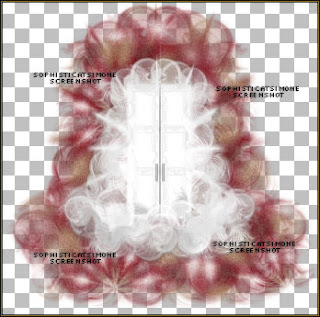
You should have this:
Copy and paste BIBIMARIE ELEMS (56) as a new layer on your tag.
Re-size by 70%.
Add drop shadow:
V : 12
H : 7
Opacity : 50
Blur : 20.29
Color : black
Copy and paste your tube as a new layer and re-size if you need to.
I re-sized mine by 68%.
Add drop shadow of choice.
Copy and paste element 54 as a new layer and re-size by 45%.
Move to the left side of tube. Add drop shadow of choice.
Copy and paste element 55 as a new layer and re-size by 45%.
Have this bear sit on the chair. Add drop shadow of choice.
Copy and paste element 34 as a new layer and re-size by 70%.
Move this layer below all other layers but above the mask layer. Have it peek out on the right hand side.
Duplicate and mirror.
Add drop shadow of choice.
Copy and paste element 36 as a new layer and re-size by 70%.
This layer should be above the brown leaves. Free rotate to the right by 90 degrees.
Have it peek out on the right hand side.
Duplicate and mirror.
Add drop shadow of choice.
Copy and paste element 16 as a new layer.
Move to the right side of tube and as top layer. Add drop shadow of choice.
Copy and paste element 59 as a new layer and re-size by 25%.
Have this bird sit on bear's head. Add drop shadow of choice.
Copy and paste element 3 as a new layer and re-size by 25%.
Move as top layer and position to the left side of tag.
Duplicate, free rotate by 90 degrees and move over a little bit.
Duplicate, free rotate by 90 degrees and move over a little bit.
Duplicate, free rotate by 90 degrees and move over a little bit.
Line them up and add drop shadow to each one.
Copy and paste element 22 and re-size. Move to the upper right hand side.
Place above Mask layer and below the white element that was used as mask.
Add drop shadow.
Copy and paste element 25. Move to the upper right hand side.
Place above the double frame layer. Add drop shadow.
Copy and paste element 58 and re-size. Move to the left hand side of tag and place between the brown leaves and the white element.
Select your text tool.
Using font : Do I like Stripes?
Font size : 120 and your background material palette still set to your pattern.
Type your name out.
Add a very small drop shadow: V=0, H=-1, Opacity=60, Bur=1, Color=black
Add gradient glow using Eye Candy 4000.
See my name tutorial HERE.
Add large drop shadow: V=2, H=8, Opacity=50, Bur=10, Color=black.
Add artist copyright and scrap kit maker credit.
Save as PNG.
Please click on TAG to see in full size.
••• Supplies needed to complete this tutorial. •••
________________________________________________________________________
Programs : Paint Shop Pro, I'm using version 10. Animation Shop 3.
Plugin : MuRa Copies, Redfield(seamless workshop), Eye Candy 4000(gradient glow).
Font used: Do I like Stripes?
Tube of choice : I'm using the sweet angelic tube Maria by Alexander McMillan from SATC.
Scrap Kit : Matching scrap kit Marie by Bibi's Collection found HERE
Animations : by me, Pixie Dust set 395-400 download HERE in the tag I'm using 396
________________________________________________________________________
♥♥♥
Save your tag often. Nothing like working long and hard on a tag and PSP crashes.
♥♥♥
Let's make a tile first.
Open a new image 500x500.
Copy and paste your tube as a new image on this canvas.
Go to Effects, Plugins, MuRa Copies.
Select : Wallpaper/rotate. Default settings.
Merge down.
Select your crop tool and select Merged Opaque.
Go to Adjust, blur, gaussian blur, 25.
Go to Adjust, add/remove noise, add noise:
Check: Gaussian
Noise: 23%
Monochrome: checked
Go to Effects, Reflection effects, Kaleidoscope.
Enter the following:
Horizontal offset : -74
Vertical offset : -30
Rotation angle : 245
Scale factor : -37
Number of petals : 7
Number of orbits : 1
Radial suction : 70
Edge Mode: Wrap.
If you don't like this look, you can play around with your settings till you find something you like. This worked for me =)
Go to Effects/Plugins/Redfield/ Seamless Workshop
Click Preset 1 in the drop down box.
Click on the green check make.
You will empty space on your canvas, so copy this tile and paste as a new layer.
Minimize and close the other one, we are done with it.
Open a new image 700 x 700.
Double click on your background material palette,
Select pattern, and find the tile you just created.
Scale : 100 Angle : 0
Activate your food fill tool and fill your image canvas with your pattern.
Open BIBIMARIE ELEMS (8) from the kit.
Go to Layers, New Mask Layer, from image.
In drop down box, find BIBIMARIE ELEMS (8)
Apply mask.
In layers palette, right click and merge group.
Now copy and paste BIBIMARIE ELEMS (8) as a new layer on your mask layer.
You should have this:

Copy and paste BIBIMARIE ELEMS (56) as a new layer on your tag.
Re-size by 70%.
Add drop shadow:
V : 12
H : 7
Opacity : 50
Blur : 20.29
Color : black
Copy and paste your tube as a new layer and re-size if you need to.
I re-sized mine by 68%.
Add drop shadow of choice.
Copy and paste element 54 as a new layer and re-size by 45%.
Move to the left side of tube. Add drop shadow of choice.
Copy and paste element 55 as a new layer and re-size by 45%.
Have this bear sit on the chair. Add drop shadow of choice.
Copy and paste element 34 as a new layer and re-size by 70%.
Move this layer below all other layers but above the mask layer. Have it peek out on the right hand side.
Duplicate and mirror.
Add drop shadow of choice.
Copy and paste element 36 as a new layer and re-size by 70%.
This layer should be above the brown leaves. Free rotate to the right by 90 degrees.
Have it peek out on the right hand side.
Duplicate and mirror.
Add drop shadow of choice.
Copy and paste element 16 as a new layer.
Move to the right side of tube and as top layer. Add drop shadow of choice.
Copy and paste element 59 as a new layer and re-size by 25%.
Have this bird sit on bear's head. Add drop shadow of choice.
Copy and paste element 3 as a new layer and re-size by 25%.
Move as top layer and position to the left side of tag.
Duplicate, free rotate by 90 degrees and move over a little bit.
Duplicate, free rotate by 90 degrees and move over a little bit.
Duplicate, free rotate by 90 degrees and move over a little bit.
Line them up and add drop shadow to each one.
Copy and paste element 22 and re-size. Move to the upper right hand side.
Place above Mask layer and below the white element that was used as mask.
Add drop shadow.
Copy and paste element 25. Move to the upper right hand side.
Place above the double frame layer. Add drop shadow.
Copy and paste element 58 and re-size. Move to the left hand side of tag and place between the brown leaves and the white element.
Select your text tool.
Using font : Do I like Stripes?
Font size : 120 and your background material palette still set to your pattern.
Type your name out.
Add a very small drop shadow: V=0, H=-1, Opacity=60, Bur=1, Color=black
Add gradient glow using Eye Candy 4000.
See my name tutorial HERE.
Add large drop shadow: V=2, H=8, Opacity=50, Bur=10, Color=black.
Add artist copyright and scrap kit maker credit.
Save as PNG.
If you are animating please see any of my other animation tutorials and follow insturctions.
I used SimoneAni396 for this tag.
SAVE.
Hope you enjoyed this tutorial,
Hugs Simone
Please, always direct people to my blog to download my animations.
Do not load to any other download site and don't claim as your own.
Tutorial written by SophisticatSimone aka Lorraine Halle on Saturday, April 20, 2013.
Hugs Simone
Please, always direct people to my blog to download my animations.
Do not load to any other download site and don't claim as your own.
Tutorial written by SophisticatSimone aka Lorraine Halle on Saturday, April 20, 2013.
Thursday, April 18, 2013

♥♥♥
Please click on TAG to see in full size.
••• Supplies needed to complete this tutorial. •••
________________________________________________________________________
Programs: Paint Shop Pro, I'm using version 10. Animation Shop 3.
Plugin : none
Font used: A&S Motherload
Tube of choice: I'm using the kitty tube found in her scrap kit "Fiesta Tropicana"
Scrap Kit : Fiesta Tropicana by Angelica S
Mask: by me, Mask100SophisticatSimone HERE
Animations: by me, Tropical Bugs download HERE
________________________________________________________________________
♥♥♥
Save your tag often. Nothing like working long and hard on a tag and PSP crashes.
♥♥♥
Please click on TAG to see in full size.
••• Supplies needed to complete this tutorial. •••
________________________________________________________________________
Programs: Paint Shop Pro, I'm using version 10. Animation Shop 3.
Plugin : none
Font used: A&S Motherload
Tube of choice: I'm using the kitty tube found in her scrap kit "Fiesta Tropicana"
Scrap Kit : Fiesta Tropicana by Angelica S
Mask: by me, Mask100SophisticatSimone HERE
Animations: by me, Tropical Bugs download HERE
________________________________________________________________________
♥♥♥
Save your tag often. Nothing like working long and hard on a tag and PSP crashes.
♥♥♥
Open paper 02, duplicate and re-size by 87%, resolution 72 dpi. Close original.
In Layers palette, right click and promote background to layer.
Open your mask in PSP. I'm using Mask0100Sophisticatsimone.
Make sure you activate your tag.
Go to Layers, New Mask Layer, From Image.
Find the mask in Source window, check : Source luminance and UN-check : Invert mask data.
Click OK.
In layers palette, right click on mask layer and merge group.
Duplicate layer and merge down.
Close Mask.
Open element 116 and C/P as a new layer on your tag. Close original.
Re-size by 60% and move the kitty down low on the tag.
Add this drop shadow: V=-4, H=8, Opacity=83, Blur=15.94, Color=Black. Check : Shadow on new layer.
Select your PICK tool. Your shadow layer will have nodes on it.
Holding your shift key down, click on the lower left hand node and drag out about 1cm.
Holding your shift key down, click on the upper left hand node and drag up and out to the left a little bit.
Lower the opacity on this layer to 69 (If you find it too dark that is).
Open element 41 and C/P as a new layer on your tag. Close original.
Re-size by 75% and move this palm tree to the right side of tag and below the cat in layers palette.
Add this drop shadow: V=0, H=-12, Opacity=54, Blur=17.39, Color=Black. Uncheck : Shadow on new layer.
Open element 117 and C/P as a new layer on your tag. Close original.
Re-size by 60% and move the parrot in the upper left hand corner of your tag.
Add this drop shadow: V=7, H=11, Opacity=51, Blur=14.49, Color=Black.
Open element 45 and C/P as a new layer on your tag. Close original.
Re-size by 30% and move the hut to the left of tag about midway on your tag.
Add this drop shadow: V=1, H=4, Opacity=66, Blur=12, Color=Black.
Open element 06 and C/P as a new layer on your tag. Close original.
Re-size by 30% and move the leaf behind your kitty on the left side on your tag.
Add this drop shadow: V=0, H=-3, Opacity=66, Blur=8, Color=Black.
Open element 39 and C/P as a new layer on your tag. Close original.
Re-size by 30% and move the drum to the right side of tag and kitty.
In layers palette it should be the layer above the palm tree.
Add this drop shadow: V=0, H=-3, Opacity=66, Blur=8, Color=Black.
Open element 38 and C/P as a new layer on your tag. Close original.
Re-size by 35% and move the drink to the left side of tag.
Add this drop shadow: V=0, H=6, Opacity=66, Blur=8, Color=Black.
Open element 33 and C/P as a new layer on your tag. Close original.
Re-size by 35% and move the flower behind the drum in layers palette and in front of palm tree.
Wedge it between those two elements on the tag.
Add this drop shadow: V=-4, H=-6, Opacity=47, Blur=12, Color=Black.
Open element 36 and C/P as a new layer on your tag. Close original.
Re-size by 30% and move the flower behind the yellow flower in layers palette and in front of palm tree.
Duplicate layer and mirror. Move it near the kitty on the left hand side.
On 1st big flower add this drop shadow: V=-4, H=-6, Opacity=47, Blur=12, Color=Black.
On 2nd small flower add this drop shadow: V=3, H=-4, Opacity=57, Blur=8, Color=Black.
Open element 32 and C/P as a new layer on your tag. Close original.
Re-size by 38% and move the pineapple behind the drink and beside the flower.
Add this drop shadow: V=3, H=-4, Opacity=57, Blur=8, Color=Black.
Open element 48 and C/P as a new layer on your tag. Close original.
Position behind the palm trees and to the right side of tag.
Add this drop shadow: V=-4, H=-6, Opacity=47, Blur=12, Color=Black.
Open element 61 and C/P as a new layer on your tag. Close original.
Re-size by 23% and position this charm on your drum, dangling.
Add this drop shadow: V=7, H=11, Opacity=50, Blur=14.49, Color=Black.
Open element 76 and C/P as a new layer on your tag. Close original.
Re-size by 19%. Duplicate. On top layer, change Blend Mode to Multiple. Merge down.
Flip image and move down in front of kitty.
Add this drop shadow: V=0, H=-3, Opacity=66, Blur=8, Color=Black.
Open element 114 and C/P as a new layer on your tag. Close original.
Re-size by 46% and move behind the kitty. Duplicate and free rotate to the left by 25 degrees.
Re-size by 50%, sharpen.
On origianl add this drop shadow: V=0, H=-2, Opacity=66, Blur=8, Color=Black.
On re-sized add this drop shadow: V=0, H=-3, Opacity=66, Blur=8, Color=Black.
Open element 41 and C/P as a new layer on your tag. Close original.
Re-size by 50% and mirror. Move this palm tree behind the kitty and all the little elements at the front.
Add this drop shadow: V=-4, H=8, Opacity=63, Blur=15.94, Color=Black.
Once you've positioned all elements the way you want on your tag, add artist copyright and scrap kit maker credit.
You may also add your name at this time or wait until after the animation is added if you are making numerous tags for others.
You can also at this time save as png and be finished.
To animate:
Go to Selections, select all.
Go to edit and copy.
In animation shop, right click and paste as a new animation.
Hold Ctrl key down and tap letter L repeatedly for a total of 13 frames.
Open SimoneAni-TropicalFeverBUG-Noshadow.
Go to Edit, select all.
Go to Edit, click Propagate Paste.
Go to Edit, copy.
Activate your tag.
Go to Edit, select all.
Go to Edit, Paste, Paste into selected frames.
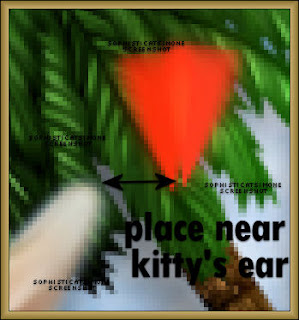
Position the bug wings near the kitty.
See screenshot.
Open SimoneAni-TropicalFeverBUG2-NOshadow.
Go to Edit, select all.
Go to Edit, copy.
Activate your tag.
Go to Edit, select all.
Go to Edit, Paste, Paste into selected frames.
Position the bug wings near the first animation.
See screenshot.
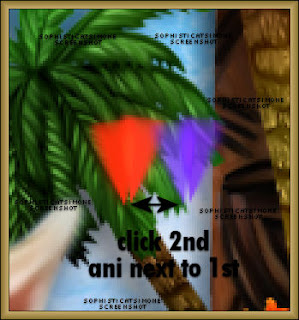
Delete frames 2, 12, and 13.
Or none at all, it's up to you.
You can hold your ctrl key bottom as you click on those frames only.
Once they are highlighted, hit your delete key on keyboard.
Play your animation.
If you are happy, save as gif.
In Layers palette, right click and promote background to layer.
Open your mask in PSP. I'm using Mask0100Sophisticatsimone.
Make sure you activate your tag.
Go to Layers, New Mask Layer, From Image.
Find the mask in Source window, check : Source luminance and UN-check : Invert mask data.
Click OK.
In layers palette, right click on mask layer and merge group.
Duplicate layer and merge down.
Close Mask.
Open element 116 and C/P as a new layer on your tag. Close original.
Re-size by 60% and move the kitty down low on the tag.
Add this drop shadow: V=-4, H=8, Opacity=83, Blur=15.94, Color=Black. Check : Shadow on new layer.
Select your PICK tool. Your shadow layer will have nodes on it.
Holding your shift key down, click on the lower left hand node and drag out about 1cm.
Holding your shift key down, click on the upper left hand node and drag up and out to the left a little bit.
Lower the opacity on this layer to 69 (If you find it too dark that is).
Open element 41 and C/P as a new layer on your tag. Close original.
Re-size by 75% and move this palm tree to the right side of tag and below the cat in layers palette.
Add this drop shadow: V=0, H=-12, Opacity=54, Blur=17.39, Color=Black. Uncheck : Shadow on new layer.
Open element 117 and C/P as a new layer on your tag. Close original.
Re-size by 60% and move the parrot in the upper left hand corner of your tag.
Add this drop shadow: V=7, H=11, Opacity=51, Blur=14.49, Color=Black.
Open element 45 and C/P as a new layer on your tag. Close original.
Re-size by 30% and move the hut to the left of tag about midway on your tag.
Add this drop shadow: V=1, H=4, Opacity=66, Blur=12, Color=Black.
Open element 06 and C/P as a new layer on your tag. Close original.
Re-size by 30% and move the leaf behind your kitty on the left side on your tag.
Add this drop shadow: V=0, H=-3, Opacity=66, Blur=8, Color=Black.
Open element 39 and C/P as a new layer on your tag. Close original.
Re-size by 30% and move the drum to the right side of tag and kitty.
In layers palette it should be the layer above the palm tree.
Add this drop shadow: V=0, H=-3, Opacity=66, Blur=8, Color=Black.
Open element 38 and C/P as a new layer on your tag. Close original.
Re-size by 35% and move the drink to the left side of tag.
Add this drop shadow: V=0, H=6, Opacity=66, Blur=8, Color=Black.
Open element 33 and C/P as a new layer on your tag. Close original.
Re-size by 35% and move the flower behind the drum in layers palette and in front of palm tree.
Wedge it between those two elements on the tag.
Add this drop shadow: V=-4, H=-6, Opacity=47, Blur=12, Color=Black.
Open element 36 and C/P as a new layer on your tag. Close original.
Re-size by 30% and move the flower behind the yellow flower in layers palette and in front of palm tree.
Duplicate layer and mirror. Move it near the kitty on the left hand side.
On 1st big flower add this drop shadow: V=-4, H=-6, Opacity=47, Blur=12, Color=Black.
On 2nd small flower add this drop shadow: V=3, H=-4, Opacity=57, Blur=8, Color=Black.
Open element 32 and C/P as a new layer on your tag. Close original.
Re-size by 38% and move the pineapple behind the drink and beside the flower.
Add this drop shadow: V=3, H=-4, Opacity=57, Blur=8, Color=Black.
Open element 48 and C/P as a new layer on your tag. Close original.
Position behind the palm trees and to the right side of tag.
Add this drop shadow: V=-4, H=-6, Opacity=47, Blur=12, Color=Black.
Open element 61 and C/P as a new layer on your tag. Close original.
Re-size by 23% and position this charm on your drum, dangling.
Add this drop shadow: V=7, H=11, Opacity=50, Blur=14.49, Color=Black.
Open element 76 and C/P as a new layer on your tag. Close original.
Re-size by 19%. Duplicate. On top layer, change Blend Mode to Multiple. Merge down.
Flip image and move down in front of kitty.
Add this drop shadow: V=0, H=-3, Opacity=66, Blur=8, Color=Black.
Open element 114 and C/P as a new layer on your tag. Close original.
Re-size by 46% and move behind the kitty. Duplicate and free rotate to the left by 25 degrees.
Re-size by 50%, sharpen.
On origianl add this drop shadow: V=0, H=-2, Opacity=66, Blur=8, Color=Black.
On re-sized add this drop shadow: V=0, H=-3, Opacity=66, Blur=8, Color=Black.
Open element 41 and C/P as a new layer on your tag. Close original.
Re-size by 50% and mirror. Move this palm tree behind the kitty and all the little elements at the front.
Add this drop shadow: V=-4, H=8, Opacity=63, Blur=15.94, Color=Black.
Once you've positioned all elements the way you want on your tag, add artist copyright and scrap kit maker credit.
You may also add your name at this time or wait until after the animation is added if you are making numerous tags for others.
You can also at this time save as png and be finished.
To animate:
Go to Selections, select all.
Go to edit and copy.
In animation shop, right click and paste as a new animation.
Hold Ctrl key down and tap letter L repeatedly for a total of 13 frames.
Open SimoneAni-TropicalFeverBUG-Noshadow.
Go to Edit, select all.
Go to Edit, click Propagate Paste.
Go to Edit, copy.
Activate your tag.
Go to Edit, select all.
Go to Edit, Paste, Paste into selected frames.
Position the bug wings near the kitty.
See screenshot.

Open SimoneAni-TropicalFeverBUG2-NOshadow.
Go to Edit, select all.
Go to Edit, copy.
Activate your tag.
Go to Edit, select all.
Go to Edit, Paste, Paste into selected frames.
Position the bug wings near the first animation.
See screenshot.

Delete frames 2, 12, and 13.
Or none at all, it's up to you.
You can hold your ctrl key bottom as you click on those frames only.
Once they are highlighted, hit your delete key on keyboard.
Play your animation.
If you are happy, save as gif.
Saturday, April 13, 2013

♥♥♥
Please click on TAG to see in full size.
••• Supplies needed to complete this tutorial. •••
____________________________________________________________________________
••• Supplies needed to complete this tutorial. •••
____________________________________________________________________________
Programs: Paint Shop Pro, I'm using version 10. Animation Shop 3.
Plugin : Eye Candy 4000 : gradient glow, dbs flux : bright noise, VM Natural : Sparkle
Font used: A&S Motherload
Tube of choice: I'm using the beautiful tube Nina by Lady Mishka which can only be found at SATC
To use the same tube I did you need to add the tube to your cart and spend just $10.00 to get it as a free gift.
Scrap Kit : "Amanda" by Bibi's Collection
Mask: by me (Mask98) download HERE
______________________________________________________________________________
Plugin : Eye Candy 4000 : gradient glow, dbs flux : bright noise, VM Natural : Sparkle
Font used: A&S Motherload
Tube of choice: I'm using the beautiful tube Nina by Lady Mishka which can only be found at SATC
To use the same tube I did you need to add the tube to your cart and spend just $10.00 to get it as a free gift.
Scrap Kit : "Amanda" by Bibi's Collection
Mask: by me (Mask98) download HERE
______________________________________________________________________________
♥♥♥
Save your tag often. Nothing like working long and hard on a tag and PSP crashes.
♥♥♥
I used Mask98SophisticatSimone on paper 3. I had to duplicate 4 time to get it to the opacity I liked. I also added noise to 30 on it.
Go to File, New Image, 700 x 700. Add the paper you just used your mask on.
C/P element 106 (window frame) as a new layer onto your canvas. Close original.
C/P element 091 (horse) as a new layer onto your canvas. Close original. Re-size by 60%, 72 dpi.
C/P element 032 (buckets with tap water) as a new layer onto your canvas. Close original. Re-size by 80%, 72 dpi.
C/P element 076 (large rock) as a new layer onto your canvas. Close original. Re-size by 80%, 72 dpi.
C/P element 090 (pink cap mushrooms) as a new layer onto your canvas. Close original. Re-size by 46%, 72 dpi.
C/P element 092 (pink foliage) as a new layer onto your canvas. Close original. Re-size by 25%, 72 dpi.
Cluster your mushrooms and foliage on the right hand side of the pond.
C/P element 002 (green foliage) as a new layer onto your canvas. Close original. Re-size by 25%, 72 dpi.
C/P element 109 (bouquet of flowers) as a new layer onto your canvas. Close original. Re-size by 25%, 72 dpi. Add to your mushroom and foliage cluster on the right side of pond.
C/P element 093 (purple hill) as a new layer onto your canvas. Close original. Position behind the fountain and the water pond.
Duplicate and re-size by 40% and position in front of pond.
C/P a few the rocks and re-size them differently and just scatter them around the pond.
Ok now we are going to promote a portion of the rock that's a part of the pond.
Grab your selection tool, set to Freehand selection, point to point, add (shift), feather 0, smoothing 0, anti-alias checked.
Zoom in a lot on the area and reduce opacity on any layer that is above that rock, so you can see it well.
Click around the rock, very close to edge. Once you get back to the start point, right click to join the ends.
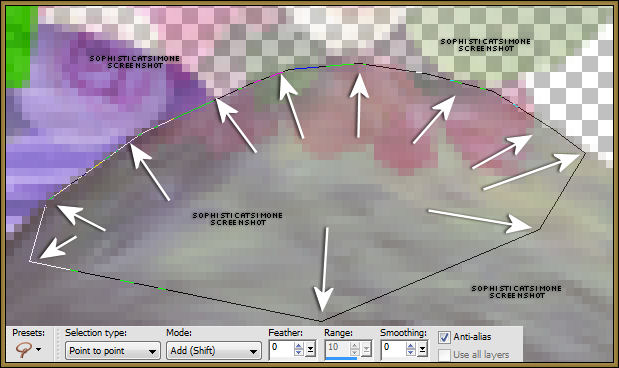
On your pond layer in layers palette, right click and promote selection to layer. Move this layer above any foliage or flower you have on the edge of the pond. De-select.
C/P element 095 (pink tree) as a new layer onto your canvas. Close original. Re-size by 80%, 72 dpi. Re-size again by 80%.
Move to the back behind the fountain and in front of purple hill.
C/P element 045 (branch with dragonflies) as a new layer onto your canvas. Close original. Move over window frame at the bottom edge.
C/P element 046 (flowers) as a new layer onto your canvas. Close original. Re-size by 31%. Move to the bottom edge of the pond.
C/P element 108 (pink flower) as a new layer onto your canvas. Close original. Re-size by 31%. Move to left hand side of tag. If you placed rocks in front of the purple hill, just place the flower on top to them.
C/P element 098 (berries on foliage) as a new layer onto your canvas. Close original. Re-size by 36%. Move this layer between your
fountain layer and your pond layer. Position near the right side edge of pond.
OK now what you need to do is just add a bunch of little flowers, branches, leaves, etc. Rotate them, mirror them, flip them, etc.
Remember to add drop shadows to all your layers.
Be creative and make this your own.
The rabbit is a tube that comes with the special commission by Lady Mishka. You can get this tube at SATC when you make a purchase of $10 or more. You just add it to your basket and you can download right away.
Select the inside of your window frame and add paper of choice. Delete extra.
Now paste your tube of choice and position where you would like. Delete extra.
Add drop shadow.
Add copyright info and scrap kit credit.
You can save this as a png or you can move on to the animation part.You will need your lasso tool, set to point to point, Mode:
Add(shift), feather of 0 and smoothing of 0. Anti-alias checked.
You will need to x-out all layers in front of your pond and fountain just to be able to see. What I did is, starting with your top layer,
right click on it in the layers palette and merge down. Keep merging down till you get to the pond. Then you can x-out that layer.
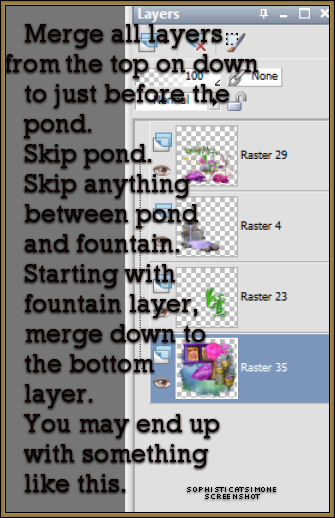
On your pond layer, select all the water. You will need to zoom in and click nice and close to the edges. Try your best not to include any of the grey rock. Do quick and short clicks. Once your finished with the pond, select your fountain in the layers palette and do the same.

OK so now you will need to add the effect/plugin filter to each of these layers.
You will be doing a lot of back and forth because you're applying two different filters to two different layers.
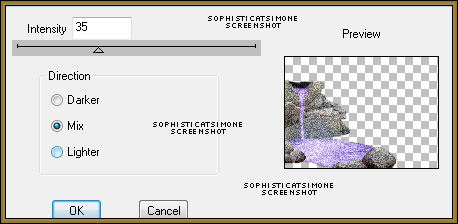
So go to Effects, plugins, dsb flux, bright noise, Intensity 35, Mix checked.
In layers palette activate the next layer. It should be your pond, but not a big deal if it's the opposite.
Apply the same settings.
Now go to Effects, plugins, VM Nature, Sparkle.
Enter Max Size 5-10 (always)
All other settings leave at 255 except the Random Seed is 52.
Click OK, repeat again on the same layer and change random seed to 62.
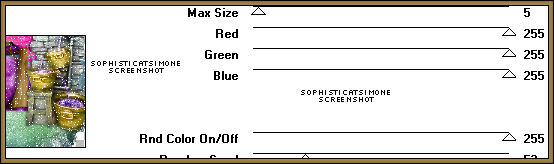
In layers Palette activate the next layer and do the same thing.
Un-hide all layers.
Go to Selections, Select All.
Go to Edit, Copy Merged.
Paste as a new animation in Animation Shop.
Back in PSP, go to Edit, and Undo until you get through the Sparkle effect and the noise effect.
Repeat the steps.
When applying the dsb flux noise, just click twice on the checked MAX, it will scramble the noise.
When applying the sparkle effect, change the random seed to 55 and 65 (because you're doing it twice remember).
Go to Selections, select all, unhide all and copy merged.
In AS, right click on the current frame and paste, paste behind current frame.
Back in PSP, undo all effects (sparkle and noise).
Now repeat again.
Make sure you always do the noise effect before you do the sparkle effect otherwise you won't see the sparkle.
Go back in AS and on the last frame, (you may need to move the slider bar at bottom of animation), right click and paste after
current frame. Now you have 3 frames. Play. If you are happy with the effect, save your tag.
Add name. I used Paper 19 as background fill for the name.
Font : A&S Motherlode
Size : 120
Add gradient glow and drop shadow.
Add to your tag in AS.
Save your tag.
Hope you enjoyed this tutorial,
Hugs Simone
Please, always direct people to my blog to download my animations.
Do not load to any other download site and don't claim as your own.
Tutorial written by SophisticatSimone aka Lorraine Halle on Saturday, April 13, 2013.
Hugs Simone
Please, always direct people to my blog to download my animations.
Do not load to any other download site and don't claim as your own.
Tutorial written by SophisticatSimone aka Lorraine Halle on Saturday, April 13, 2013.

SWEET AMANDA
Please click on TAG to see in full size.
Supplies needed to complete this tutorial.
Programs: Paint Shop Pro, I'm using version 10.
Plugin : None
Font used: Recorda Script
Tube of choice, I'm using tube "Amanda" by Diana Gali from SATC
Scrap Kit : "Amanda in Gold" by Disturbed Scraps
Mask: Mask99SophisticatSimone HERE
Plugin : None
Font used: Recorda Script
Tube of choice, I'm using tube "Amanda" by Diana Gali from SATC
Scrap Kit : "Amanda in Gold" by Disturbed Scraps
Mask: Mask99SophisticatSimone HERE
Open Paper014, duplicate and close original.
Re-size by 90% and at 72 dpi (resolution).
Sharpen.
Open Mask99SophisticatSimone.
Make sure your paper is active and go to Layers,
New Mask Layer, from image.
In source window select the mask.
Create mask from : source luminance and leave UN-checked Invert mask data.
Click OK.
Right click on your paper in the layers palette and select merge group.
C/P element 013 as a new layer.
Duplicate twice.
On one layer, free rotate to the left by 30 degrees.
On the next layer, free rotate to the right by 40 degrees.
Arrange all to the left of the tag.
Add drop shadow to each. I used, V=0, H=-5, Opacity=74, Blur=9, color=black.
C/P element 090 as a new layer.
Rotate to the left by 90 degrees.
Re-size by 75%. Move to the right of the tag.
Select your magic wand, feather set to zero, tolerance set to 10.
Click in the middle of the frame.
Go to selections, modify, expand by 6.
C/P a close up of your tube.
With your mover tool, position the area of the tube you want to see in the frame.
Go to Selections, Invert and delete.
Move the close up under the frame layer.
Using your crop tool, snap crop rectangle to: merged opaque.
Duplicate your close up tube.
On bottom layer of tube, blur by 4.
On the duplicated layer, set blend mode to Screen.
X-out all layers except the frame and the two close up layers.
Add drop shadow to frame.
Merge visible.
UN-x your other layers now.
C/P your tube as a new layer and re-size if you need too.
Position to the left of the frame.
C/P element 039 as a new layer. Re-size by 50%. Position to the left of the tag.
C/P element 009 as a new layer. Re-size by 50%. Position to the right of the shoes.
C/P element 057 as a new layer. Re-size by 75%. Position this layer under the shoes. See
tag for reference.
C/P element 012 as a new layer. Position this layer under your tube and frame layers.
Move to the left and over the leaves.
C/P element 006 as a new layer. Position this layer under your tube and frame layers.
Move to the top of the tag. Should appear behind frame at top.
C/P element 054 as a new layer. Re-size by 50%. Position to the right hand side of tag.
C/P element 094 as a new layer. Position over the frame with the star being at the top
edge of frame. Add drop shadow.
Add any other elements that you feel would look good or add to the look you are achieving.
Add artist copyright and scrap kit maker information.
Add name.
Font used: Recorda Script, size 200, sharp, no stroke width, color: #e18e00
Add noise: 77%, random checked, monochrome checked.
Add small drop shadow: V=0, H=-1, Opacity=88, Blur=1, Color=black.
Merge visible and save as PNG.
Re-size by 90% and at 72 dpi (resolution).
Sharpen.
Open Mask99SophisticatSimone.
Make sure your paper is active and go to Layers,
New Mask Layer, from image.
In source window select the mask.
Create mask from : source luminance and leave UN-checked Invert mask data.
Click OK.
Right click on your paper in the layers palette and select merge group.
C/P element 013 as a new layer.
Duplicate twice.
On one layer, free rotate to the left by 30 degrees.
On the next layer, free rotate to the right by 40 degrees.
Arrange all to the left of the tag.
Add drop shadow to each. I used, V=0, H=-5, Opacity=74, Blur=9, color=black.
C/P element 090 as a new layer.
Rotate to the left by 90 degrees.
Re-size by 75%. Move to the right of the tag.
Select your magic wand, feather set to zero, tolerance set to 10.
Click in the middle of the frame.
Go to selections, modify, expand by 6.
C/P a close up of your tube.
With your mover tool, position the area of the tube you want to see in the frame.
Go to Selections, Invert and delete.
Move the close up under the frame layer.
Using your crop tool, snap crop rectangle to: merged opaque.
Duplicate your close up tube.
On bottom layer of tube, blur by 4.
On the duplicated layer, set blend mode to Screen.
X-out all layers except the frame and the two close up layers.
Add drop shadow to frame.
Merge visible.
UN-x your other layers now.
C/P your tube as a new layer and re-size if you need too.
Position to the left of the frame.
C/P element 039 as a new layer. Re-size by 50%. Position to the left of the tag.
C/P element 009 as a new layer. Re-size by 50%. Position to the right of the shoes.
C/P element 057 as a new layer. Re-size by 75%. Position this layer under the shoes. See
tag for reference.
C/P element 012 as a new layer. Position this layer under your tube and frame layers.
Move to the left and over the leaves.
C/P element 006 as a new layer. Position this layer under your tube and frame layers.
Move to the top of the tag. Should appear behind frame at top.
C/P element 054 as a new layer. Re-size by 50%. Position to the right hand side of tag.
C/P element 094 as a new layer. Position over the frame with the star being at the top
edge of frame. Add drop shadow.
Add any other elements that you feel would look good or add to the look you are achieving.
Add artist copyright and scrap kit maker information.
Add name.
Font used: Recorda Script, size 200, sharp, no stroke width, color: #e18e00
Add noise: 77%, random checked, monochrome checked.
Add small drop shadow: V=0, H=-1, Opacity=88, Blur=1, Color=black.
Merge visible and save as PNG.

BLACK CAT
♥♥♥
Please click on TAG to see in full size.
••• Supplies needed to complete this tutorial. •••
________________________________________________________________________
Programs: Paint Shop Pro, I'm using version 10. Animation Shop 3.••• Supplies needed to complete this tutorial. •••
________________________________________________________________________
Plugin : none
Font used: Carpenter
Tube of choice, I'm using 3 different tubes by Angelica S. from SATC.
The black cat is in the scrap kit. The two female tubes are
Rose : HERE and Waiting : HERE
Scrap Kit : "Black Cat" by Angelica S
Mask: by Angelica S and found in the scrap kit.
Animations: by me, download HERE ________________________________________________________________________
Scrap Kit : "Black Cat" by Angelica S
Mask: by Angelica S and found in the scrap kit.
Animations: by me, download HERE ________________________________________________________________________
♥♥♥
Save your tag often. Nothing like working long and hard on a tag and PSP crashes.
♥♥♥
Open element 29, shift + d to duplicate. Close original.
Go to Image, canvas size and change to 650 x 650.
C/P element 53 as a new layer on your tag. Move to the left slightly.
C/P element 13 as a new layer and move this layer to the bottom, behind the green circle frame.
C/P element 16 as a new layer and re-size by 40%. Move to the lower right hand side.
This layer should be at the top.
Open paper 15. Shift + d to duplicate, close original. Re-size the paper by 65% and C/P as a new layer on your tag.
Move this layer down below your circle frame.
Select your magic wand tool with your feather set to zero and your tolerance set to 10.
Make sure your circle frame layer in active and then click in the center.
Go to selections, modify, expand by 10.
Go to selections, invert and activate your paper layer and hit delete on your keyboard.
Go to selections, select none.
C/P
element 39 as a new layer and re-size by 58%. Move over the paper and
below the circle frame, position it slightly to the right.
C/P
element 10 as a new layer and position over frame layer and behind the
top hat layer. Place it to the right side of your tag.
C/P element 47 as a new layer and re-size by 18%. Move to the left hand side.
Duplicate and free rotate by 90 degrees to the left. Move just slightly below the other flower.
C/P element 45 as a new layer and re-size by 18%. Move behind your flower.
Duplicate and free rotate by 90 degrees to the left. Move just slightly below the other flower.
C/P this element again, this time mirror and re-size by 20% and move to below the other flower.
C/P element 21 as a new layer and re-size by 24%. Move to the upper right hand side of your tag.
Add a few more elements to your tag.
I added the martini glass, two different colored ribbons and another flower.
Open
element 07. Using your selection tool, set to rectangle and feather set
to 0, select the last two square frames from quad frame.
Copy and paste as a new layer on your tag and re-size by 80%.
Choose two tubes of choice. Re-size them to your liking.
Using
your selection tool, set to rectangle, make a selection around the
inner frame but make it bigger than the inner frame and smaller than the
outer edges of frame.

Paste your tube as a new layer and move below the frame.
Using your mover tool, place the portion of the tube you want to show thru the frame.
Go to Selections, Invert and hit delete on keyboard.
De-select.
Repeat for the other side of the frame.
Add drop shadow to frame.
You can merge these together.
Make your canvas larger. First click on your crop tool and select "snap crop rectangle to" and double click on your tag.
Now go to Image, canvas size and enter: 780x780
Don't worry we will re-size later.
Open paper of choice. I used paper 04. Duplicate and close original.
Go to the photomasks folder which is included in your kit.
Select mask "mask01PSP" Open in PSP.
Activate your paper. Go to Layers, New Mask Layer, from Image.
Select in the drop down list mask01PSP, click on Source luminance and check Invert mask data.
Apply.
Merge group and copy.
Paste as a new layer on your tag. Move to bottom.
Position to the upper left hand side and duplicate. Mirror.
Merge these two layers.
Duplicate and flip.
Position these two layers to your liking and merge.
Add drop shadow to all your elements and frames.
I used:
V : -3
H : -5
OPACITY : 77
BLUR : 8.70
COLOR : BLACK
I did lower the opacity on a couple of the elements, you can play around with your settings a pick something you like.
You can re-crop your tag now and re-size if you find it too large.
Add your copyright information.
Now to animate.
Go to Selections, select all.
Go to Edit and copy merged. Paste as a new animation in Animation Shop.
Hold your Ctrl key down and repeatedly hit letter L on your keyboard for a total of 12 frames.
You can watch the count on the lower right hand side of your screen in AS.

Open SimoneAni-Black Cat.
Go to Edit, select all.
Go to Edit, copy.
Activate your tag.
Go to Edit, select all.
Go to Edit, make sure Propagate Paste is selected.
Go to Edit, Paste, paste into selected frames.
Position over on the right side over the saxophone.
Click into place.
Go back to SimoneAni- Black. Go to Animation, mirror.
Go to Edit, copy.
Back on your tag, click to activate it.
Go to Edit, paste, paste into selected frames.
Position to the left side of your tag. Try to make sure it's on the same horizontal plane as the first animation.

-OR-
You can make things easier for yourself and use the other full animation with drop shadow.
Your choice. I know some people like the drop shadow and others don't so the option is there.
Play and save.
Don't forget to add your name.
You can see my name tutorial HERE.
Go to File, Save as, enter the name of your file and select the folder to save to.
Now click on Customize:
Under COLORS TAB:
Number of colors: 255 Colors
Create palette by: OPTIMIZED OCTREE
Reduce colors by: Error Diffusion
Under OPTIMIZATIONS TAB:
set a check mark beside the second, third and forth choices. UN-check the 1st and last.
Under PARTIAL TRANSPARENCY:
check Convert pixels less than 92
Yes, blend with this color: change to white #FFFFFF
Click OK. Click Next, next, next, next.
Play your animation.
At times your animation may or will come out terrible. Optimization in Animation Shop is not the greatest.
You can play around will your settings, especially under the Tab: Optimization. I change this setting at times from anywhere between 70 and 100.
Some people add a white background. To add background, go to Animation: Animation Properties, select Opaque and change color to white.
Hope you enjoyed this tutorial,
Hugs Simone
Please, always direct people to my blog to download my animations.
Do not load to any other download site and don't claim as your own.
Tutorial written by SophisticatSimone aka Lorraine Halle on Saturday, April 13, 2013.
Now click on Customize:
Under COLORS TAB:
Number of colors: 255 Colors
Create palette by: OPTIMIZED OCTREE
Reduce colors by: Error Diffusion
Under OPTIMIZATIONS TAB:
set a check mark beside the second, third and forth choices. UN-check the 1st and last.
Under PARTIAL TRANSPARENCY:
check Convert pixels less than 92
Yes, blend with this color: change to white #FFFFFF
Click OK. Click Next, next, next, next.
Play your animation.
At times your animation may or will come out terrible. Optimization in Animation Shop is not the greatest.
You can play around will your settings, especially under the Tab: Optimization. I change this setting at times from anywhere between 70 and 100.
Some people add a white background. To add background, go to Animation: Animation Properties, select Opaque and change color to white.
Hope you enjoyed this tutorial,
Hugs Simone
Please, always direct people to my blog to download my animations.
Do not load to any other download site and don't claim as your own.
Tutorial written by SophisticatSimone aka Lorraine Halle on Saturday, April 13, 2013.

Subscribe to:
Posts
(Atom)
CT TEAM